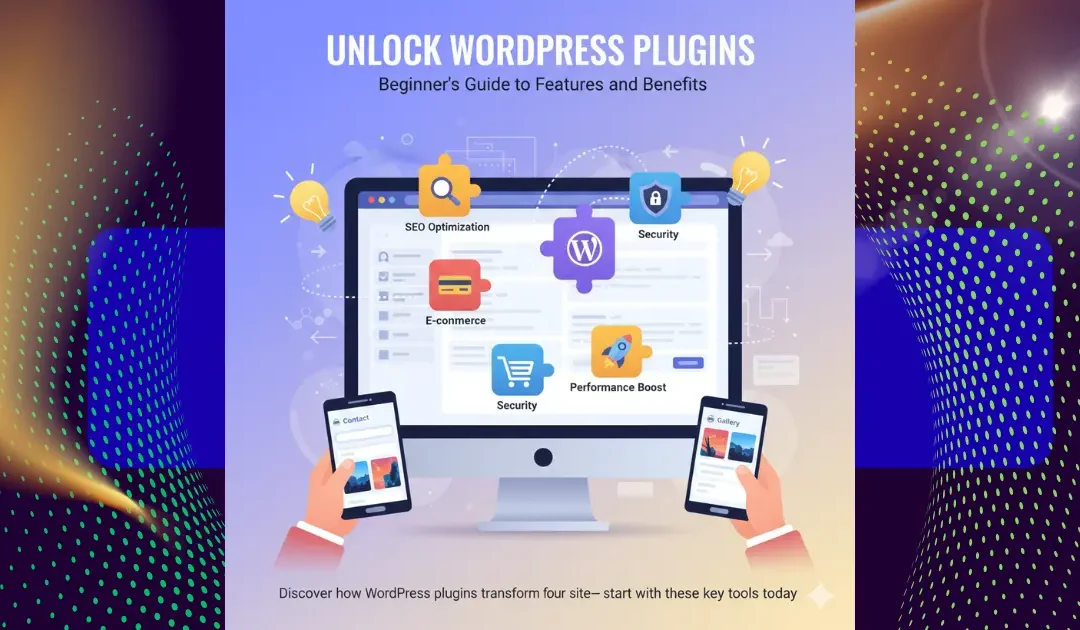
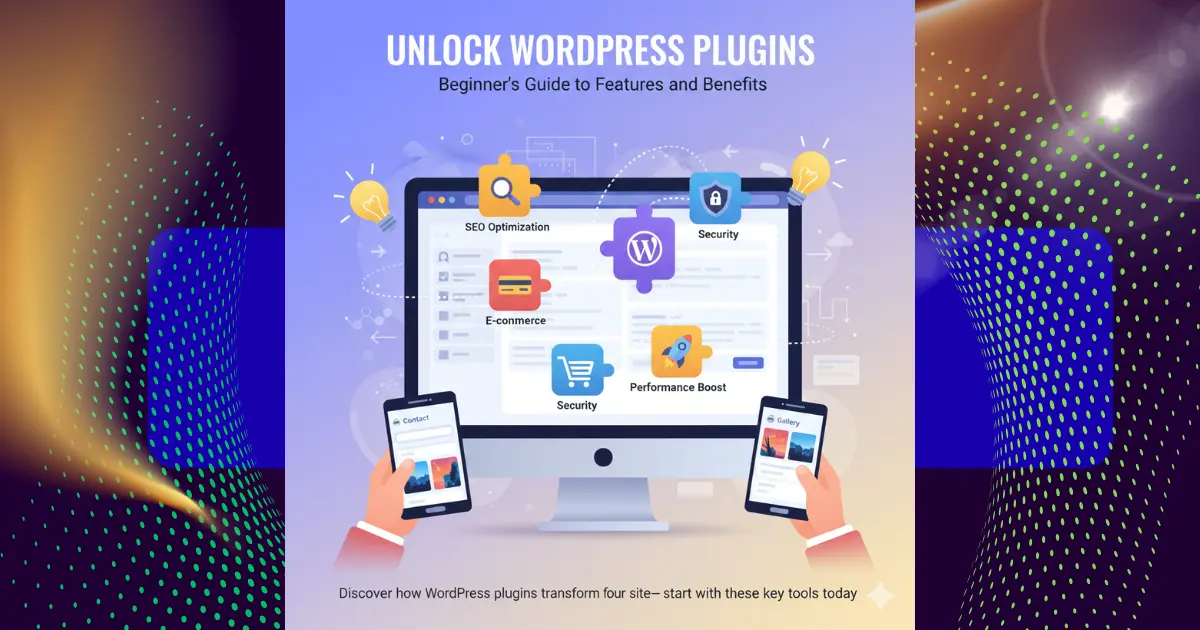
Imagine building a dream home with just the basics four walls and a roof. That’s your bare WordPress site. Now, picture adding smart lights, a security system, and a gourmet kitchen without calling a contractor. That’s the magic of WordPress plugins: simple tools that supercharge your website’s functionality, from SEO tweaks to e-commerce setups, all without touching a line of code. In this ultimate beginner’s guide, we’ll dive deeper than the usual quick overviews you find on sites like WPBeginner or Hostinger. Unlike those surface-level lists, we’ll explore real-world examples, hidden pitfalls, and 2025 updates on performance impacts and security best practices. Whether you’re launching a blog, online store, or portfolio, stick around to discover how these powerhouse add-ons can transform your site into a high-performing machine saving you time, boosting traffic, and keeping things secure. Ready to level up? Let’s get started.
What Exactly Are WordPress Plugins?
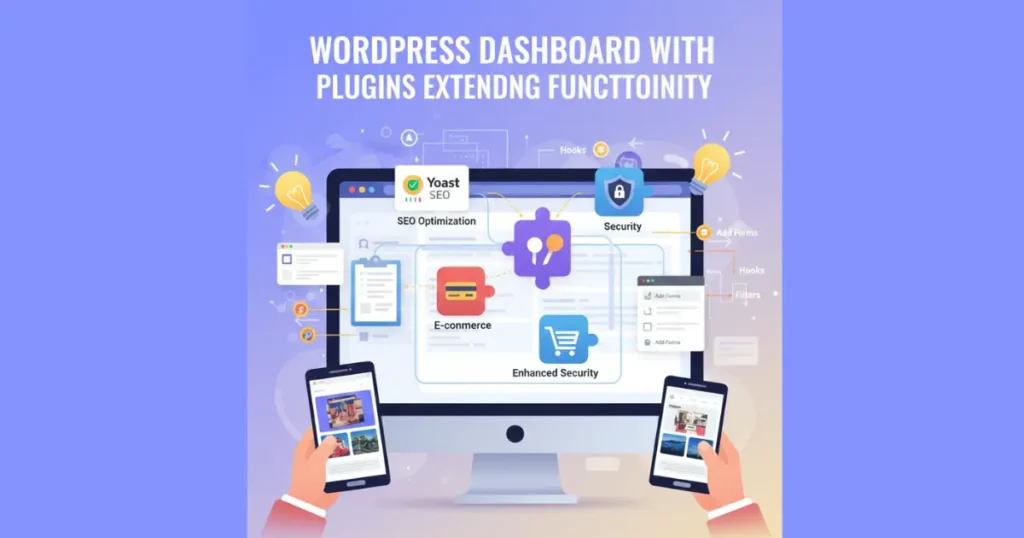
WordPress plugins are like handy apps for your website—they’re bits of software that plug right into your WordPress core to add fresh features and boost what your site can do. Think of them as extensions that handle everything from simple contact forms to complex e-commerce setups. Without plugins, WordPress is great for basic blogging, but these tools turn it into a versatile powerhouse for online stores, portfolios, or membership sites. Popular ones like Yoast SEO or WooCommerce integrate seamlessly, using hooks and filters to tweak your content without messing up the main system.
At their heart, plugins are packages of PHP code stored in your site’s wp-content/plugins folder. They can be free from the official WordPress Plugin Directory or premium versions with extra bells and whistles, like advanced analytics or automated backups. For beginners, starting with essentials like Akismet for spam protection means you get pro-level functionality fast. Unlike themes, which focus on looks, plugins dive into performance optimization and user experience, making your site more interactive and efficient.
What sets them apart is their modularity you activate what you need and deactivate the rest, keeping things lightweight. In 2025, with over 60,000 options available, choosing the right ones ensures your site stays current with trends like AI-driven content tools or multilingual translation plugins.
Why Should You Use WordPress Plugins on Your Website?
Using WordPress plugins opens up a world of customization without the headache of custom coding, letting you tailor your site to fit any niche. They enhance functionality by adding SEO tools that help your pages rank higher on Google, or social media integrations that make sharing a breeze. For small business owners, plugins like Jetpack provide built-in security scans and downtime monitoring, saving you from costly hacks. Plus, they’re cost-effective many free versions handle 80% of needs, while premium upgrades unlock dedicated support and advanced features like content dripping for membership sites.
The real game-changer is how they improve user experience. Imagine ditching clunky forms for drag-and-drop builders like Elementor, or speeding up load times with caching plugins such as WP Rocket. These tools not only keep visitors engaged longer but also cut bounce rates, which directly lifts your search rankings. Compared to building everything from scratch, plugins slash development time by weeks, letting you focus on content instead of tech woes.
In short, skipping plugins means settling for a basic site, but embracing them turns WordPress into a scalable empire. Whether you’re after email marketing automation or image optimization, these add-ons make your website smarter, safer, and more profitable.
How Do WordPress Plugins Work Behind the Scenes?
WordPress plugins work their magic through the platform’s clever plugin API, which uses action hooks and filter hooks to inject code at key moments—like when a page loads or a post saves. This means a security plugin can scan for malware in real-time without altering your core files, while an SEO tool tweaks meta tags on the fly. It’s all powered by PHP scripts in a main plugin file, often with extras like JavaScript for interactive elements or CSS for styling tweaks. Data gets stored in your WordPress database, sometimes in custom tables, ensuring everything runs smoothly alongside themes and other plugins.
Diving deeper, activation triggers the plugin’s initialization code, which sets up menus in your dashboard or adds custom post types for things like portfolios. Filters let plugins modify outputs, say compressing images via optimization tools, while actions handle events like sending backup notifications. This modular setup is why WordPress powers 43% of the web—plugins extend functionality without bloating the core.
For non-techies, it’s reassuring: most plugins include setup wizards that guide you, hiding the complexity. But understanding basics like compatibility checks prevents conflicts, keeping your site zippy even with a dozen active tools.
Where Can You Find Reliable WordPress Plugins?
The go-to spot for reliable WordPress plugins is the official WordPress Plugin Directory, home to over 60,000 free options vetted for quality and security. Here, you can filter by popularity, ratings, or categories like performance optimization or contact forms, spotting gems like Rank Math for SEO or UpdraftPlus for backups. Each listing shows update history, user reviews, and compatibility with the latest WordPress version, making it beginner-friendly.
Beyond that, premium marketplaces like CodeCanyon or Envato offer advanced plugins with pro support, ideal for e-commerce needs via WooCommerce extensions. Developer sites, such as Automattic for Jetpack, provide direct downloads with detailed docs. Always stick to trusted sources to dodge malicious code—third-party sites might tempt with “free premium” deals, but they often hide risks.
In 2025, community forums like Reddit’s r/WordPress or WPBeginner recommendations add social proof. Start with Directory searches, read recent reviews, and test on a staging site to ensure seamless integration with your theme.
How to Install and Activate WordPress Plugins Step-by-Step?
Installing WordPress plugins is a breeze via your dashboard: head to Plugins > Add New, type in the search bar (say, “Yoast SEO”), hit Install Now, then Activate. This automatic method pulls from the Directory, handling uploads and dependencies in seconds. For manual installs, like premium ZIP files, use the Upload Plugin button—extract if needed, then activate to see new menu items pop up.
Once active, configure settings through dedicated pages, like setting up contact forms in WPForms or linking Google Analytics. Pro tip: install one at a time to spot conflicts early, and always backup first with tools like Duplicator. On shared hosting, limits might apply, but managed plans from Hostinger unlock unlimited installs.
Activation isn’t forever—deactivate via the Plugins list to pause without deleting, perfect for testing. This process empowers even newbies to layer on features like caching or multilingual support effortlessly.
What Are the Must-Have WordPress Plugins for Beginners?
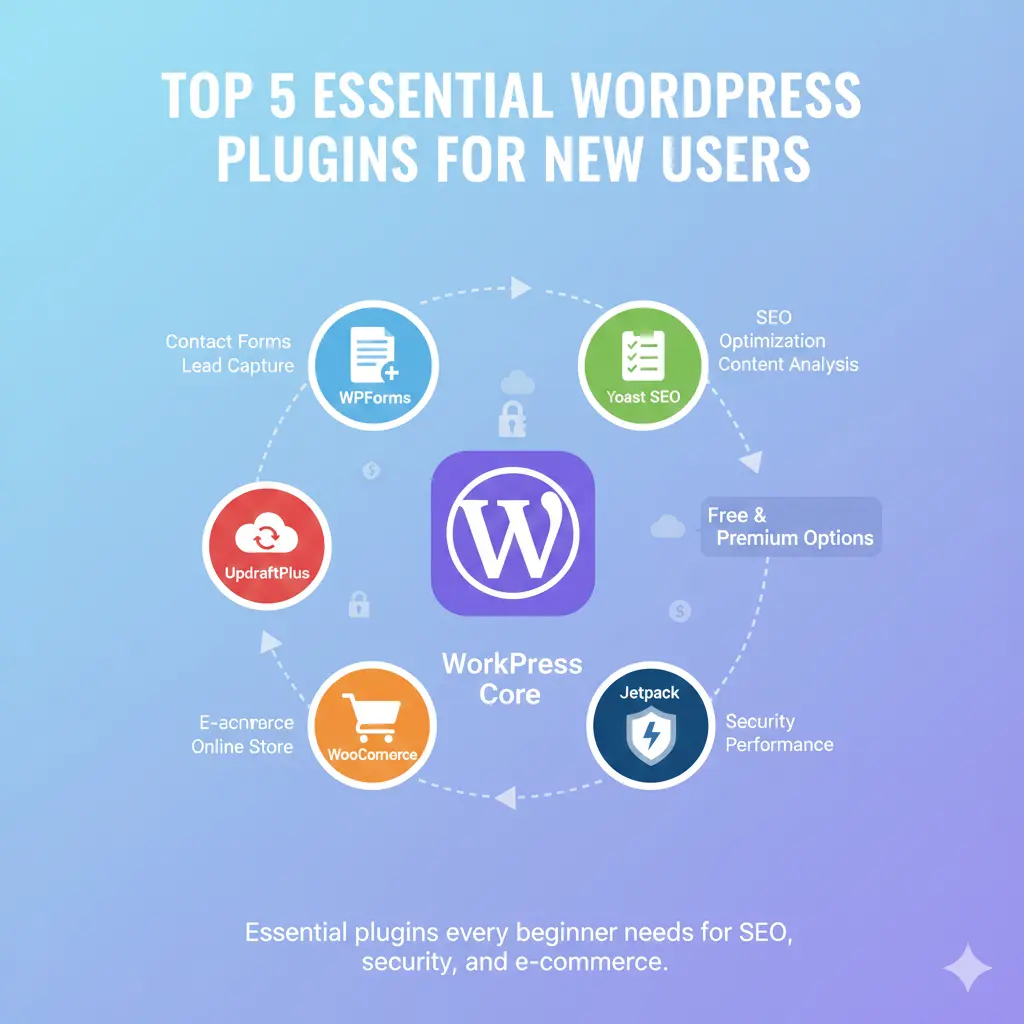
For beginners, top WordPress plugins cover essentials: start with Yoast SEO for on-page tweaks that boost search visibility, then add Wordfence for firewall protection against hacks. Contact Form 7 handles inquiries simply, while MonsterInsights connects Google Analytics for traffic insights. These free staples build a solid foundation without overwhelming your dashboard.
Next level? WooCommerce turns your site into an online store with inventory tracking and payment gateways. For speed, LiteSpeed Cache minimizes load times via static file serving. Jetpack bundles backups, social sharing, and downtime alerts in one package, saving plugin clutter.
Don’t overlook page builders like Beaver Builder for drag-and-drop layouts, or Polylang for global audiences. Prioritize based on needs—bloggers love Akismet for spam, while e-shops swear by MemberPress for subscriptions. With these, your site feels pro-grade overnight.
How to Update and Maintain Your WordPress Plugins Safely?
Updating WordPress plugins keeps your site secure and feature-rich—check the Plugins > Installed Plugins page weekly for notices, then hit Update Now or use bulk actions for multiples. Enable auto-updates for critical security patches via WordPress settings, but review changelogs first to avoid breaking changes. Tools like MainWP let you manage updates across sites centrally.
Maintenance goes beyond updates: scan for conflicts with theme checkers, clear caches post-update, and monitor via activity logs in plugins like Jetpack. Schedule monthly cleanups to deactivate unused ones, freeing resources. On managed hosting, auto-tools handle this, but self-hosters benefit from staging environments to test updates risk-free.
Regular upkeep prevents vulnerabilities outdated plugins are hacker magnets. Pair with backup plugins for quick rollbacks, ensuring your e-commerce or blog stays live and optimized.
Learn More: How to Take Control and Disable Automatic Theme Updates in WordPress
Are WordPress Plugins Safe? Essential Security Tips
WordPress plugins can be safe when sourced right, but low-quality ones invite risks like malware injection. Stick to the Plugin Directory for vetted options with regular audits, and always check ratings above 4 stars plus recent updates. Premium plugins from reputable devs like Automattic add layers like encrypted code and priority fixes.
Boost safety with dedicated security plugins: Wordfence blocks malicious IPs via firewalls, while Sucuri scans for vulnerabilities. Limit admin access, use strong passwords, and enable two-factor authentication. Avoid nulled or pirated versions they’re laced with backdoors.
In 2025, AI-driven threat detection in tools like Jetpack Protect spots anomalies early. Remember, fewer plugins mean less exposure—audit quarterly and deactivate extras. Safe practices turn potential pitfalls into fortified strengths.
How Do WordPress Plugins Impact Site Performance?
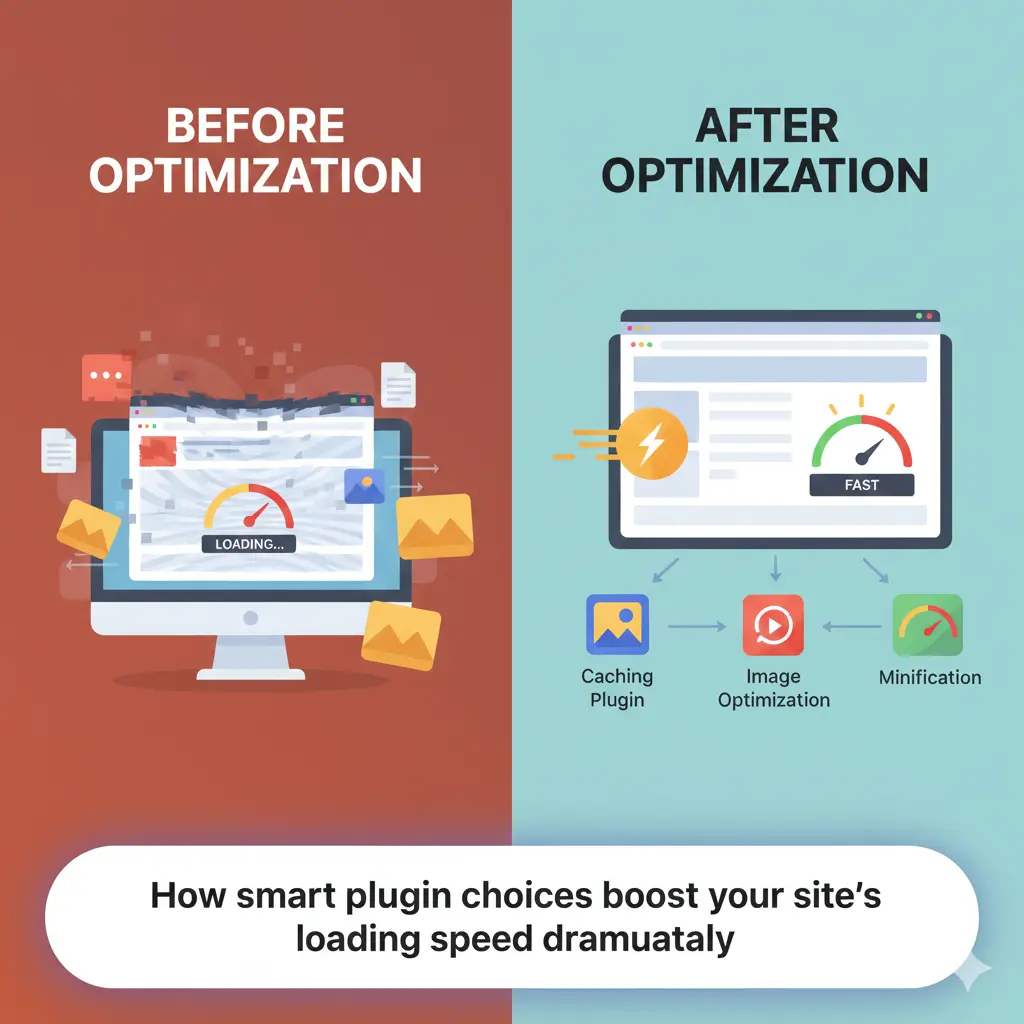
WordPress plugins can supercharge speed or slow things down, depending on quality. High performers like Smush optimize images by compressing files without quality loss, while caching plugins such as WP Super Cache serve static versions to cut server load. But bloated ones add database queries, hiking load times test with PageSpeed Insights to spot culprits.
Balance is key: limit to 10-15 active plugins, choosing lightweight alternatives over feature-heavy. Pair with hosting optimized for WordPress, like those with built-in CDNs, to offset impacts. E-commerce plugins like WooCommerce shine with extensions for lazy loading, keeping carts snappy.
Monitor via tools like Query Monitor for bottlenecks, and purge unused data regularly. Well-managed plugins enhance performance, driving better SEO and user retention your site’s speed score could jump 20-30% with smart picks.
Learn More: Find Affordable WordPress Developers: Your Ultimate Fiverr Guide for Small Business Websites
Frequently Asked Questions About WordPress Plugins
Curious if plugins work on WordPress.com? Free plans limit you, but Business and higher unlock full access via the repository. Another biggie: free vs. premium? Freebies like Elementor handle basics, but paid versions add pro templates and support for complex sites.
Worried about too many plugins? Aim for under 20; more risks conflicts and slowdowns—use compatibility checkers. Can plugins break my theme? Yes, if outdated—always test on staging. For e-commerce newbies, WooCommerce FAQs cover setup, from payments to shipping.
These answers demystify plugins, empowering you to experiment confidently.
- WordPress plugins extend core functionality with features like SEO, security, and e-commerce without coding.
- Install via dashboard for ease, but source from trusted directories to avoid risks.
- Must-haves include Yoast for SEO, Jetpack for all-in-one tools, and caching plugins for speed.
- Regular updates and maintenance keep your site secure and performant limit to essentials.
- Test impacts on staging to balance power with efficiency.
In wrapping up our deep dive into WordPress plugins, it’s clear these tools are the secret sauce for turning a simple site into a thriving digital hub. From adding contact forms that capture leads to deploying backups that safeguard your hard work, plugins democratize web building for everyone. As we’ve seen, starting with beginner-friendly options like Akismet or Contact Form 7 builds confidence, while scaling to WooCommerce or MemberPress unlocks revenue streams. The key takeaway? Embrace them thoughtfully prioritize quality over quantity to avoid performance dips, and always stay updated in this fast-evolving ecosystem.
Looking ahead to 2025, with AI integrations and mobile-first designs on the rise, plugins will only get smarter, offering predictive analytics or voice search tweaks. But remember, the best setups blend human intuition with tech: audit your stack quarterly, listen to user feedback, and iterate. Whether you’re a blogger chasing views or an entrepreneur eyeing sales, mastering plugins means owning your online presence. Dive in today your upgraded site awaits.
Finally, plugins aren’t just add-ons; they’re your site’s growth engine. They bridge gaps between what WordPress offers out-of-the-box and your wildest visions, fostering creativity without barriers. So, next time you tweak a setting or launch a feature, tip your hat to these unsung heroes. Happy plugging!
Learn More: How to Customize Your WordPress Author Bio Without Touching Theme Files