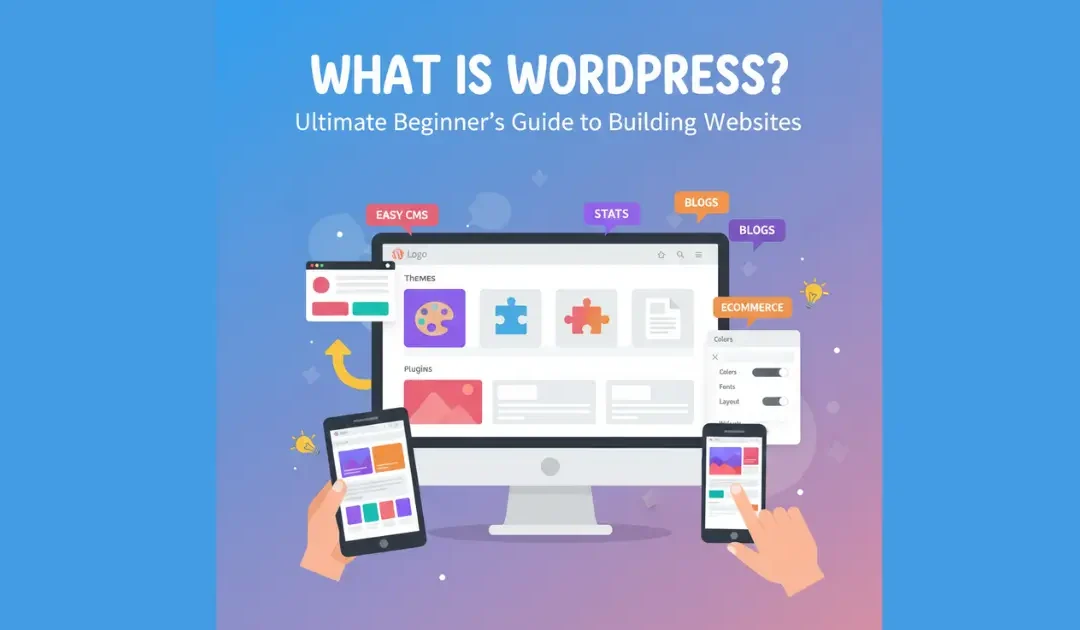
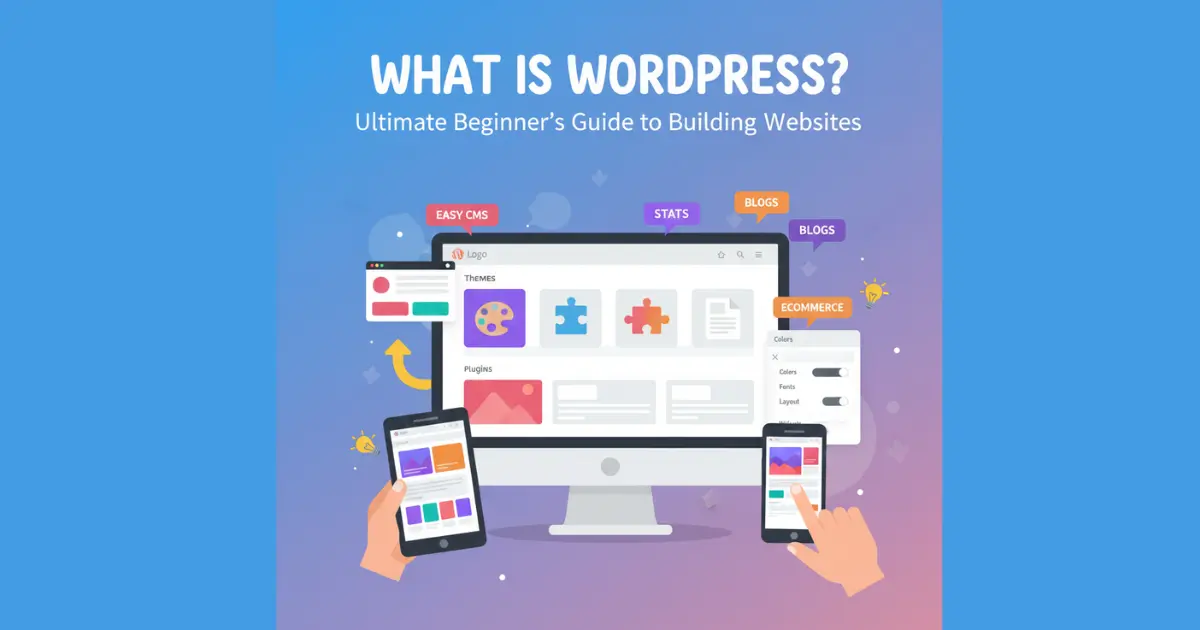
Imagine building a stunning website or blog without needing to code from scratch. That’s the magic of WordPress, the world’s favorite content management system that powers over 40% of all sites online. Unlike clunky competitors like Wix or Squarespace that lock you into rigid templates, WordPress offers total freedom with its open-source flexibility, making it ideal for beginners and pros alike. In this ultimate guide, we’ll break down what WordPress is, how it works behind the scenes, and why it’s the smartest choice for your online presence. Whether you’re dreaming of a personal blog, eCommerce store, or business portfolio, stick around to discover step-by-step insights that outshine those dry tutorials elsewhere. You’ll walk away ready to launch your site in hours, not weeks.
What Exactly Is WordPress as a CMS?
WordPress started as a simple blogging tool back in 2003 but has evolved into a powerhouse content management system, or CMS for short. At its heart, it’s open-source software that lets anyone create, manage, and publish content without deep technical know-how. Unlike traditional websites built with raw HTML and CSS, WordPress handles the heavy lifting through its user-friendly dashboard, where you can add posts, pages, and media with just a few clicks. This makes it perfect for bloggers, small businesses, and even big brands like NASA and Disney who rely on its scalability.
What sets WordPress apart is its community-driven development under the GPLv2 license, meaning it’s free to use, modify, and distribute. You install it on your own hosting server, giving you full control over your site’s database, which stores everything from user comments to product listings in eCommerce setups. For beginners, this means no vendor lock-in; you own your content forever. As you dive deeper, you’ll see how its PHP-based core files interact with MySQL databases to fetch and display dynamic content seamlessly.
In simple terms, think of WordPress as your site’s operating system. It powers everything from personal portfolios to multilingual news sites, with built-in tools like the Gutenberg block editor for drag-and-drop design. Compared to closed systems, its extensibility through thousands of free resources ensures your site grows with you, whether you’re optimizing for SEO with Yoast or adding contact forms for lead generation.
How Does WordPress Work Behind the Scenes?
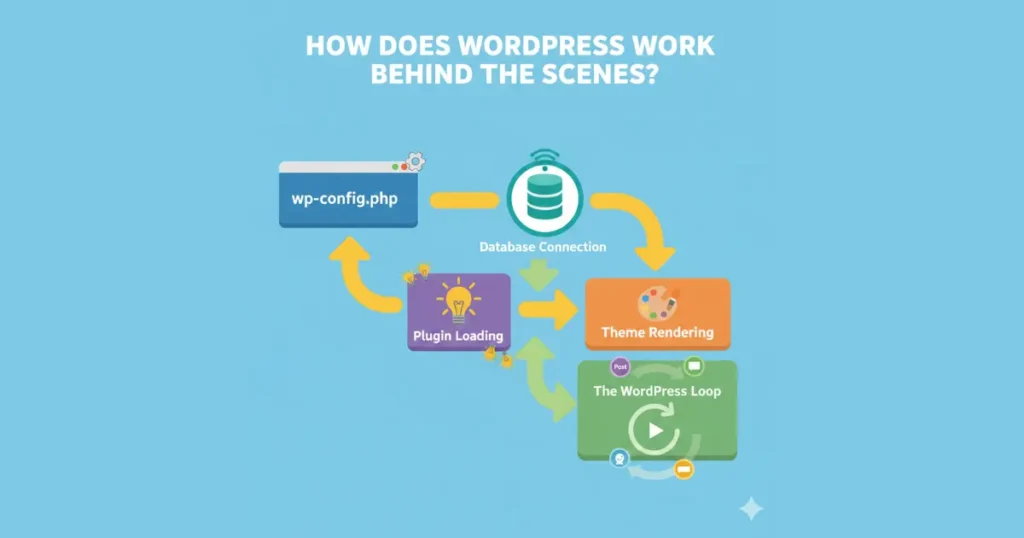
Ever wondered what happens when someone visits your WordPress site? It all kicks off with the wp-config.php file, which loads your database credentials and sets up constants like site URLs. From there, advanced caching kicks in via files like advanced-cache.php to speed up page loads, pulling data from object-cache.php or the built-in cache.php. This process connects to your MySQL database, selects the right tables, and queries for content like posts or pages using WP_Query.
Next, WordPress loads plugins and themes in a specific order: first multisite plugins if you’re running a network, then active plugins, followed by pluggable functions. It parses rewrite rules for SEO-friendly URLs, instantiates key objects like $wp_rewrite, and runs actions like ‘init’ and ‘widgets_init’. The template loader then picks the right file from your theme hierarchy say, single.php for a blog post— and executes the famous WordPress Loop to display your content.
Behind this, the database abstraction layer ensures compatibility across servers, while localization libraries handle multilingual support. If you’re using child themes, functions.php from both parent and child load to override styles safely. It’s this orchestrated flow that makes WordPress performant, even for high-traffic sites, with tools like WP-CLI for command-line tweaks.
This infographic-style breakdown shows the 29-step process visually, helping you grasp why WordPress feels so snappy.
WordPress.org vs WordPress.com: What’s the Key Difference?
WordPress.org is the self-hosted version where you download the core software for free and pair it with your own hosting and domain. This gives you unlimited access to themes, plugins, and custom code, ideal for those wanting full customization like integrating WooCommerce for eCommerce or BuddyPress for community forums. However, it means handling updates, security, and backups yourself, which can be a learning curve for newbies.
On the flip side, WordPress.com offers a hosted service with built-in everything from themes to basic plugins—starting free but scaling to paid plans for more features. It’s easier for absolute beginners since Automattic (WordPress’s parent company) manages the server-side stuff, but you’re limited in extensions and ownership. For example, you can’t install third-party plugins on free tiers, making it less flexible for advanced SEO or custom themes.
Choosing between them boils down to control versus convenience. If scalability and monetization are goals, go .org; for quick setups like a simple blog, .com shines. Many start on .com and migrate to .org as needs grow, thanks to export tools preserving your content.
Learn More: Find Affordable WordPress Developers: Your Ultimate Fiverr Guide for Small Business Websites
What Kinds of Websites Can You Build with WordPress?
From cozy blogs sharing daily thoughts to sleek portfolios showcasing freelance work, WordPress handles it all with ease. Its versatility shines in eCommerce sites via WooCommerce, where you manage products, orders, and shipments without coding. Business websites get a boost with membership plugins for gated content, turning visitors into paying subscribers.
Non-profits and news outlets love its multilingual capabilities and RSS feed integration for syndication. Even scientists use it for data-driven sites with custom post types. The block editor lets you mix text, images, and embeds effortlessly, while SEO tools ensure your content ranks high.
Ultimately, if it involves content, WordPress adapts—think podcast hubs with audio players or event calendars. Its open-source nature means endless possibilities, far beyond static pages.
Why Should You Choose WordPress Over Other Platforms?
WordPress tops the charts for its cost-effectiveness; core software is free, and premium add-ons are optional. Unlike proprietary builders, its massive community offers free support forums, tutorials, and over 60,000 plugins for everything from security to performance optimization.
Scalability is key—no site outgrows it, as evidenced by tech giants using it. Built-in accessibility features and mobile responsiveness make it user-friendly, while the ease of use in the dashboard rivals drag-and-drop tools but with deeper control.
In a crowded market, WordPress wins on SEO-friendliness and speed, with caching plugins slashing load times. It’s the go-to for long-term success, empowering you to evolve without starting over.
What Are WordPress Themes and How Do They Customize Your Site?
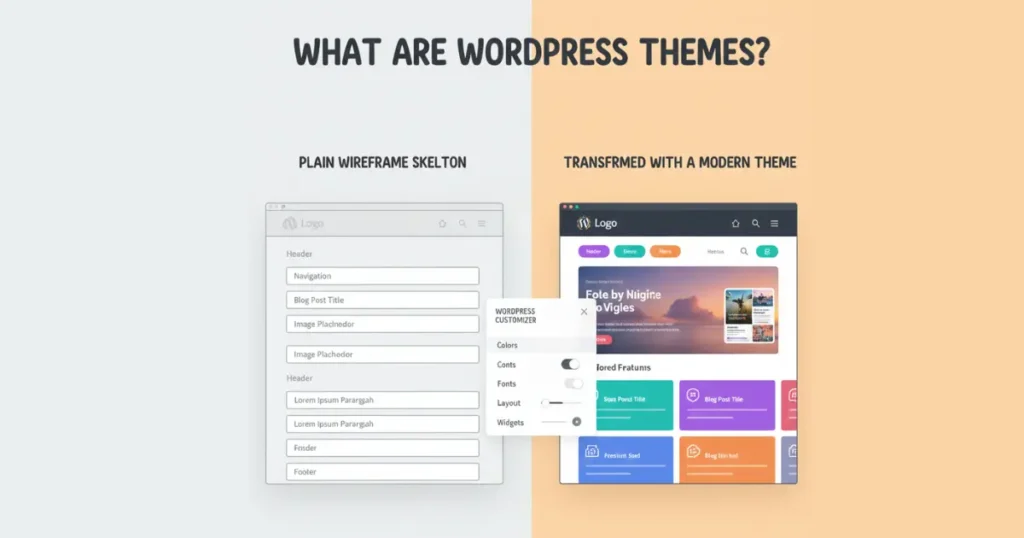
Themes are like digital outfits for your site, dictating layout, colors, and fonts via PHP, CSS, and HTML files. Free ones from the repository suit basics, while premium options add bells like custom headers. Installing is simple: upload via dashboard, activate, and tweak in the customizer.
Child themes let you modify without touching the parent, preserving updates. For instance, enqueue styles in functions.php to override defaults safely. This setup ensures your blog or portfolio looks pro without design skills.
Themes integrate seamlessly with the block editor, letting blocks adapt to your chosen style. Whether minimalist or bold, they transform plain content into engaging visuals.
Read More: How to Take Control and Disable Automatic Theme Updates in WordPress
What Are WordPress Plugins and How Do They Extend Functionality?
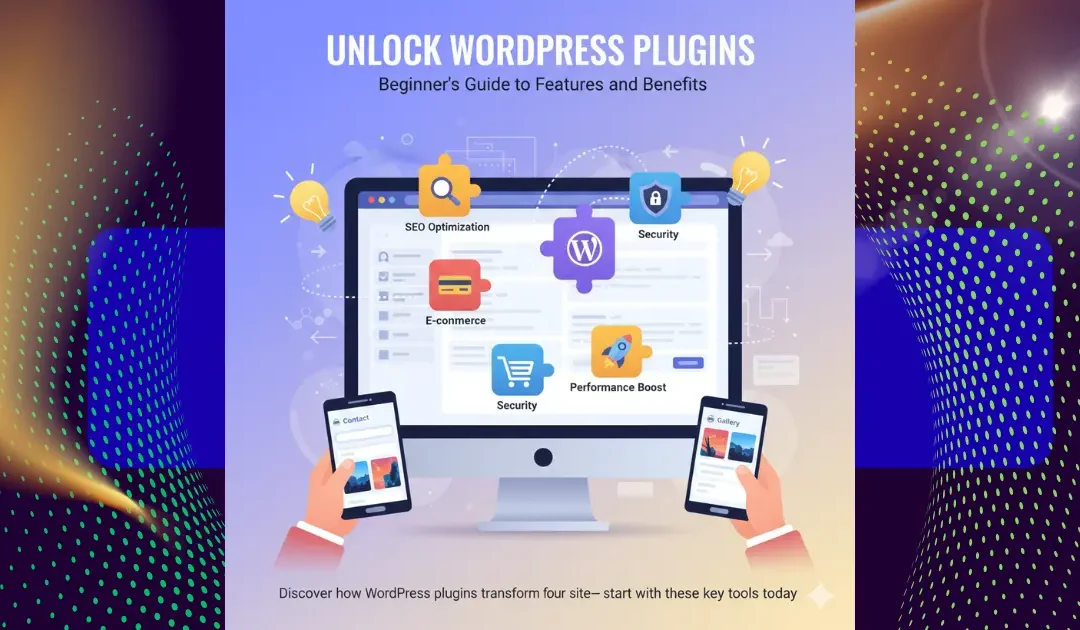
Plugins are bite-sized extensions that supercharge your site, like Yoast for SEO optimization or Jetpack for security and stats. With over 59,000 free options, they hook into WordPress’s API to add features without altering core files—think contact forms via Contact Form 7 or social sharing buttons.
Installation is a breeze: search, install, activate, and configure. For eCommerce, WooCommerce turns your site into a shop handling payments and inventory. But watch for conflicts; test in staging to keep performance humming.
Advanced users leverage developer plugins for custom code, like adding user roles or actions. They’re the secret sauce making WordPress infinitely adaptable.
Is WordPress Really Free? Unpacking the Hidden Costs
Yes, the core is free under open-source licensing, but building a full site involves extras. Hosting starts at $3-10/month for shared plans, domains around $10/year, and premium themes/plugins $50-200 one-time.
Security plugins like Wordfence or backups via UpdraftPlus often have pro versions for $50/year. For eCommerce, transaction fees apply via gateways. Total startup? Under $100, way cheaper than custom dev.
Weigh it against value: scalability saves thousands long-term. Free tiers suffice for hobbyists, but pros invest for robustness.
How Do You Get Started with WordPress Step by Step?
Pick a host like Bluehost (one-click install), grab a domain, and download from WordPress.org. Upload via FTP or installer, run the setup wizard for database config, then log into your dashboard.
Choose a theme, install essentials like Akismet for spam, and create your first post with Gutenberg. Optimize with permalinks for SEO, add plugins, and launch.
Local dev with tools like Local by Flywheel speeds testing. Within hours, you’re live—far simpler than competitors’ setups.
Getting Started with WordPress
What Are the Pros and Cons of Using WordPress?
Pros abound: unmatched customization via themes and plugins, strong community support, and top-tier SEO with clean code. It’s secure when updated, scalable for traffic spikes, and mobile-ready out of the box.
Cons include a learning curve for maintenance—regular updates prevent vulnerabilities—and potential bloat from too many plugins slowing sites. Hosting quality varies, so choose wisely.
Overall, pros eclipse cons for most, especially with managed hosting easing upkeep.
Frequently Asked Questions About WordPress Basics
Newbies often ask: Can WordPress handle eCommerce? Absolutely, with WooCommerce leading sales. Is it secure? Yes, with plugins and best practices like strong passwords.
How about speed? Caching and CDNs fix that. These FAQs demystify, proving WordPress’s beginner-friendliness.
- Key Takeaway 1: WordPress is an open-source CMS powering blogs, sites, and stores with ease.
- Key Takeaway 2: It works via database queries, themes, and plugins for dynamic content.
- Key Takeaway 3: Choose .org for control, .com for simplicity; both scale beautifully.
- Key Takeaway 4: Free core means low costs, but invest in hosting and add-ons for pros.
- Key Takeaway 5: Start small, customize endlessly—your online empire awaits.
In wrapping up, WordPress isn’t just software; it’s a gateway to digital independence. From its humble blogging roots to dominating the web, it empowers creators worldwide with tools like the Gutenberg editor and vast plugin ecosystem. Whether you’re a solopreneur sketching a portfolio or a team building an eCommerce giant, its flexibility ensures you stay ahead without tech headaches.
What truly elevates WordPress is the community—millions of developers, designers, and users sharing knowledge freely. This collaborative spirit, rooted in open-source values, fosters innovation, from accessibility enhancements to lightning-fast performance tweaks. As you embark, remember: updates are your friend, backups essential, and experimentation key to mastery.
Finally, in a world of fleeting trends, WordPress endures as the reliable choice for sustainable online growth. Dive in today, and watch your ideas flourish into a thriving digital space that connects, converts, and captivates.
Read More: How to Add Custom Icons to WordPress Post Types in the Dashboard