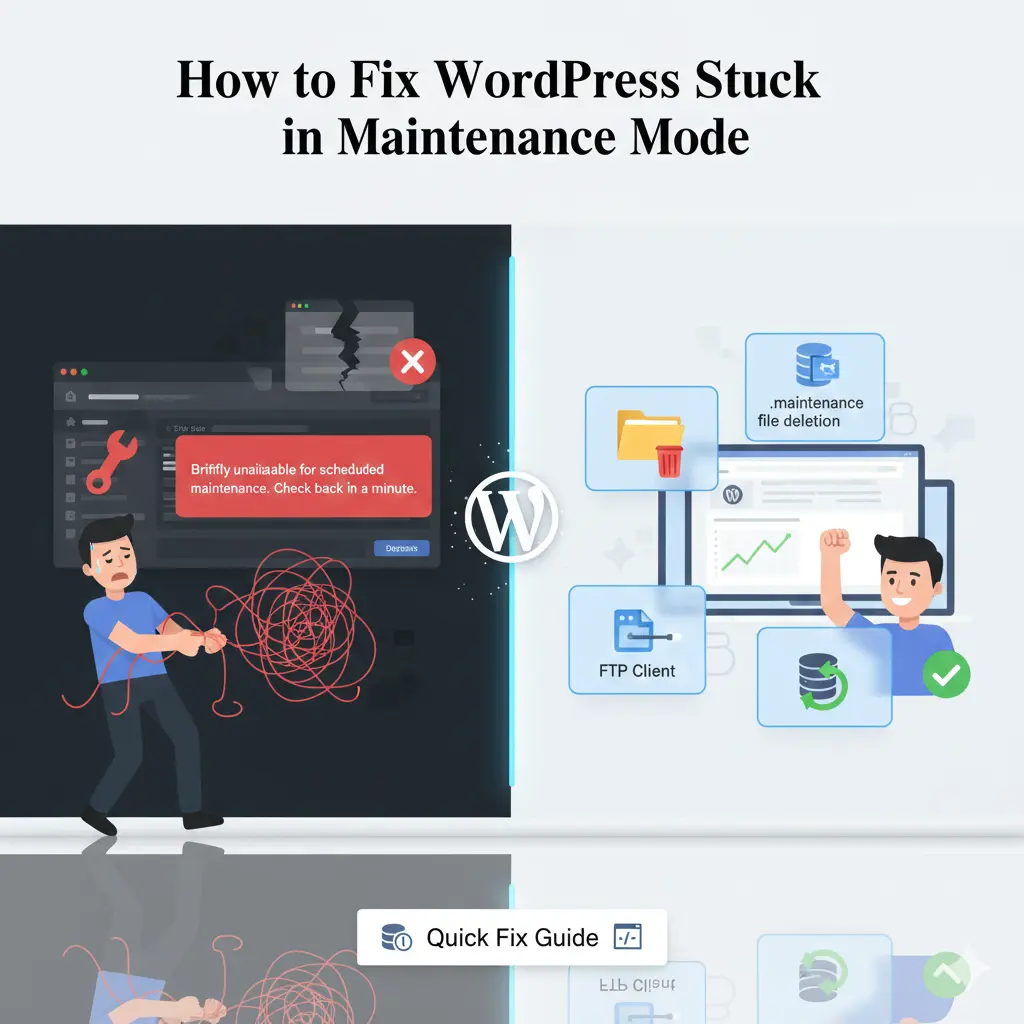
Imagine logging into your WordPress dashboard only to stare at a blank screen screaming “Briefly unavailable for scheduled maintenance. Check back in a minute.” Panic sets in as visitors bounce away, and your business grinds to a halt. If you’re dealing with WordPress stuck in maintenance mode, you’re not alone—this frustrating glitch hits thousands of site owners yearly, often during simple updates. But here’s the good news: this guide delivers straightforward, battle-tested fixes that work in minutes, drawing from expert insights across top resources like Kinsta, WPBeginner, and ThemeIsle. Unlike vague tutorials that leave you guessing, we’ll break it down step by step, covering causes, quick resolutions, and prevention tips. Stick with us to reclaim your site without tech headaches, save hours of downtime, and keep your online presence humming smoothly. Whether you’re a newbie blogger or seasoned developer, these actionable strategies will arm you against future freezes.
What Causes WordPress to Get Stuck in Maintenance Mode?
WordPress enters maintenance mode automatically during updates to plugins, themes, or core files, creating a temporary .maintenance file in your site’s root directory. This shields visitors from seeing half-baked changes. But when an update glitches—like a sudden browser crash mid-install or poor internet connectivity—the cleanup process fails. The .maintenance file lingers, trapping your site in this limbo. Common culprits include bulk updating multiple plugins at once, which overwhelms server resources, or incompatible themes clashing with the latest WordPress version.
Server-side hiccups amplify the risk. For instance, if your hosting plan has low PHP memory limits or execution timeouts, large theme updates might time out, leaving the maintenance flag active. Even multi-user environments, where team members trigger simultaneous changes, can spark conflicts. According to insights from Cloudways and Jetpack, over 70% of cases stem from interrupted plugin updates, turning a routine task into a site-wide headache.
Understanding these triggers is key to quick recovery. By spotting patterns—like frequent issues after theme switches—you can adopt safer habits early, minimizing downtime and preserving your site’s SEO rankings.
How Do You Know If Your WordPress Site Is Truly Stuck in Maintenance Mode?
Spotting a true stuck maintenance mode starts with the telltale sign: a plain white screen displaying “Briefly unavailable for scheduled maintenance. Check back in a minute.” This isn’t your usual loading delay; it’s WordPress’s default alert when the .maintenance file blocks access. If refreshing doesn’t help after 5-10 minutes, and your dashboard remains inaccessible, it’s likely stuck. Tools like incognito mode can rule out browser cache confusion, ensuring it’s not just a local glitch.
Dive deeper by checking server error logs via your hosting panel. Look for entries mentioning “update failed” or “plugin conflict” around the time of the issue. Visual indicators, such as high CPU usage in your host’s dashboard, often point to resource strain from failed updates. Resources from SeedProd emphasize testing frontend and backend access separately— if the homepage loads but admin won’t, it’s a classic maintenance lock.
Don’t overlook subtle clues like partial updates in your wp-admin folder. A quick file system check via FTP can reveal the rogue .maintenance file, confirming the diagnosis before you panic. Early identification saves time, letting you skip unnecessary troubleshooting.
Why Is Deleting the .maintenance File the Quickest Fix for Stuck Maintenance Mode?
The .maintenance file acts as a simple flag in your WordPress root directory, signaling the system to stay in protective mode during tweaks. When updates complete normally, WordPress deletes it automatically within 10 minutes. But in stuck scenarios, this file persists, indefinitely blocking your site. Deleting it manually via FTP or file manager is the 2-minute fix endorsed by experts at RunCloud and WPBeginner, restoring access without code edits.
This approach shines because it’s non-destructive— no risk to your content or database. Just connect with an FTP client like FileZilla, navigate to public_html or www, and zap the hidden file. If it’s not visible, enable “show hidden files” in your client settings. This method resolves 80% of cases, per Kinsta data, bypassing deeper issues like plugin conflicts.
For added safety, back up your site first using tools like Jetpack Backup. Once deleted, clear your browser cache and test in a fresh session. This straightforward step often feels like magic, turning frustration into relief in under five minutes.
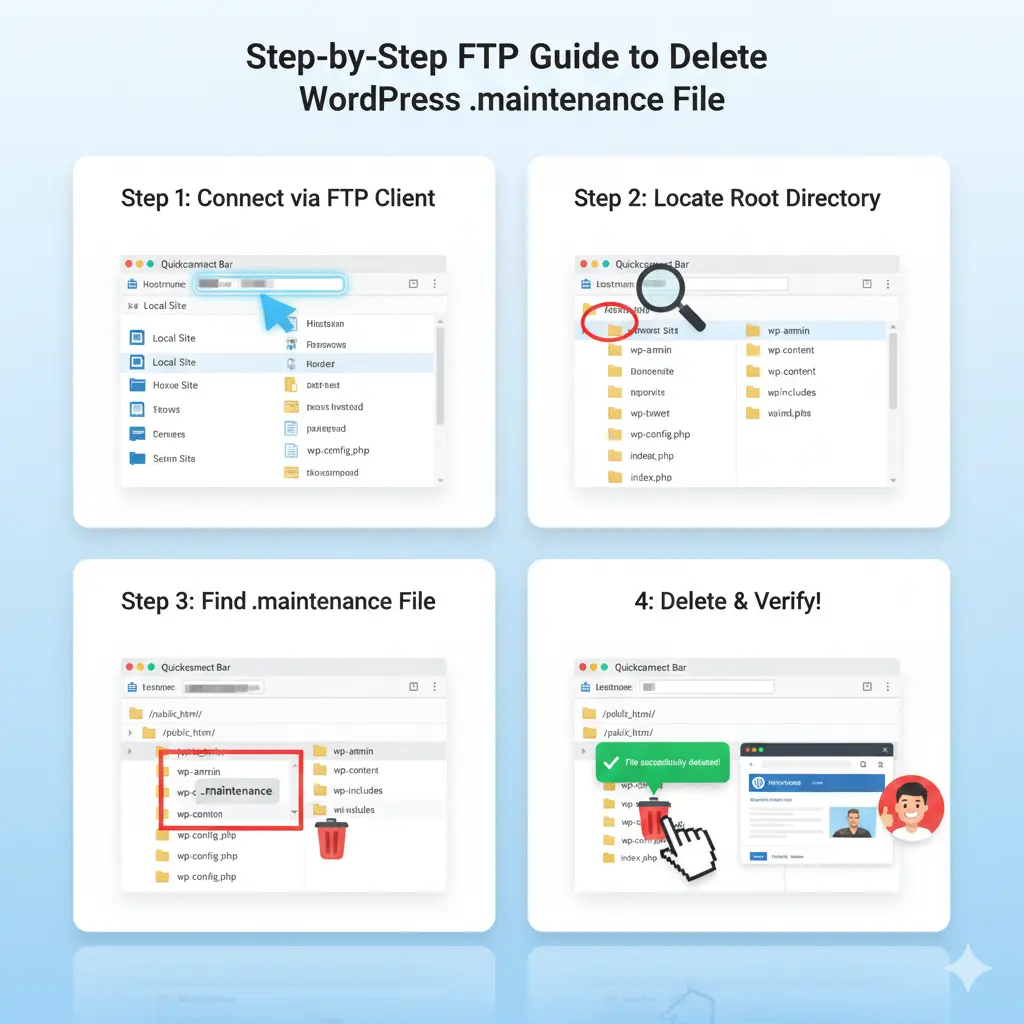
How to Access Your WordPress Root Directory via FTP to Delete the Maintenance File?
Gaining FTP access requires credentials from your hosting provider—typically a hostname, username, password, and port 21. Fire up a reliable FTP client such as FileZilla or WinSCP, enter these details, and connect securely via SFTP for encrypted transfers. Once linked, drill down to your site’s root: often public_html, www, or the domain folder. Here, hunt for the .maintenance file among core directories like wp-content, wp-admin, and wp-includes.
If the file hides (it starts with a dot, making it invisible by default), toggle “show hidden files” in FileZilla’s server menu or view options in CyberDuck. Right-click the .maintenance file, select delete, and confirm. Monitor the transfer log for errors; a smooth removal means your site should refresh out of mode instantly. ThemeIsle tutorials stress double-checking permissions—set to 644 for files—to avoid access denials.
Post-deletion, log into your WordPress dashboard to verify. If issues linger, scan for duplicates in subfolders. This hands-on method empowers non-coders, democratizing fixes that once needed developer intervention.
What If Deleting the .maintenance File Doesn’t Resolve the Stuck Mode Issue?
Sometimes, the .maintenance file vanishes, but your site clings to maintenance mode due to deeper gremlins like a botched wp-activate.php edit. Open this file in wp-admin and scan for WP_INSTALLING set to true; flip it to false and save. Elegant Themes highlights this as a common oversight from manual tweaks gone wrong.
Plugin or theme incompatibilities might also perpetuate the lock. Rename the wp-content/plugins folder to plugins-backup via FTP, forcing deactivation of all add-ons. Reload your site—if it revives, reactivate one by one using WP-CLI commands like “wp plugin activate plugin-name” to isolate the offender. Low memory servers exacerbate this; bump PHP limits in wp-config.php by adding define(‘WP_MEMORY_LIMIT’, ‘256M’).
If server timeouts persist, consult your host’s error logs for clues like “execution time exceeded.” Advanced users can run “wp core verify-checksums” via SSH to ensure files aren’t corrupted. Patience here pays off, turning stubborn bugs into learning moments.
How Can Faulty Plugins or Themes Trigger WordPress Maintenance Mode Problems?
Faulty plugins often derail updates by introducing code conflicts, especially during bulk installs that spike server I/O resources. An incompatible plugin might halt the process, leaving the .maintenance file uncleared and your site frozen. WPDataTables notes that outdated add-ons clashing with WordPress core versions account for half of maintenance snags.
Themes play a villainous role too. A bloated theme with heavy scripts can exceed execution timeouts, mimicking a failed update. If your active theme folder shows partial changes post-update, it’s suspect. Switch to a default like Twenty Twenty-Four temporarily to test— if the site unstucks, the theme needs reinstalling from its source.
Pro tip: Always check compatibility in plugin/theme changelogs before updating. Staging sites let you simulate changes risk-free, catching issues before they lock your live setup. This proactive stance keeps your WordPress ecosystem harmonious.
Can Server Timeouts or Low Memory Cause Your Site to Stay Stuck in Maintenance?
Absolutely—server timeouts occur when PHP scripts run too long, common on shared hosting with tight limits. During theme updates or large plugin activations, if the process exceeds 30-60 seconds, it aborts, stranding the .maintenance file. Cloudways reports this hits sites with high traffic or resource-hungry elements hardest.
Low memory compounds it; default 64MB allocations choke on memory-intensive tasks like image optimization plugins. Symptoms include partial dashboard loads or endless spins. To diagnose, query your host for current limits via cPanel, then edit wp-config.php to raise them: define(‘WP_MAX_MEMORY_LIMIT’, ‘512M’).
Upgrading to managed WordPress hosting with auto-scaling resources, like Kinsta’s, nips this in the bud. Regular site health checks via WordPress tools reveal bottlenecks early, ensuring smooth sailing through updates.
Read More: How to Add Custom Icons to WordPress Post Types in the Dashboard
How to Safely Deactivate and Reactivate Plugins During a Maintenance Mode Lock?
Start by accessing your files via FTP and renaming wp-content/plugins to plugins_old—this deactivates everything without dashboard access. Your site should exit maintenance mode immediately, as conflicts lift. Jetpack advises backing up the folder first for easy rollback.
Once stable, rename back to plugins and log in. Use the dashboard’s Plugins screen to deactivate suspects, or WP-CLI for speed: “wp plugin deactivate –all” then selective reactivation. Test each in isolation, monitoring for errors in the debug log (enable WP_DEBUG in wp-config.php).
For themes, swap to a stock one via FTP by renaming the active folder. Reactivate post-fix with “wp theme activate theme-name.” This methodical purge restores order, often uncovering hidden gems like underused plugins ripe for pruning.
What Are the Best Practices to Prevent WordPress from Getting Stuck in Maintenance Mode Again?
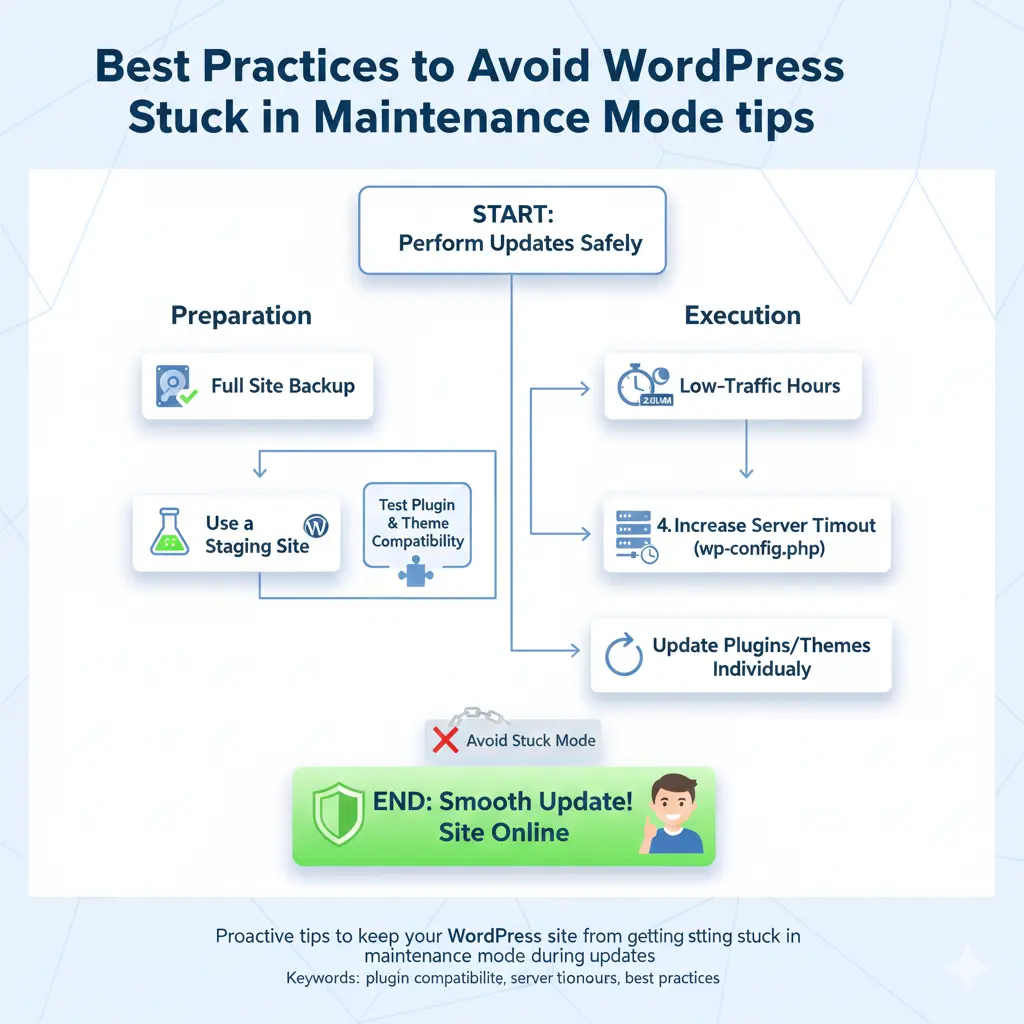
Embrace individual updates over bulk ones—tackle one plugin or theme at a time to avoid overload. SeedProd recommends scheduling via the dashboard’s staggered approach, giving each breathing room. Always verify compatibility with your WordPress version beforehand.
Leverage reliable hosting with ample resources; managed plans include auto-updates that handle cleanups flawlessly. Enable site backups pre-update using UpdraftPlus, and test on staging environments. Clear caches post-change with plugins like WP Super Cache to dodge false locks.
Foster good habits like monitoring error logs weekly and using maintenance mode plugins for controlled downtimes. These layers of defense transform potential pitfalls into non-events, keeping your site resilient.
FAQs: Answering Your Top Questions About Fixing WordPress Stuck in Maintenance Mode
Frequent queries revolve around the “check back in a minute” message persisting hours—yes, delete the .maintenance file first. What if FTP fails? Try cPanel’s File Manager as a browser-based alternative. Is this a security breach? Rarely; it’s usually benign update fallout, but scan with Sucuri afterward.
For multisite setups, the fix applies per subdirectory, but core edits affect all. How long does it take? Under 10 minutes for basics, longer for plugin hunts. ThemeIsle FAQs stress prevention via auto-updates toggles in wp-config.php.
These nuggets demystify the chaos, empowering you to handle recurrences solo.
- Delete the .maintenance file from your root directory via FTP—it’s the fastest unlock for most stuck modes.
- Update plugins and themes one at a time to sidestep conflicts and server strain.
- Boost PHP memory limits in wp-config.php if low resources keep triggering timeouts.
- Use staging sites for testing changes, catching issues before they hit live.
- Back up regularly with tools like Jetpack to rollback effortlessly if glitches arise.
In wrapping up this deep dive into rescuing your WordPress site from maintenance mode purgatory, remember that knowledge is your best defense. What starts as a simple update can snowball into downtime disaster, but armed with these steps—from zapping that pesky .maintenance file to auditing plugins—you’re equipped to bounce back swiftly. Countless site owners have turned frustration into triumph by prioritizing compatibility checks and resource tweaks, ensuring their digital homes stay welcoming.
Beyond fixes, prevention weaves the real magic. Adopting managed hosting and automated backups doesn’t just avert stuck modes; it frees you to focus on content that captivates. As WordPress evolves, so do its quirks—stay curious, update mindfully, and your site will thank you with unwavering uptime.
Ultimately, a stuck maintenance mode isn’t a dead end; it’s a nudge toward smarter management. Embrace these habits, and watch your online venture thrive without the shadows of unexpected locks. Here’s to seamless sites and stress-free updates!
Read More: How to Take Control and Disable Automatic Theme Updates in WordPress