Divi 5 has changed the conversation around Divi performance. Elegant Themes officially ended the beta on February 26, 2026, and says sites using legacy Divi 4 modules stay in backward-compatibility mode, which means they won’t fully benefit from Divi 5’s performance improvements until they are migrated.
That creates a clear opportunity for site owners: if your Divi website feels slow, a Fiverr freelancer who understands Divi 5 migration, cleanup, and speed optimization can save you a lot of time.
Fiverr already has active demand and listings for Divi services, including gigs specifically mentioning Divi 5 migration and speed optimization.
In this guide, I’ll show you what Divi 5 speed optimization means, what to look for in a Fiverr seller, and how to choose the right service for your website.
Why Divi 5 speed optimization matters
Divi 5 is not just a visual refresh. Elegant Themes says Divi 5 was rebuilt on a modern foundation with Flexbox, CSS Grid, nested rows, design variables, and a cleaner architecture. That matters because performance work is easier when the builder itself is more modern and structured.
But there is an important catch.
If your site still relies on older Divi 4 modules, backward compatibility can limit how much benefit you get from Divi 5’s new performance improvements. In many cases, “speed optimization” is not just caching or image compression. It may also include migration, layout cleanup, module replacement, and reducing legacy code dependencies.
That is exactly why this topic has strong Fiverr affiliate potential: people searching for Divi 5 speed optimization usually have a real problem and a reason to hire someone now.
What Fiverr services usually include
When you look for Divi 5 speed optimization on Fiverr, the best gigs usually combine several tasks instead of only promising “faster speed.”
A good service may include:
Divi 5 migration or cleanup
removal of unnecessary plugins
image compression and next-gen image setup
CSS and JavaScript reduction
layout/module cleanup
mobile performance fixes
cache and CDN configuration
Core Web Vitals improvements
database cleanup
hosting-level recommendations
Fiverr’s Divi category and related gig pages already show sellers offering Divi website work, Divi page builder fixes, Divi developer services, and even direct Divi 5 migration plus speed optimization.
If your site is already losing leads because of slow loading, hiring a specialist can be cheaper than spending days testing plugins and settings yourself.
Best Fiverr service angles to include in your article
For stronger affiliate conversions, structure your post around service types instead of only “top sellers.” That makes the article more useful and less dependent on one gig ranking.
You can create sections like these:
Best for full Divi 5 migration and speed cleanup
Ideal for older Divi sites moving into Divi 5.
Best for Core Web Vitals improvements
Good for bloggers, agencies, and SEO-focused sites.
Best for WooCommerce performance
Strong buying intent because store speed affects conversions.
Best for mobile speed optimization
Useful for affiliate pages and landing pages where most traffic is mobile.
Best budget-friendly Divi speed fix
Good for small site owners who only need one or two pages optimized.
Suggested buying questions for readers
Add a section telling readers to message sellers with these questions before ordering:
Do you optimize specifically for Divi 5?
Will you check whether my site is still using legacy Divi 4 modules?
Do you include mobile speed optimization?
Will you optimize images, scripts, and plugins?
Do you provide a before-and-after report?
Can you help with caching and CDN setup?
Have you optimized Divi WooCommerce sites before?
That section helps conversions because it reduces buyer uncertainty.
My recommendation
If you are writing for Fiverr affiliate income, this topic is strong because it sits at the intersection of three things:
a fresh product shift: Divi 5 is newly official
real service demand: Fiverr already has active Divi and Divi 5 gigs
buyer intent: “speed optimization” searches usually come from people who want a fix, not just information
Fiverr’s affiliate program also remains attractive for this kind of content, with commission terms described as a percentage of the first order and a share of future orders within the first 12 months, depending on product type.
That makes posts like this much better for earnings than broad informational content.
“Best Fiverr Services for Divi 5 Speed Optimization” is a smart affiliate topic because it is specific, timely, and tied to a real business problem.
Divi 5 is new enough that many site owners still need help migrating, cleaning up legacy builds, and improving performance. Fiverr already has sellers offering Divi 5-related services, which means you can create a practical buyer’s guide that matches what people are actively looking for.
If you write this article well, focus on real buyer questions, and compare service types clearly, it has strong potential to bring both search traffic and affiliate clicks.
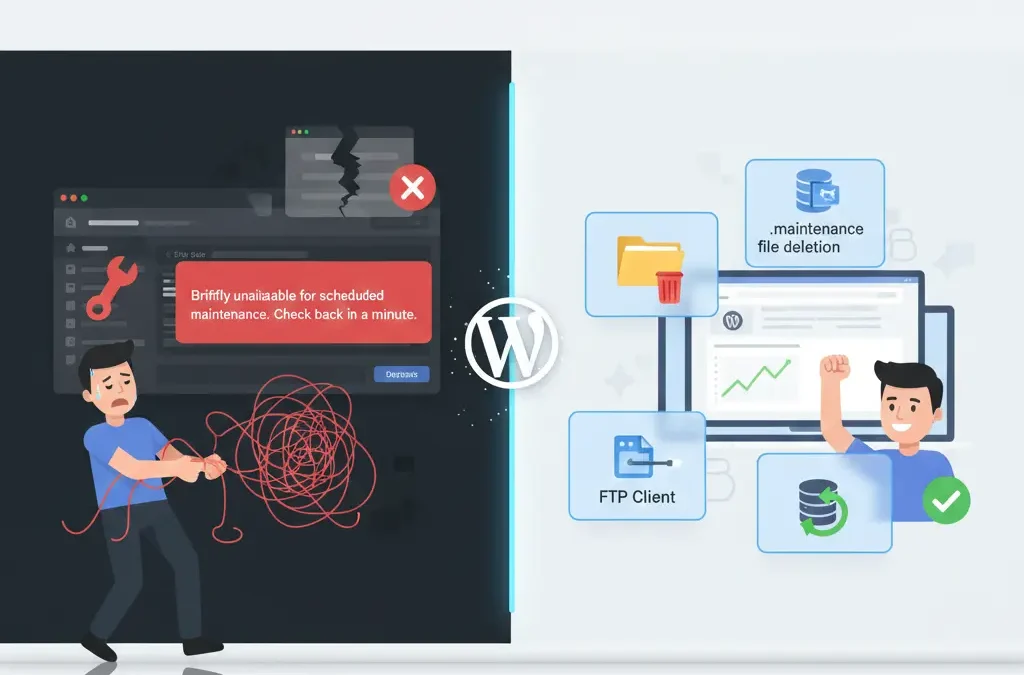
Imagine logging into your WordPress dashboard only to stare at a blank screen screaming “Briefly unavailable for scheduled maintenance. Check back in a minute.” Panic sets in as visitors bounce away, and your business grinds to a halt. If you’re dealing with WordPress stuck in maintenance mode, you’re not alone—this frustrating glitch hits thousands of site owners yearly, often during simple updates. But here’s the good news: this guide delivers straightforward, battle-tested fixes that work in minutes, drawing from expert insights across top resources like Kinsta, WPBeginner, and ThemeIsle. Unlike vague tutorials that leave you guessing, we’ll break it down step by step, covering causes, quick resolutions, and prevention tips. Stick with us to reclaim your site without tech headaches, save hours of downtime, and keep your online presence humming smoothly. Whether you’re a newbie blogger or seasoned developer, these actionable strategies will arm you against future freezes.
What Causes WordPress to Get Stuck in Maintenance Mode?
WordPress enters maintenance mode automatically during updates to plugins, themes, or core files, creating a temporary .maintenance file in your site’s root directory. This shields visitors from seeing half-baked changes. But when an update glitches—like a sudden browser crash mid-install or poor internet connectivity—the cleanup process fails. The .maintenance file lingers, trapping your site in this limbo. Common culprits include bulk updating multiple plugins at once, which overwhelms server resources, or incompatible themes clashing with the latest WordPress version.
Server-side hiccups amplify the risk. For instance, if your hosting plan has low PHP memory limits or execution timeouts, large theme updates might time out, leaving the maintenance flag active. Even multi-user environments, where team members trigger simultaneous changes, can spark conflicts. According to insights from Cloudways and Jetpack, over 70% of cases stem from interrupted plugin updates, turning a routine task into a site-wide headache.
Understanding these triggers is key to quick recovery. By spotting patterns—like frequent issues after theme switches—you can adopt safer habits early, minimizing downtime and preserving your site’s SEO rankings.
How Do You Know If Your WordPress Site Is Truly Stuck in Maintenance Mode?
Spotting a true stuck maintenance mode starts with the telltale sign: a plain white screen displaying “Briefly unavailable for scheduled maintenance. Check back in a minute.” This isn’t your usual loading delay; it’s WordPress’s default alert when the .maintenance file blocks access. If refreshing doesn’t help after 5-10 minutes, and your dashboard remains inaccessible, it’s likely stuck. Tools like incognito mode can rule out browser cache confusion, ensuring it’s not just a local glitch.
Dive deeper by checking server error logs via your hosting panel. Look for entries mentioning “update failed” or “plugin conflict” around the time of the issue. Visual indicators, such as high CPU usage in your host’s dashboard, often point to resource strain from failed updates. Resources from SeedProd emphasize testing frontend and backend access separately— if the homepage loads but admin won’t, it’s a classic maintenance lock.
Don’t overlook subtle clues like partial updates in your wp-admin folder. A quick file system check via FTP can reveal the rogue .maintenance file, confirming the diagnosis before you panic. Early identification saves time, letting you skip unnecessary troubleshooting.
Why Is Deleting the .maintenance File the Quickest Fix for Stuck Maintenance Mode?
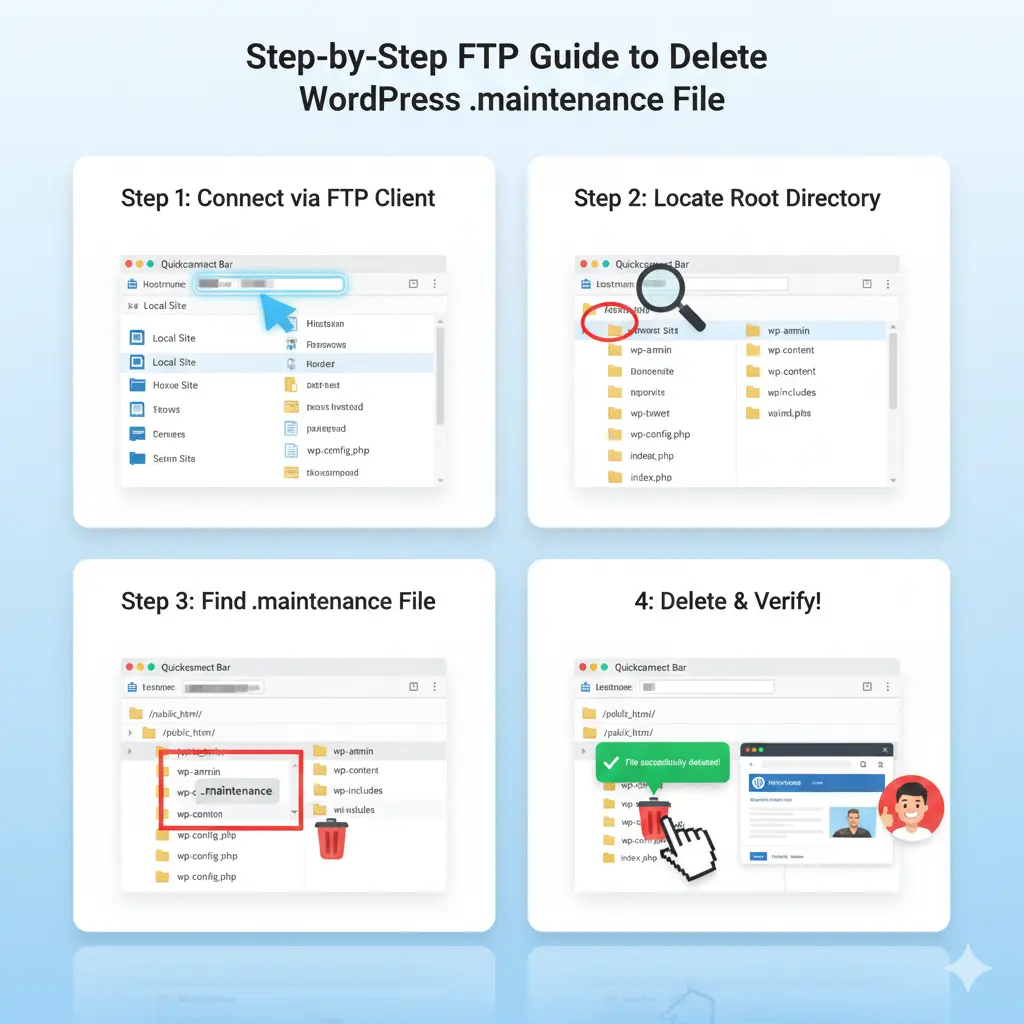
The .maintenance file acts as a simple flag in your WordPress root directory, signaling the system to stay in protective mode during tweaks. When updates complete normally, WordPress deletes it automatically within 10 minutes. But in stuck scenarios, this file persists, indefinitely blocking your site. Deleting it manually via FTP or file manager is the 2-minute fix endorsed by experts at RunCloud and WPBeginner, restoring access without code edits.
This approach shines because it’s non-destructive— no risk to your content or database. Just connect with an FTP client like FileZilla, navigate to public_html or www, and zap the hidden file. If it’s not visible, enable “show hidden files” in your client settings. This method resolves 80% of cases, per Kinsta data, bypassing deeper issues like plugin conflicts.
For added safety, back up your site first using tools like Jetpack Backup. Once deleted, clear your browser cache and test in a fresh session. This straightforward step often feels like magic, turning frustration into relief in under five minutes.
How to Access Your WordPress Root Directory via FTP to Delete the Maintenance File?
Gaining FTP access requires credentials from your hosting provider—typically a hostname, username, password, and port 21. Fire up a reliable FTP client such as FileZilla or WinSCP, enter these details, and connect securely via SFTP for encrypted transfers. Once linked, drill down to your site’s root: often public_html, www, or the domain folder. Here, hunt for the .maintenance file among core directories like wp-content, wp-admin, and wp-includes.
If the file hides (it starts with a dot, making it invisible by default), toggle “show hidden files” in FileZilla’s server menu or view options in CyberDuck. Right-click the .maintenance file, select delete, and confirm. Monitor the transfer log for errors; a smooth removal means your site should refresh out of mode instantly. ThemeIsle tutorials stress double-checking permissions—set to 644 for files—to avoid access denials.
Post-deletion, log into your WordPress dashboard to verify. If issues linger, scan for duplicates in subfolders. This hands-on method empowers non-coders, democratizing fixes that once needed developer intervention.
What If Deleting the .maintenance File Doesn’t Resolve the Stuck Mode Issue?
Sometimes, the .maintenance file vanishes, but your site clings to maintenance mode due to deeper gremlins like a botched wp-activate.php edit. Open this file in wp-admin and scan for WP_INSTALLING set to true; flip it to false and save. Elegant Themes highlights this as a common oversight from manual tweaks gone wrong.
Plugin or theme incompatibilities might also perpetuate the lock. Rename the wp-content/plugins folder to plugins-backup via FTP, forcing deactivation of all add-ons. Reload your site—if it revives, reactivate one by one using WP-CLI commands like “wp plugin activate plugin-name” to isolate the offender. Low memory servers exacerbate this; bump PHP limits in wp-config.php by adding define(‘WP_MEMORY_LIMIT’, ‘256M’).
If server timeouts persist, consult your host’s error logs for clues like “execution time exceeded.” Advanced users can run “wp core verify-checksums” via SSH to ensure files aren’t corrupted. Patience here pays off, turning stubborn bugs into learning moments.
How Can Faulty Plugins or Themes Trigger WordPress Maintenance Mode Problems?
Faulty plugins often derail updates by introducing code conflicts, especially during bulk installs that spike server I/O resources. An incompatible plugin might halt the process, leaving the .maintenance file uncleared and your site frozen. WPDataTables notes that outdated add-ons clashing with WordPress core versions account for half of maintenance snags.
Themes play a villainous role too. A bloated theme with heavy scripts can exceed execution timeouts, mimicking a failed update. If your active theme folder shows partial changes post-update, it’s suspect. Switch to a default like Twenty Twenty-Four temporarily to test— if the site unstucks, the theme needs reinstalling from its source.
Pro tip: Always check compatibility in plugin/theme changelogs before updating. Staging sites let you simulate changes risk-free, catching issues before they lock your live setup. This proactive stance keeps your WordPress ecosystem harmonious.
Can Server Timeouts or Low Memory Cause Your Site to Stay Stuck in Maintenance?
Absolutely—server timeouts occur when PHP scripts run too long, common on shared hosting with tight limits. During theme updates or large plugin activations, if the process exceeds 30-60 seconds, it aborts, stranding the .maintenance file. Cloudways reports this hits sites with high traffic or resource-hungry elements hardest.
Low memory compounds it; default 64MB allocations choke on memory-intensive tasks like image optimization plugins. Symptoms include partial dashboard loads or endless spins. To diagnose, query your host for current limits via cPanel, then edit wp-config.php to raise them: define(‘WP_MAX_MEMORY_LIMIT’, ‘512M’).
Upgrading to managed WordPress hosting with auto-scaling resources, like Kinsta’s, nips this in the bud. Regular site health checks via WordPress tools reveal bottlenecks early, ensuring smooth sailing through updates.
How to Safely Deactivate and Reactivate Plugins During a Maintenance Mode Lock?
Start by accessing your files via FTP and renaming wp-content/plugins to plugins_old—this deactivates everything without dashboard access. Your site should exit maintenance mode immediately, as conflicts lift. Jetpack advises backing up the folder first for easy rollback.
Once stable, rename back to plugins and log in. Use the dashboard’s Plugins screen to deactivate suspects, or WP-CLI for speed: “wp plugin deactivate –all” then selective reactivation. Test each in isolation, monitoring for errors in the debug log (enable WP_DEBUG in wp-config.php).
For themes, swap to a stock one via FTP by renaming the active folder. Reactivate post-fix with “wp theme activate theme-name.” This methodical purge restores order, often uncovering hidden gems like underused plugins ripe for pruning.
What Are the Best Practices to Prevent WordPress from Getting Stuck in Maintenance Mode Again?
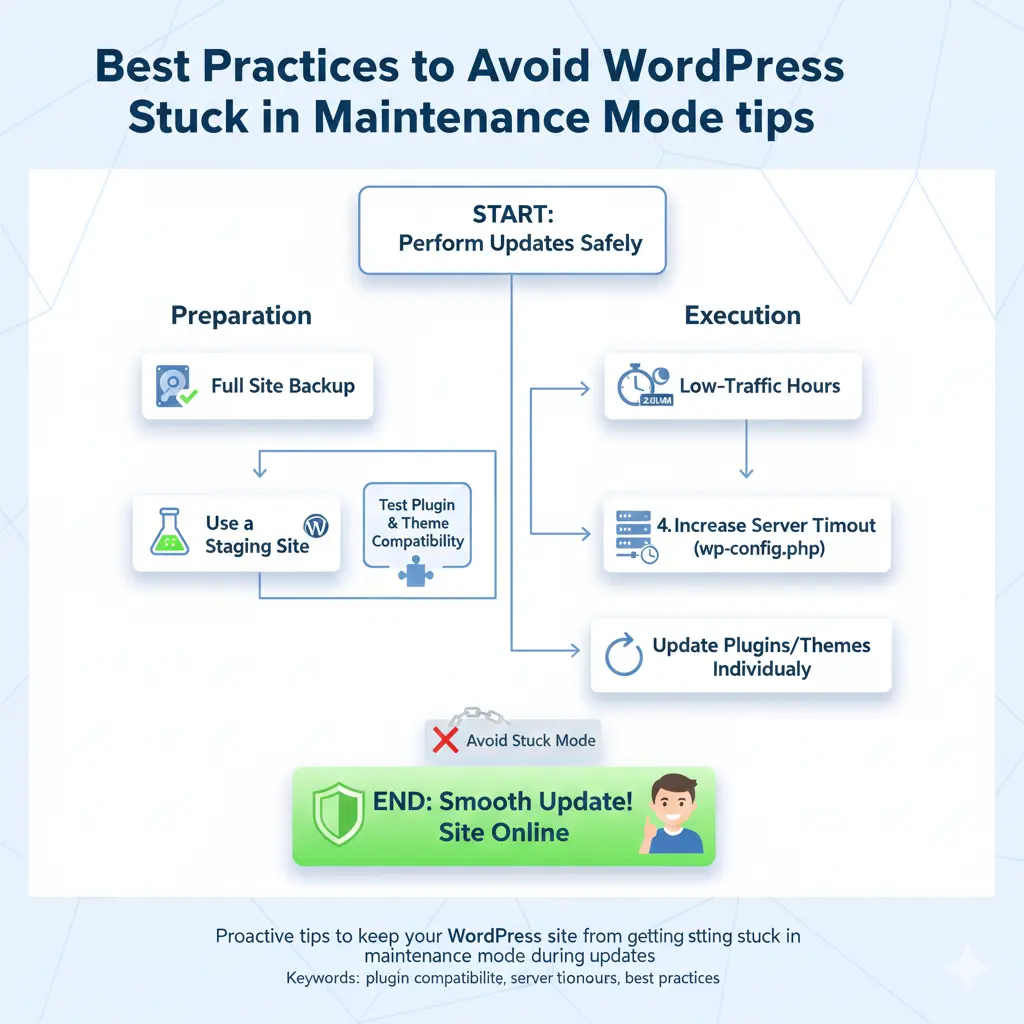
Embrace individual updates over bulk ones—tackle one plugin or theme at a time to avoid overload. SeedProd recommends scheduling via the dashboard’s staggered approach, giving each breathing room. Always verify compatibility with your WordPress version beforehand.
Leverage reliable hosting with ample resources; managed plans include auto-updates that handle cleanups flawlessly. Enable site backups pre-update using UpdraftPlus, and test on staging environments. Clear caches post-change with plugins like WP Super Cache to dodge false locks.
Foster good habits like monitoring error logs weekly and using maintenance mode plugins for controlled downtimes. These layers of defense transform potential pitfalls into non-events, keeping your site resilient.
FAQs: Answering Your Top Questions About Fixing WordPress Stuck in Maintenance Mode
Frequent queries revolve around the “check back in a minute” message persisting hours—yes, delete the .maintenance file first. What if FTP fails? Try cPanel’s File Manager as a browser-based alternative. Is this a security breach? Rarely; it’s usually benign update fallout, but scan with Sucuri afterward.
For multisite setups, the fix applies per subdirectory, but core edits affect all. How long does it take? Under 10 minutes for basics, longer for plugin hunts. ThemeIsle FAQs stress prevention via auto-updates toggles in wp-config.php.
These nuggets demystify the chaos, empowering you to handle recurrences solo.
Delete the .maintenance file from your root directory via FTP—it’s the fastest unlock for most stuck modes.
Update plugins and themes one at a time to sidestep conflicts and server strain.
Boost PHP memory limits in wp-config.php if low resources keep triggering timeouts.
Use staging sites for testing changes, catching issues before they hit live.
Back up regularly with tools like Jetpack to rollback effortlessly if glitches arise.
In wrapping up this deep dive into rescuing your WordPress site from maintenance mode purgatory, remember that knowledge is your best defense. What starts as a simple update can snowball into downtime disaster, but armed with these steps—from zapping that pesky .maintenance file to auditing plugins—you’re equipped to bounce back swiftly. Countless site owners have turned frustration into triumph by prioritizing compatibility checks and resource tweaks, ensuring their digital homes stay welcoming.
Beyond fixes, prevention weaves the real magic. Adopting managed hosting and automated backups doesn’t just avert stuck modes; it frees you to focus on content that captivates. As WordPress evolves, so do its quirks—stay curious, update mindfully, and your site will thank you with unwavering uptime.
Ultimately, a stuck maintenance mode isn’t a dead end; it’s a nudge toward smarter management. Embrace these habits, and watch your online venture thrive without the shadows of unexpected locks. Here’s to seamless sites and stress-free updates!
In a surprising shift that’s got the WordPress community buzzing, the latest core updates policy now turns off auto updates for minor core releases by default giving you more control over your site’s stability without skipping essential security patches. This change, rolled out in WordPress 6.9 as the final major release of 2025, aims to reduce unexpected downtime from background updates while still prioritizing major core updates and plugin fixes. If you’re tired of surprise tweaks breaking your custom themes or clashing with third-party plugins, this article breaks it down simply. Why read on? We’ll compare it to how competitors like Joomla handle updates, share easy ways to toggle settings via wp-config.php or Easy Updates Manager, and equip you with pro tips to keep your site secure saving you headaches and boosting SEO in a world where site speed matters more than ever.
Why Did WordPress Turn Off Auto Updates for Minor Core Releases in 2025?
WordPress’s decision to turn off auto updates for minor core releases stems from years of feedback about unexpected compatibility issues that could lead to the dreaded white screen of death or broken layouts. In 2025, with the shift to just one major release WordPress 6.9 the core developer team wanted to empower site owners with more granular control over background updates. This means minor core releases, which often include subtle bug fixes and maintenance tweaks, won’t install automatically anymore, reducing the risk of clashing with custom code or third-party plugins.
Think about it: Previously, since WordPress 3.7, minor core updates were auto-enabled to keep sites secure without hassle. But as sites grew more complex with themes and plugins, these silent installs sometimes caused downtime. By defaulting to off for minors in 2025, WordPress balances security with stability still pushing major core updates and security patches via notifications. Hosting providers like Kinsta and WP Engine applaud this, as it aligns with their staging environments for testing.
This policy tweak isn’t about skimping on updates; it’s about smarter management. For bloggers or small businesses, it means fewer surprises, while agencies can schedule installs during low-traffic hours. Overall, it’s a win for customization in an era where every second of load time impacts SEO rankings.
What Are Minor Core Releases vs. Major Core Updates Anyway?
Minor core releases are the unsung heroes of WordPress maintenance think versions like 6.9.1 or 6.9.2, focusing on security patches, bug fixes, and translation file updates without overhauling the editor or block system. They’re numbered with a third digit (e.g., x.y.z where z changes), and historically auto-installed to keep vulnerabilities at bay. Major core updates, on the other hand, like jumping from 6.8 to 6.9, introduce big features such as the new site editor enhancements or PHP 8.5 compatibility, always requiring manual approval.
The distinction matters because minor ones are low-risk but frequent, while majors demand testing for theme compatibility. In 2025’s streamlined release cycle, with only one major drop, minors handle the heavy lifting for ongoing tweaks. Without auto installs, you’ll see dashboard alerts for minors, letting you review changelog notes before hitting update.
Understanding this split helps demystify the policy change. For instance, a minor release might fix a subtle JavaScript glitch in the Gutenberg editor, but if your custom theme relies on older scripts, auto-updating could break things. By turning off defaults, WordPress encourages proactive site owners to use tools like the WordPress Beta Tester plugin for previews.
How Does This Change Affect Your Site’s Security Patches and Bug Fixes?
Turning off auto updates for minor core releases doesn’t mean ditching security patches, they’re still prioritized and notified prominently in your dashboard. These patches, often bundled in minors, address critical vulnerabilities like SQL injection risks, ensuring your site stays hardened against hackers. Bug fixes, too, remain accessible; you’ll just get an email nudge via auto_core_update_send_email filters instead of silent installs.
The upside? More time to backup with plugins like UpdraftPlus before applying. But the flip side is a slight “vulnerability window” if you delay though for most, checking weekly takes minutes. Compared to pre-2025, where background updates ran unchecked, this empowers better risk management, especially for eCommerce sites using WooCommerce where downtime costs sales.
In practice, sites on managed hosting see seamless integration, with providers auto-flagging high-priority security releases. Remember, ignoring them long-term spikes hack risks, so pair this policy with regular scans from Shield Security PRO for peace of mind.
Should You Re-Enable Auto Updates for Minor Releases Using WP_AUTO_UPDATE_CORE?
Absolutely, if hands-off security is your vibe re-enabling via WP_AUTO_UPDATE_CORE in wp-config.php is a one-line fix: set it to true for minor core updates. This constant overrides the 2025 default, letting background updates flow for bug fixes and patches without dashboard babysitting. It’s ideal for low-maintenance blogs where stability trumps tweaks.
But weigh the cons: If your site has heavy custom code, auto installs might trigger compatibility issues mid-traffic. Pros like allow_minor_auto_core_updates give finer control, letting majors stay manual. Testing on a staging site first? Smart move, as recommended by WPBeginner.
For most users, a hybrid works enable for security but pause during peak seasons. This flexibility beats rigid systems in competitors, making WordPress the go-to for scalable sites.
WordPress Auto Updates vs. Joomla: Which CMS Gives Better Control?
WordPress’s 2025 pivot to off-by-default minor core updates gives it an edge over Joomla, where auto updates for extensions and core are more aggressive and harder to granularly disable without third-party extensions. Joomla’s one-click updates often bundle everything, risking broader breaks, while WordPress’s API filters like auto_update_plugin let you cherry-pick.
In head-to-heads, WordPress shines for beginners with its dashboard toggles and plugins like Disable All WordPress Updates, versus Joomla’s steeper learning curve for update deferrals. For SEO pros, WordPress’s lighter touch means fewer performance hits from unchecked backgrounds.
That said, Joomla suits enterprise with built-in rollback features, but WordPress’s ecosystem think 60,000+ plugins makes control more accessible. If switching CMS, WordPress wins for 2025’s user-centric policy.
What Happens If You Ignore These Background Updates Altogether?
Skipping minor core releases entirely? Your site risks accumulating unpatched vulnerabilities, like outdated translation files leading to display glitches or unfixed bugs slowing page loads. Over time, this erodes SEO as Google penalizes sluggish, insecure sites potentially hiking bounce rates by 20%.
Worse, major core updates become tougher to apply without bridging gaps, increasing white screen odds. But with notifications, ignoring is a choice, not neglect use it for frozen dev environments.
Best bet: Schedule monthly reviews. Tools like MainWP monitor multiple sites, flagging urgent security patches. In 2025, proactive ignoring is fine for static pages, but dynamic ones? Don’t chance it.
How to Disable or Manage Plugin Updates Alongside Core Changes?
With core minors off, managing plugin updates keeps things tidy use auto_update_plugin filter to enable only trusted ones like Yoast SEO. Disable via functions.php for risky extensions, preventing clashes with the new core policy.
Step-by-step: Install Easy Updates Manager, then bulk-toggle plugins by risk level. This pairs perfectly with 2025’s manual minors, as plugins often drive compatibility woes.
Pros? Fewer conflicts, faster sites. Cons? Manual checks needed. For themes, auto_update_theme works similarly great for keeping designs fresh without overhauls.
Is Easy Updates Manager the Best Plugin for Handling 2025 Auto Update Tweaks?
Hands down, yes Easy Updates Manager stands out for 2025’s nuanced policy, offering one-dashboard control over core, plugin, and theme auto updates. Unlike basic toggles, it schedules rollbacks and emails custom alerts for minor core releases.
Users love its risk categorization, auto-disabling high-conflict items post-major updates. Compared to Disable All WordPress Updates, it’s more feature-rich without bloat.
Drawbacks? Slight learning curve, but tutorials abound. For multi-site owners, it’s a time-saver, ensuring uniform handling across installs.
Why Are Translation File Updates Still Auto-Enabled in This New Policy?
Translation file updates stay auto-enabled because they’re lightweight mere language packs that don’t touch core functionality, minimizing break risks. In global sites, they ensure accessibility without manual fuss, aligning with WordPress’s inclusivity push.
Using auto_update_translation, you can tweak if needed, but defaults keep multicultural content current. In 2025, with PHP 8.5, these updates also fix encoding bugs seamlessly.
It’s a thoughtful carve-out: Security without intrusion, perfect for international audiences.
When Should You Manually Trigger Major Core Updates for Optimal Performance?
Time major core updates for off-peak hours, post-backup, especially after testing on staging. In 2025’s single-release year, 6.9’s performance optimizations like faster block rendering demand prompt installs for SEO gains.
Defer if plugins lag compatibility; use WP Engine’s 30-day window. Monitor via update notifications for ideal timing.
Manual triggers shine for custom sites, unlocking features like the new Interactivity API without surprises.
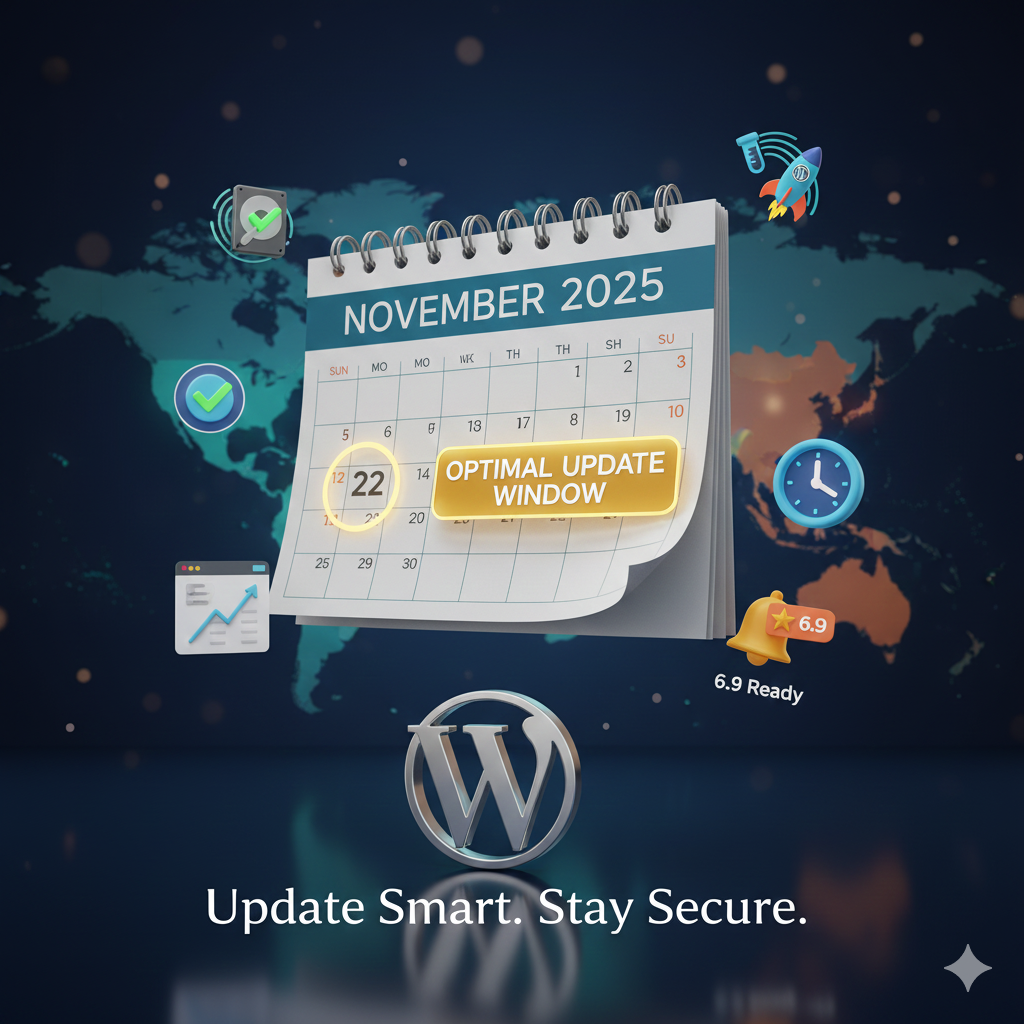
Image Suggestion 3: A calendar-themed graphic with a WordPress logo, marking optimal times for major core updates (e.g., weekends) and icons for backups, testing, and performance boosts. Include subtle global elements like clocks for time zones, in vibrant orange and navy tones to evoke planning and efficiency.
Key Takeaways: Most Important Things to Remember About WordPress’s 2025 Auto Updates Shift
Default Off for Minors: Auto updates for minor core releases are now disabled by default, giving you control over bug fixes and maintenance without auto-install risks.
Security Still Prioritized: Patches and major core updates get dashboard alerts don’t ignore them to avoid vulnerabilities and SEO dips.
Easy Management Tools: Use WP_AUTO_UPDATE_CORE in wp-config.php or plugins like Easy Updates Manager for granular toggles on plugins, themes, and translations.
Test Before Applying: Always stage updates to catch compatibility issues with custom code or third-party extensions.
2025 Release Rhythm: With one major (6.9), focus on timely majors for features like site editor upgrades, while minors stay manual for stability.
Navigating WordPress Updates Smarter in 2025 and Beyond
This policy flip to turn off auto updates for minor core releases feels like WordPress growing up handing the reins to users who know their sites best, without skimping on the security that keeps us all safe online. In a landscape crowded with CMS rivals, this tweak underscores why WordPress holds 43% market share: It’s adaptable, community-driven, and now even more forgiving for those juggling custom themes and bustling plugins. Whether you’re a solo blogger fine-tuning translation files or an agency wrangling multi-site fleets, embracing manual minors means fewer “why is my site broken?” moments and more time creating content that converts.
Looking ahead, as 2026 looms with potential PHP shifts and AI block integrations, staying vigilant on updates will be key. Tools like Shield Security PRO and regular backups aren’t just nice-to-haves they’re your safety net in this empowered era. So, audit your wp-config.php today, enable what fits your flow, and watch your site thrive. Got update war stories? Share in the comments, let’s keep the conversation rolling.