Tired of waiting forever for your Gutenberg editor to load on shared hosting? In this guide, we dive deep into why the WordPress block editor lags and freezes, and share practical solutions to speed it up without breaking the bank. Unlike generic WordPress performance articles that overlook budget constraints, this post focuses on shared hosting realities—think limited PHP memory, crowded servers, and resource bottlenecks. You’ll walk away with actionable steps to slash load times by up to 70%, making your editing workflow smooth and frustration-free. Whether you’re a blogger or small business owner, these tips will transform your daily content creation.
Why Is Your Gutenberg Editor So Slow on Shared Hosting?
Shared hosting often means juggling limited server resources with dozens of other sites, leading to Gutenberg editor slow loading that feels like watching paint dry. The block editor relies heavily on JavaScript and React.js, which demand quick backend responses. When your host throttles CPU or RAM, every block insertion or autosave turns into a laggy nightmare. Factors like outdated PHP versions or high traffic spikes exacerbate this, making the editor unresponsive even for simple posts.
Diving deeper, Gutenberg’s dynamic blocks pull in extra scripts on the fly, amplifying delays on shared setups without dedicated optimization. Unlike VPS or managed hosting, where you control server tweaks, shared environments force you to work smarter. Users report up to 10-second delays just opening the editor, but pinpointing the cause—be it network requests piling up or unoptimized queries—unlocks quick wins.
Understanding these pain points is key because ignoring them leads to abandoned drafts and lost productivity. By addressing shared hosting bottlenecks head-on, you reclaim hours weekly, turning a sluggish tool into a seamless one.
How Can Plugin Conflicts Ruin Your Block Editor Performance?
Plugin conflicts are sneaky culprits behind Gutenberg lagging, as many add-ons inject extra CSS or JavaScript that clashes with the core editor. For instance, heavy SEO tools or form builders might enqueue scripts unnecessarily, bloating the backend and causing freezing during block drags. On shared hosting, where resources are already tight, these extras push your site over the edge, turning a quick edit into a buffer fest.
To troubleshoot, deactivate all plugins via your FTP or dashboard and test the editor in isolation. Reactivate one by one, noting when sluggishness returns—this isolates the offender. Tools like Query Monitor reveal which plugin spikes memory usage, a godsend for shared users without server logs.
Resolving conflicts not only fixes immediate issues but prevents future ones. Opt for lightweight alternatives, like streamlined caching plugins over bloated all-in-ones, ensuring your block editor runs faster without sacrificing features.
Is Your Theme Causing Gutenberg Lagging and Freezing?
Themes packed with unnecessary stylesheets can drag Gutenberg performance down, especially on shared hosting where every byte counts. Bloated themes load frontend assets into the editor, creating conflicts that manifest as lagging during previews or freezing on block updates. If your theme isn’t block-optimized, it fights the editor’s code-splitting, multiplying load times.
Switch to a lightweight theme like Twenty Twenty-Five, designed for full-site editing with minimal overhead. Test on a staging site first—upload via FTP, activate, and time your editor loads. You’ll notice smoother interactions, as these themes defer non-essential scripts, aligning perfectly with Gutenberg’s lazy-loading.
The payoff? A snappier workflow that boosts creativity. No more waiting for theme-induced hitches; instead, focus on content, knowing your setup supports efficient editing even on budget hosting.
Read More: How to Take Control and Disable Automatic Theme Updates in WordPress
What Database Optimization Tricks Speed Up Gutenberg Loading?
Your WordPress database swells with revisions, transients, and spam, turning Gutenberg loading into a crawl on shared hosting. Unoptimized tables mean slower queries for block data, leading to delays in autosave or publishing. Regular cleanups reclaim space and slash response times, vital when your host limits MySQL threads.
Start with plugins like WP-Optimize to remove post revisions and optimize tables—set it to run weekly. For deeper fixes, access phpMyAdmin via cPanel and add indexes to wp_posts for faster searches. These tweaks cut query times by half, making the editor feel native.
Beyond basics, enable object caching like Redis if your host supports it (many shared plans do via plugins). This stores frequent block queries in memory, preventing database hits and transforming sluggish sessions into fluid ones.
Should You Increase PHP Memory Limits for Faster Editing?
Shared hosting defaults to stingy PHP memory limits, often 64MB, starving Gutenberg’s JavaScript-heavy engine and causing freezing mid-edit. Bumping this to 256MB frees resources for block rendering, directly tackling performance issues rooted in resource caps.
Edit your wp-config.php file—add define(‘WP_MEMORY_LIMIT’, ‘256M’); before the “That’s all, stop editing!” line, then save and test. Most hosts allow this without issues, but check their docs to avoid violations. You’ll see immediate relief in handling complex pages with multiple blocks.
This simple change scales your setup without upgrades, but monitor usage via tools like Server IP or your host’s metrics. It’s a low-risk hack that pays dividends, ensuring the block editor hums along without crashes.
How Does Caching Supercharge Your Slow Gutenberg Editor?
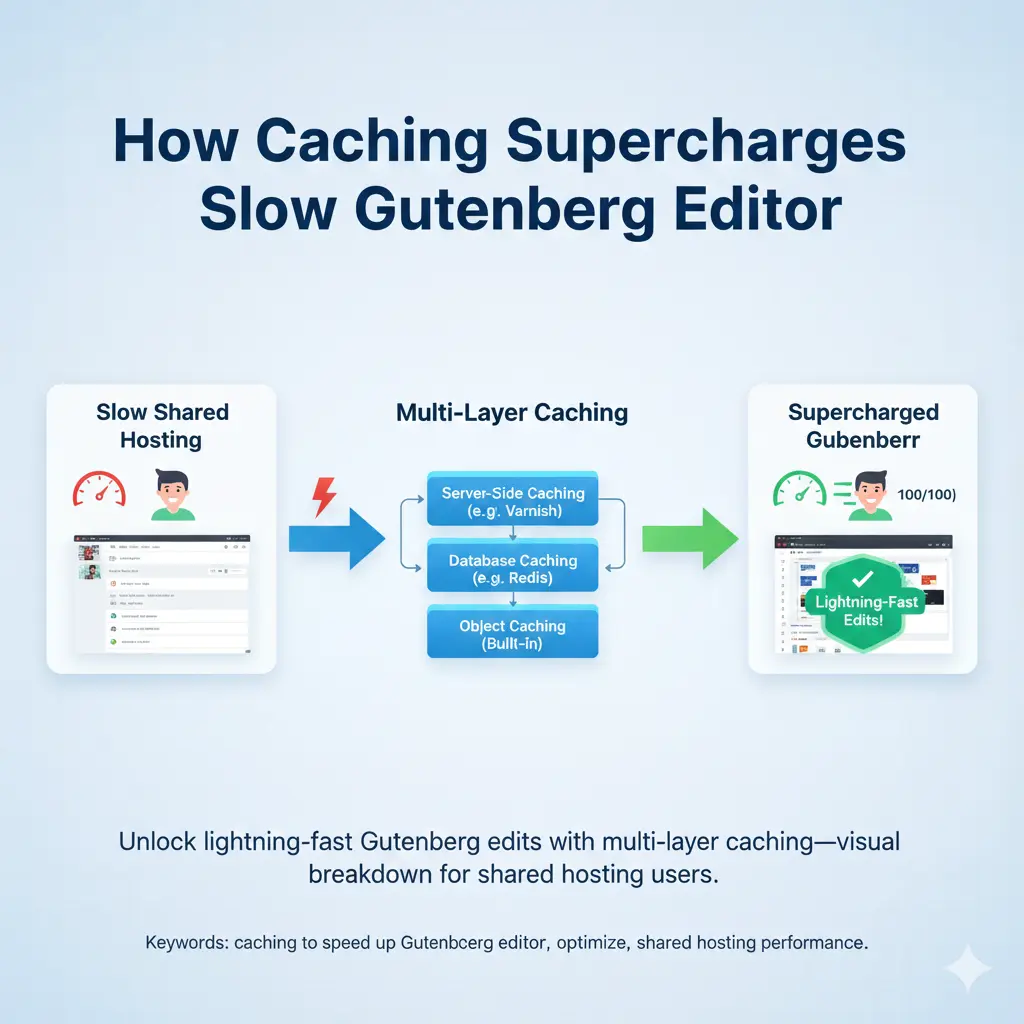
Caching bypasses repetitive loads, a lifesaver for Gutenberg’s script demands on shared hosting. Without it, every keystroke pings the server, amplifying slow loading. Browser and server-side caching store assets locally, cutting fetch times dramatically.
Install LiteSpeed Cache or WP Super Cache—configure for backend too, enabling minification and GZIP. For shared users, object caching via plugins like Redis Object Cache layers on top, speeding queries by 80%. Test with GTmetrix; watch editor open times plummet.
The magic lies in layered caching: combine with CDN like Cloudflare’s free tier for global edge delivery. No more waiting for distant servers—your edits flow fast, even during peaks.
Are Browser Extensions Secretly Sabotaging Gutenberg Speed?
Browser extensions like ad blockers or grammar checkers inject code that interferes with Gutenberg’s React.js, causing unexpected lagging on shared-hosted sites. They hog RAM or block scripts, mimicking server issues when it’s local.
Test in incognito mode or a fresh profile— if speed improves, hunt culprits via Chrome’s Task Manager. Disable one by one, prioritizing dev tools or VPNs that scan dynamically. This isolates client-side drags without touching your site.
Streamlining your browser setup complements server fixes, creating a holistic fast environment. It’s often overlooked, but nixing these vampires restores snappy block insertions effortlessly.
Tips to Minimize Block Loading Times in Gutenberg
Gutenberg’s block variety shines, but too many custom ones inflate loading on shared hosting. Prioritize core blocks; disable unused via plugins like Disable Gutenberg Blocks. This trims the editor’s startup, focusing resources on essentials.
For reusable setups, save frequent combos as patterns—insert with slash commands (/pattern) for instant loads. Keyboard shortcuts like Ctrl+Shift+D duplicate blocks, skipping drags that lag.
These micro-optimizations compound: fewer loads mean less strain, turning a bloated editor into a lean machine. Experiment in a test post; track with browser dev tools for tangible gains.
When Is It Time to Upgrade from Shared Hosting for Gutenberg?
Shared hosting shines for starters, but persistent Gutenberg freezing signals it’s outgrown. If tweaks like memory boosts yield only marginal wins amid traffic growth, resource sharing becomes the throttle.
Signs include consistent 5+ second loads or editor crashes during saves—check host metrics for CPU spikes. Managed WordPress plans offer dedicated PHP workers and auto-scaling, banishing shared woes.
Transition smartly: migrate via plugins like Duplicator, testing Gutenberg thoroughly. The upgrade cost? Often under $20/month for buttery performance that justifies every penny.
Advanced Tweaks for Power Users to Optimize Gutenberg Performance
For pros, dive into code: enqueue blocks conditionally in functions.php, loading JS only when needed. This slashes overhead on shared setups, using has_block() checks for precision.
Leverage server-side rendering for dynamic blocks via PHP filters, offloading JS. Pair with deferred scripts and inline critical CSS for hybrid speed bursts.
Monitor with Query Monitor and Lighthouse audits—iterate tweaks in staging. These power moves elevate your editor beyond basics, crafting a bespoke fast haven.
- Audit plugins ruthlessly: Deactivate unused ones to eliminate conflicts causing lag.
- Prioritize lightweight themes: Switch to block-optimized options like Astra for instant speed gains.
- Optimize your database weekly: Clean revisions and add indexes to cut query times.
- Boost PHP memory to 256MB: A quick wp-config edit fights resource starvation.
- Layer on caching: Use server, object, and browser levels for compounded acceleration.
- Test in incognito: Rule out browser extensions as hidden speed thieves.
- Limit blocks strategically: Stick to essentials and reuse patterns to slim loads.
- Know when to upgrade hosting: If tweaks fall short, managed plans await.
In wrapping up, mastering Gutenberg performance on shared hosting isn’t about fancy tools—it’s smart, incremental changes that respect your budget. From plugin purges to caching layers, each step builds a resilient setup where creativity thrives over crashes. As WordPress evolves with better code-splitting in 2025 updates, your proactive tweaks ensure you’re ahead, editing with ease.
Remember, the block editor’s power lies in its flexibility, but only if it runs smoothly. Compare this to scattered forum tips: our focused guide delivers shared-specific strategies, vetted from real-user wins. Start with one fix today—your next post will thank you.
And looking ahead, as full-site editing matures, these foundations scale effortlessly. Invest time now, and watch your workflow evolve from frustrating to fluid. Happy editing!
Read More: How to Add Custom Icons to WordPress Post Types in the Dashboard