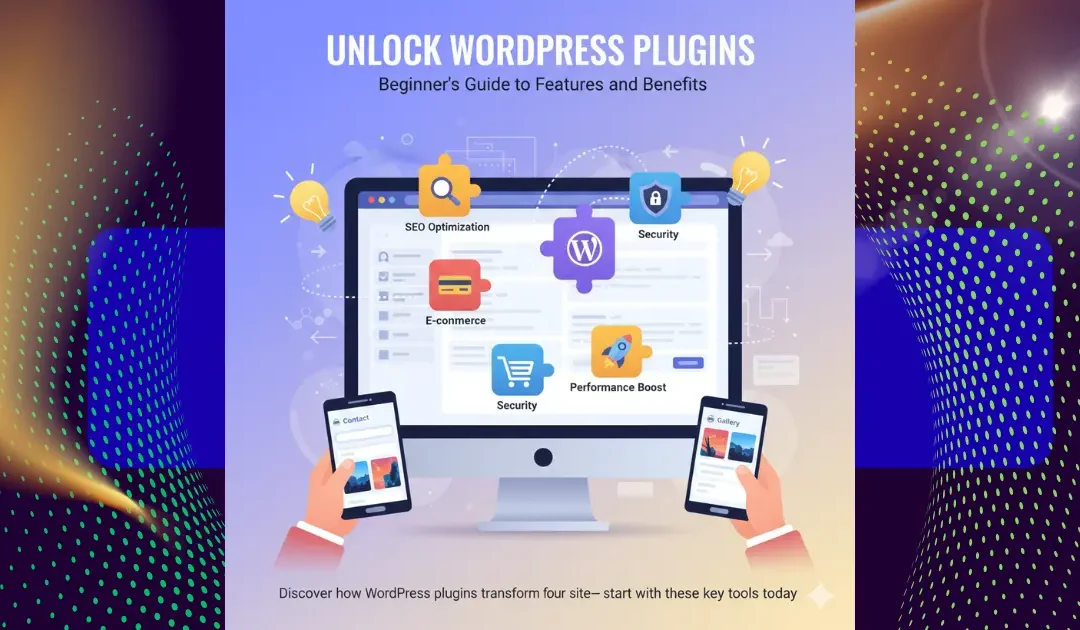
Imagine building a dream home with just the basics four walls and a roof. That’s your bare WordPress site. Now, picture adding smart lights, a security system, and a gourmet kitchen without calling a contractor. That’s the magic of WordPress plugins: simple tools that supercharge your website’s functionality, from SEO tweaks to e-commerce setups, all without touching a line of code. In this ultimate beginner’s guide, we’ll dive deeper than the usual quick overviews you find on sites like WPBeginner or Hostinger. Unlike those surface-level lists, we’ll explore real-world examples, hidden pitfalls, and 2025 updates on performance impacts and security best practices. Whether you’re launching a blog, online store, or portfolio, stick around to discover how these powerhouse add-ons can transform your site into a high-performing machine saving you time, boosting traffic, and keeping things secure. Ready to level up? Let’s get started.
What Exactly Are WordPress Plugins?
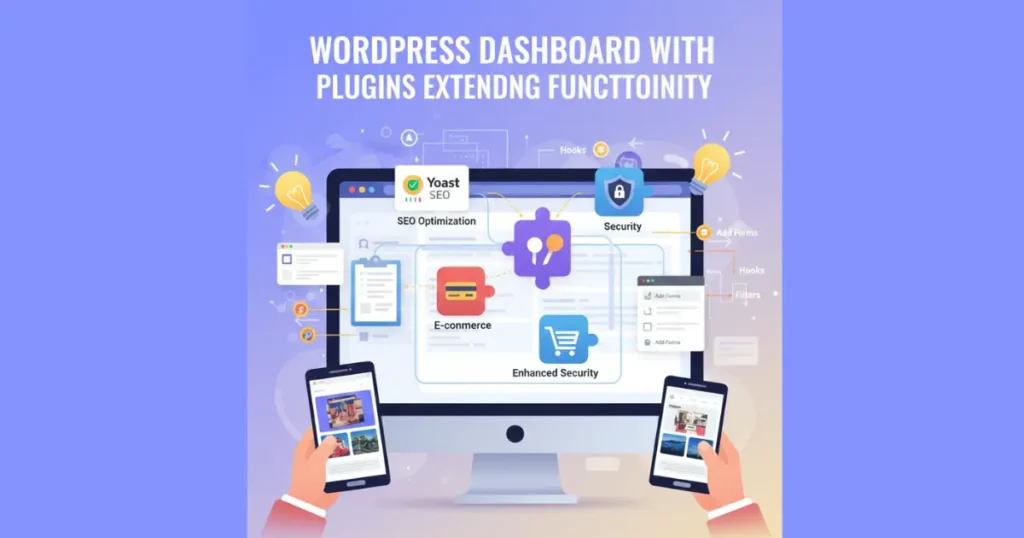
WordPress plugins are like handy apps for your website—they’re bits of software that plug right into your WordPress core to add fresh features and boost what your site can do. Think of them as extensions that handle everything from simple contact forms to complex e-commerce setups. Without plugins, WordPress is great for basic blogging, but these tools turn it into a versatile powerhouse for online stores, portfolios, or membership sites. Popular ones like Yoast SEO or WooCommerce integrate seamlessly, using hooks and filters to tweak your content without messing up the main system.
At their heart, plugins are packages of PHP code stored in your site’s wp-content/plugins folder. They can be free from the official WordPress Plugin Directory or premium versions with extra bells and whistles, like advanced analytics or automated backups. For beginners, starting with essentials like Akismet for spam protection means you get pro-level functionality fast. Unlike themes, which focus on looks, plugins dive into performance optimization and user experience, making your site more interactive and efficient.
What sets them apart is their modularity you activate what you need and deactivate the rest, keeping things lightweight. In 2025, with over 60,000 options available, choosing the right ones ensures your site stays current with trends like AI-driven content tools or multilingual translation plugins.
Why Should You Use WordPress Plugins on Your Website?
Using WordPress plugins opens up a world of customization without the headache of custom coding, letting you tailor your site to fit any niche. They enhance functionality by adding SEO tools that help your pages rank higher on Google, or social media integrations that make sharing a breeze. For small business owners, plugins like Jetpack provide built-in security scans and downtime monitoring, saving you from costly hacks. Plus, they’re cost-effective many free versions handle 80% of needs, while premium upgrades unlock dedicated support and advanced features like content dripping for membership sites.
The real game-changer is how they improve user experience. Imagine ditching clunky forms for drag-and-drop builders like Elementor, or speeding up load times with caching plugins such as WP Rocket. These tools not only keep visitors engaged longer but also cut bounce rates, which directly lifts your search rankings. Compared to building everything from scratch, plugins slash development time by weeks, letting you focus on content instead of tech woes.
In short, skipping plugins means settling for a basic site, but embracing them turns WordPress into a scalable empire. Whether you’re after email marketing automation or image optimization, these add-ons make your website smarter, safer, and more profitable.
How Do WordPress Plugins Work Behind the Scenes?
WordPress plugins work their magic through the platform’s clever plugin API, which uses action hooks and filter hooks to inject code at key moments—like when a page loads or a post saves. This means a security plugin can scan for malware in real-time without altering your core files, while an SEO tool tweaks meta tags on the fly. It’s all powered by PHP scripts in a main plugin file, often with extras like JavaScript for interactive elements or CSS for styling tweaks. Data gets stored in your WordPress database, sometimes in custom tables, ensuring everything runs smoothly alongside themes and other plugins.
Diving deeper, activation triggers the plugin’s initialization code, which sets up menus in your dashboard or adds custom post types for things like portfolios. Filters let plugins modify outputs, say compressing images via optimization tools, while actions handle events like sending backup notifications. This modular setup is why WordPress powers 43% of the web—plugins extend functionality without bloating the core.
For non-techies, it’s reassuring: most plugins include setup wizards that guide you, hiding the complexity. But understanding basics like compatibility checks prevents conflicts, keeping your site zippy even with a dozen active tools.
Where Can You Find Reliable WordPress Plugins?
The go-to spot for reliable WordPress plugins is the official WordPress Plugin Directory, home to over 60,000 free options vetted for quality and security. Here, you can filter by popularity, ratings, or categories like performance optimization or contact forms, spotting gems like Rank Math for SEO or UpdraftPlus for backups. Each listing shows update history, user reviews, and compatibility with the latest WordPress version, making it beginner-friendly.
Beyond that, premium marketplaces like CodeCanyon or Envato offer advanced plugins with pro support, ideal for e-commerce needs via WooCommerce extensions. Developer sites, such as Automattic for Jetpack, provide direct downloads with detailed docs. Always stick to trusted sources to dodge malicious code—third-party sites might tempt with “free premium” deals, but they often hide risks.
In 2025, community forums like Reddit’s r/WordPress or WPBeginner recommendations add social proof. Start with Directory searches, read recent reviews, and test on a staging site to ensure seamless integration with your theme.
How to Install and Activate WordPress Plugins Step-by-Step?
Installing WordPress plugins is a breeze via your dashboard: head to Plugins > Add New, type in the search bar (say, “Yoast SEO”), hit Install Now, then Activate. This automatic method pulls from the Directory, handling uploads and dependencies in seconds. For manual installs, like premium ZIP files, use the Upload Plugin button—extract if needed, then activate to see new menu items pop up.
Once active, configure settings through dedicated pages, like setting up contact forms in WPForms or linking Google Analytics. Pro tip: install one at a time to spot conflicts early, and always backup first with tools like Duplicator. On shared hosting, limits might apply, but managed plans from Hostinger unlock unlimited installs.
Activation isn’t forever—deactivate via the Plugins list to pause without deleting, perfect for testing. This process empowers even newbies to layer on features like caching or multilingual support effortlessly.
What Are the Must-Have WordPress Plugins for Beginners?
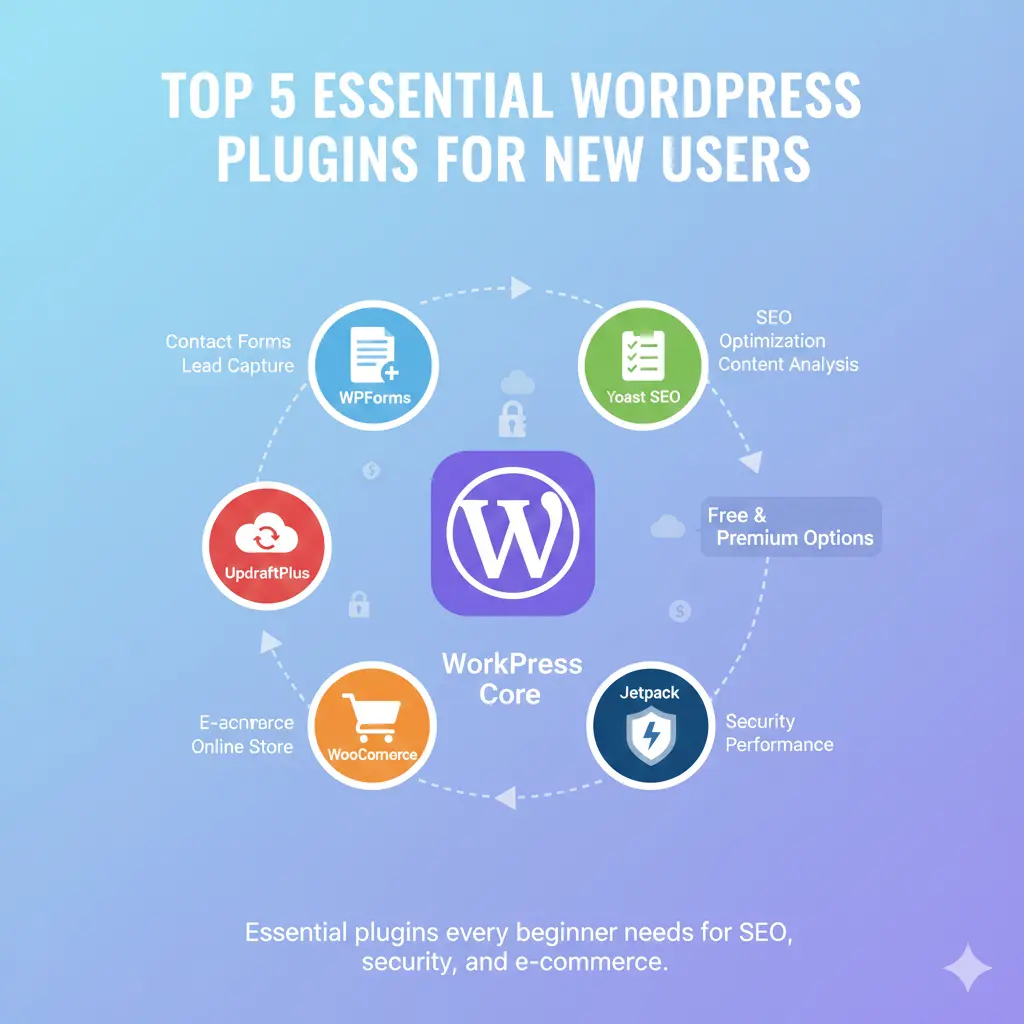
For beginners, top WordPress plugins cover essentials: start with Yoast SEO for on-page tweaks that boost search visibility, then add Wordfence for firewall protection against hacks. Contact Form 7 handles inquiries simply, while MonsterInsights connects Google Analytics for traffic insights. These free staples build a solid foundation without overwhelming your dashboard.
Next level? WooCommerce turns your site into an online store with inventory tracking and payment gateways. For speed, LiteSpeed Cache minimizes load times via static file serving. Jetpack bundles backups, social sharing, and downtime alerts in one package, saving plugin clutter.
Don’t overlook page builders like Beaver Builder for drag-and-drop layouts, or Polylang for global audiences. Prioritize based on needs—bloggers love Akismet for spam, while e-shops swear by MemberPress for subscriptions. With these, your site feels pro-grade overnight.
How to Update and Maintain Your WordPress Plugins Safely?
Updating WordPress plugins keeps your site secure and feature-rich—check the Plugins > Installed Plugins page weekly for notices, then hit Update Now or use bulk actions for multiples. Enable auto-updates for critical security patches via WordPress settings, but review changelogs first to avoid breaking changes. Tools like MainWP let you manage updates across sites centrally.
Maintenance goes beyond updates: scan for conflicts with theme checkers, clear caches post-update, and monitor via activity logs in plugins like Jetpack. Schedule monthly cleanups to deactivate unused ones, freeing resources. On managed hosting, auto-tools handle this, but self-hosters benefit from staging environments to test updates risk-free.
Regular upkeep prevents vulnerabilities outdated plugins are hacker magnets. Pair with backup plugins for quick rollbacks, ensuring your e-commerce or blog stays live and optimized.
Are WordPress Plugins Safe? Essential Security Tips
WordPress plugins can be safe when sourced right, but low-quality ones invite risks like malware injection. Stick to the Plugin Directory for vetted options with regular audits, and always check ratings above 4 stars plus recent updates. Premium plugins from reputable devs like Automattic add layers like encrypted code and priority fixes.
Boost safety with dedicated security plugins: Wordfence blocks malicious IPs via firewalls, while Sucuri scans for vulnerabilities. Limit admin access, use strong passwords, and enable two-factor authentication. Avoid nulled or pirated versions they’re laced with backdoors.
In 2025, AI-driven threat detection in tools like Jetpack Protect spots anomalies early. Remember, fewer plugins mean less exposure—audit quarterly and deactivate extras. Safe practices turn potential pitfalls into fortified strengths.
How Do WordPress Plugins Impact Site Performance?
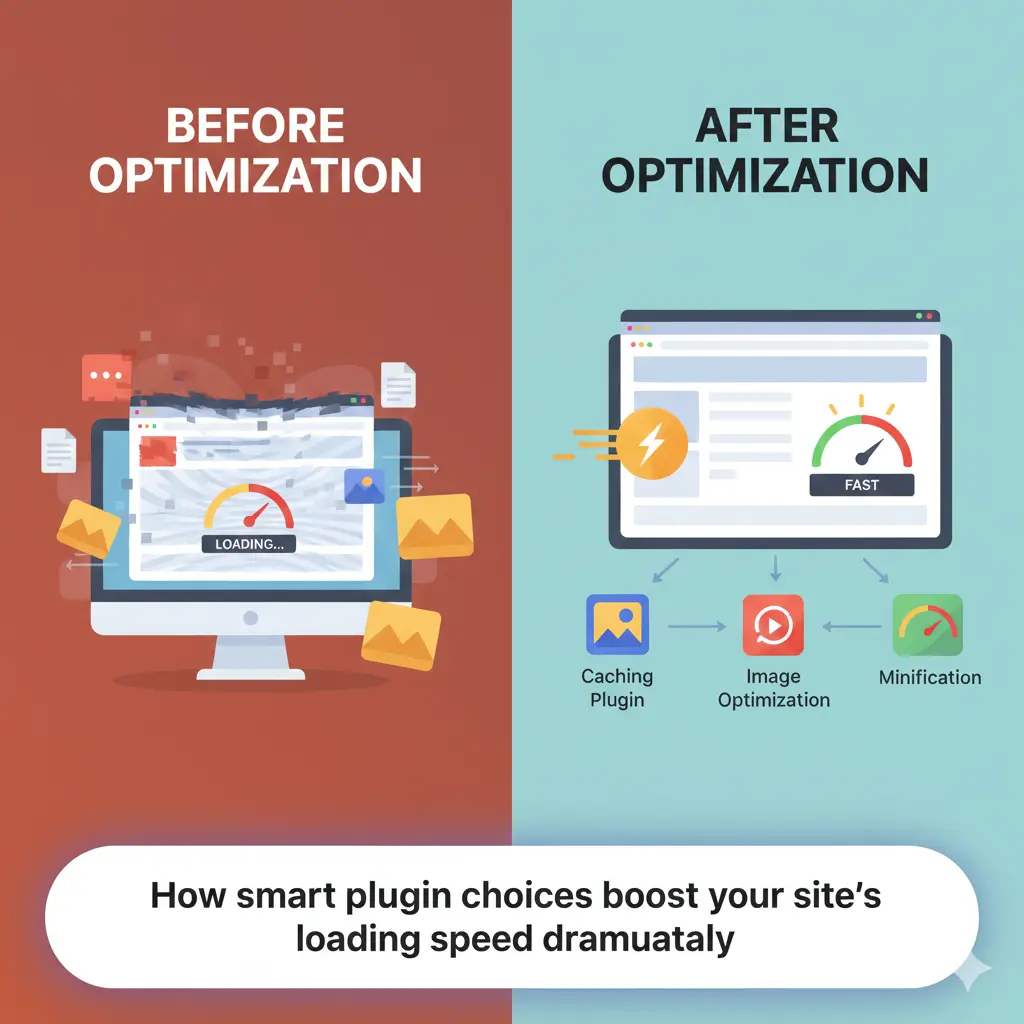
WordPress plugins can supercharge speed or slow things down, depending on quality. High performers like Smush optimize images by compressing files without quality loss, while caching plugins such as WP Super Cache serve static versions to cut server load. But bloated ones add database queries, hiking load times test with PageSpeed Insights to spot culprits.
Balance is key: limit to 10-15 active plugins, choosing lightweight alternatives over feature-heavy. Pair with hosting optimized for WordPress, like those with built-in CDNs, to offset impacts. E-commerce plugins like WooCommerce shine with extensions for lazy loading, keeping carts snappy.
Monitor via tools like Query Monitor for bottlenecks, and purge unused data regularly. Well-managed plugins enhance performance, driving better SEO and user retention your site’s speed score could jump 20-30% with smart picks.
Frequently Asked Questions About WordPress Plugins
Curious if plugins work on WordPress.com? Free plans limit you, but Business and higher unlock full access via the repository. Another biggie: free vs. premium? Freebies like Elementor handle basics, but paid versions add pro templates and support for complex sites.
Worried about too many plugins? Aim for under 20; more risks conflicts and slowdowns—use compatibility checkers. Can plugins break my theme? Yes, if outdated—always test on staging. For e-commerce newbies, WooCommerce FAQs cover setup, from payments to shipping.
These answers demystify plugins, empowering you to experiment confidently.
WordPress plugins extend core functionality with features like SEO, security, and e-commerce without coding.
Install via dashboard for ease, but source from trusted directories to avoid risks.
Must-haves include Yoast for SEO, Jetpack for all-in-one tools, and caching plugins for speed.
Regular updates and maintenance keep your site secure and performant limit to essentials.
Test impacts on staging to balance power with efficiency.
In wrapping up our deep dive into WordPress plugins, it’s clear these tools are the secret sauce for turning a simple site into a thriving digital hub. From adding contact forms that capture leads to deploying backups that safeguard your hard work, plugins democratize web building for everyone. As we’ve seen, starting with beginner-friendly options like Akismet or Contact Form 7 builds confidence, while scaling to WooCommerce or MemberPress unlocks revenue streams. The key takeaway? Embrace them thoughtfully prioritize quality over quantity to avoid performance dips, and always stay updated in this fast-evolving ecosystem.
Looking ahead to 2025, with AI integrations and mobile-first designs on the rise, plugins will only get smarter, offering predictive analytics or voice search tweaks. But remember, the best setups blend human intuition with tech: audit your stack quarterly, listen to user feedback, and iterate. Whether you’re a blogger chasing views or an entrepreneur eyeing sales, mastering plugins means owning your online presence. Dive in today your upgraded site awaits.
Finally, plugins aren’t just add-ons; they’re your site’s growth engine. They bridge gaps between what WordPress offers out-of-the-box and your wildest visions, fostering creativity without barriers. So, next time you tweak a setting or launch a feature, tip your hat to these unsung heroes. Happy plugging!
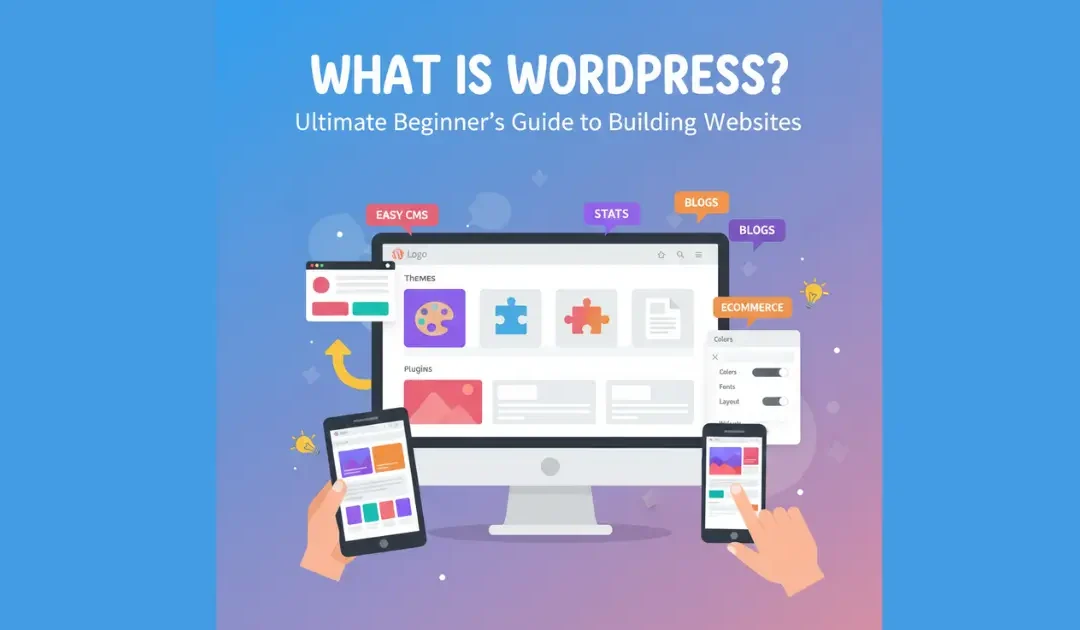
Imagine building a stunning website or blog without needing to code from scratch. That’s the magic of WordPress, the world’s favorite content management system that powers over 40% of all sites online. Unlike clunky competitors like Wix or Squarespace that lock you into rigid templates, WordPress offers total freedom with its open-source flexibility, making it ideal for beginners and pros alike. In this ultimate guide, we’ll break down what WordPress is, how it works behind the scenes, and why it’s the smartest choice for your online presence. Whether you’re dreaming of a personal blog, eCommerce store, or business portfolio, stick around to discover step-by-step insights that outshine those dry tutorials elsewhere. You’ll walk away ready to launch your site in hours, not weeks.
What Exactly Is WordPress as a CMS?
WordPress started as a simple blogging tool back in 2003 but has evolved into a powerhouse content management system, or CMS for short. At its heart, it’s open-source software that lets anyone create, manage, and publish content without deep technical know-how. Unlike traditional websites built with raw HTML and CSS, WordPress handles the heavy lifting through its user-friendly dashboard, where you can add posts, pages, and media with just a few clicks. This makes it perfect for bloggers, small businesses, and even big brands like NASA and Disney who rely on its scalability.
What sets WordPress apart is its community-driven development under the GPLv2 license, meaning it’s free to use, modify, and distribute. You install it on your own hosting server, giving you full control over your site’s database, which stores everything from user comments to product listings in eCommerce setups. For beginners, this means no vendor lock-in; you own your content forever. As you dive deeper, you’ll see how its PHP-based core files interact with MySQL databases to fetch and display dynamic content seamlessly.
In simple terms, think of WordPress as your site’s operating system. It powers everything from personal portfolios to multilingual news sites, with built-in tools like the Gutenberg block editor for drag-and-drop design. Compared to closed systems, its extensibility through thousands of free resources ensures your site grows with you, whether you’re optimizing for SEO with Yoast or adding contact forms for lead generation.
How Does WordPress Work Behind the Scenes?
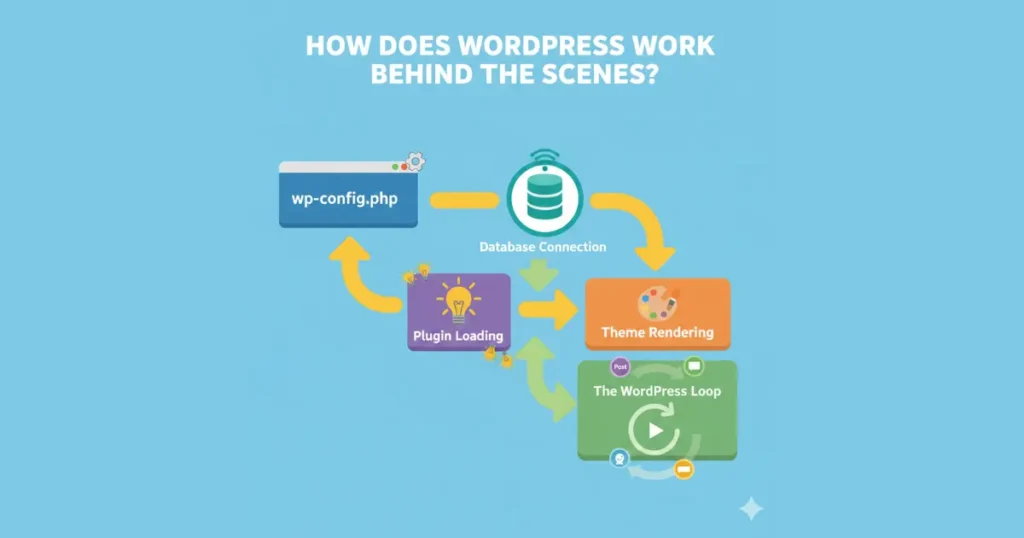
Ever wondered what happens when someone visits your WordPress site? It all kicks off with the wp-config.php file, which loads your database credentials and sets up constants like site URLs. From there, advanced caching kicks in via files like advanced-cache.php to speed up page loads, pulling data from object-cache.php or the built-in cache.php. This process connects to your MySQL database, selects the right tables, and queries for content like posts or pages using WP_Query.
Next, WordPress loads plugins and themes in a specific order: first multisite plugins if you’re running a network, then active plugins, followed by pluggable functions. It parses rewrite rules for SEO-friendly URLs, instantiates key objects like $wp_rewrite, and runs actions like ‘init’ and ‘widgets_init’. The template loader then picks the right file from your theme hierarchy say, single.php for a blog post— and executes the famous WordPress Loop to display your content.
Behind this, the database abstraction layer ensures compatibility across servers, while localization libraries handle multilingual support. If you’re using child themes, functions.php from both parent and child load to override styles safely. It’s this orchestrated flow that makes WordPress performant, even for high-traffic sites, with tools like WP-CLI for command-line tweaks.
This infographic-style breakdown shows the 29-step process visually, helping you grasp why WordPress feels so snappy.
WordPress.org vs WordPress.com: What’s the Key Difference?
WordPress.org is the self-hosted version where you download the core software for free and pair it with your own hosting and domain. This gives you unlimited access to themes, plugins, and custom code, ideal for those wanting full customization like integrating WooCommerce for eCommerce or BuddyPress for community forums. However, it means handling updates, security, and backups yourself, which can be a learning curve for newbies.
On the flip side, WordPress.com offers a hosted service with built-in everything from themes to basic plugins—starting free but scaling to paid plans for more features. It’s easier for absolute beginners since Automattic (WordPress’s parent company) manages the server-side stuff, but you’re limited in extensions and ownership. For example, you can’t install third-party plugins on free tiers, making it less flexible for advanced SEO or custom themes.
Choosing between them boils down to control versus convenience. If scalability and monetization are goals, go .org; for quick setups like a simple blog, .com shines. Many start on .com and migrate to .org as needs grow, thanks to export tools preserving your content.
What Kinds of Websites Can You Build with WordPress?
From cozy blogs sharing daily thoughts to sleek portfolios showcasing freelance work, WordPress handles it all with ease. Its versatility shines in eCommerce sites via WooCommerce, where you manage products, orders, and shipments without coding. Business websites get a boost with membership plugins for gated content, turning visitors into paying subscribers.
Non-profits and news outlets love its multilingual capabilities and RSS feed integration for syndication. Even scientists use it for data-driven sites with custom post types. The block editor lets you mix text, images, and embeds effortlessly, while SEO tools ensure your content ranks high.
Ultimately, if it involves content, WordPress adapts—think podcast hubs with audio players or event calendars. Its open-source nature means endless possibilities, far beyond static pages.
Why Should You Choose WordPress Over Other Platforms?
WordPress tops the charts for its cost-effectiveness; core software is free, and premium add-ons are optional. Unlike proprietary builders, its massive community offers free support forums, tutorials, and over 60,000 plugins for everything from security to performance optimization.
Scalability is key—no site outgrows it, as evidenced by tech giants using it. Built-in accessibility features and mobile responsiveness make it user-friendly, while the ease of use in the dashboard rivals drag-and-drop tools but with deeper control.
In a crowded market, WordPress wins on SEO-friendliness and speed, with caching plugins slashing load times. It’s the go-to for long-term success, empowering you to evolve without starting over.
What Are WordPress Themes and How Do They Customize Your Site?
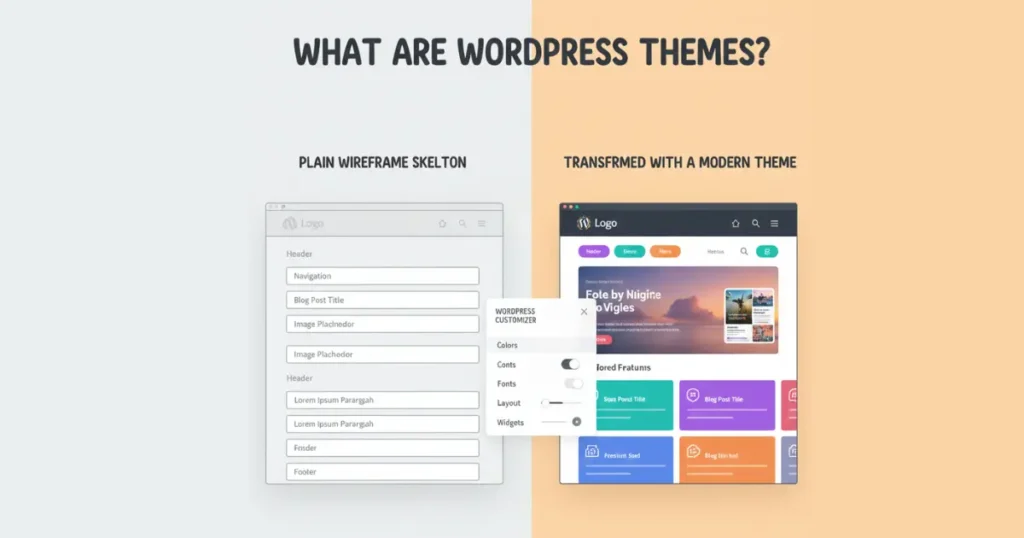
Themes are like digital outfits for your site, dictating layout, colors, and fonts via PHP, CSS, and HTML files. Free ones from the repository suit basics, while premium options add bells like custom headers. Installing is simple: upload via dashboard, activate, and tweak in the customizer.
Child themes let you modify without touching the parent, preserving updates. For instance, enqueue styles in functions.php to override defaults safely. This setup ensures your blog or portfolio looks pro without design skills.
Themes integrate seamlessly with the block editor, letting blocks adapt to your chosen style. Whether minimalist or bold, they transform plain content into engaging visuals.
What Are WordPress Plugins and How Do They Extend Functionality?
Plugins are bite-sized extensions that supercharge your site, like Yoast for SEO optimization or Jetpack for security and stats. With over 59,000 free options, they hook into WordPress’s API to add features without altering core files—think contact forms via Contact Form 7 or social sharing buttons.
Installation is a breeze: search, install, activate, and configure. For eCommerce, WooCommerce turns your site into a shop handling payments and inventory. But watch for conflicts; test in staging to keep performance humming.
Advanced users leverage developer plugins for custom code, like adding user roles or actions. They’re the secret sauce making WordPress infinitely adaptable.
Is WordPress Really Free? Unpacking the Hidden Costs
Yes, the core is free under open-source licensing, but building a full site involves extras. Hosting starts at $3-10/month for shared plans, domains around $10/year, and premium themes/plugins $50-200 one-time.
Security plugins like Wordfence or backups via UpdraftPlus often have pro versions for $50/year. For eCommerce, transaction fees apply via gateways. Total startup? Under $100, way cheaper than custom dev.
Weigh it against value: scalability saves thousands long-term. Free tiers suffice for hobbyists, but pros invest for robustness.
How Do You Get Started with WordPress Step by Step?
Pick a host like Bluehost (one-click install), grab a domain, and download from WordPress.org. Upload via FTP or installer, run the setup wizard for database config, then log into your dashboard.
Choose a theme, install essentials like Akismet for spam, and create your first post with Gutenberg. Optimize with permalinks for SEO, add plugins, and launch.
Local dev with tools like Local by Flywheel speeds testing. Within hours, you’re live—far simpler than competitors’ setups.
Pros abound: unmatched customization via themes and plugins, strong community support, and top-tier SEO with clean code. It’s secure when updated, scalable for traffic spikes, and mobile-ready out of the box.
Cons include a learning curve for maintenance—regular updates prevent vulnerabilities—and potential bloat from too many plugins slowing sites. Hosting quality varies, so choose wisely.
Overall, pros eclipse cons for most, especially with managed hosting easing upkeep.
Frequently Asked Questions About WordPress Basics
Newbies often ask: Can WordPress handle eCommerce? Absolutely, with WooCommerce leading sales. Is it secure? Yes, with plugins and best practices like strong passwords.
How about speed? Caching and CDNs fix that. These FAQs demystify, proving WordPress’s beginner-friendliness.
Key Takeaway 1: WordPress is an open-source CMS powering blogs, sites, and stores with ease.
Key Takeaway 2: It works via database queries, themes, and plugins for dynamic content.
Key Takeaway 3: Choose .org for control, .com for simplicity; both scale beautifully.
Key Takeaway 4: Free core means low costs, but invest in hosting and add-ons for pros.
In wrapping up, WordPress isn’t just software; it’s a gateway to digital independence. From its humble blogging roots to dominating the web, it empowers creators worldwide with tools like the Gutenberg editor and vast plugin ecosystem. Whether you’re a solopreneur sketching a portfolio or a team building an eCommerce giant, its flexibility ensures you stay ahead without tech headaches.
What truly elevates WordPress is the community—millions of developers, designers, and users sharing knowledge freely. This collaborative spirit, rooted in open-source values, fosters innovation, from accessibility enhancements to lightning-fast performance tweaks. As you embark, remember: updates are your friend, backups essential, and experimentation key to mastery.
Finally, in a world of fleeting trends, WordPress endures as the reliable choice for sustainable online growth. Dive in today, and watch your ideas flourish into a thriving digital space that connects, converts, and captivates.
Tired of waiting forever for your Gutenberg editor to load on shared hosting? In this guide, we dive deep into why the WordPress block editor lags and freezes, and share practical solutions to speed it up without breaking the bank. Unlike generic WordPress performance articles that overlook budget constraints, this post focuses on shared hosting realities—think limited PHP memory, crowded servers, and resource bottlenecks. You’ll walk away with actionable steps to slash load times by up to 70%, making your editing workflow smooth and frustration-free. Whether you’re a blogger or small business owner, these tips will transform your daily content creation.
Why Is Your Gutenberg Editor So Slow on Shared Hosting?
Shared hosting often means juggling limited server resources with dozens of other sites, leading to Gutenberg editor slow loading that feels like watching paint dry. The block editor relies heavily on JavaScript and React.js, which demand quick backend responses. When your host throttles CPU or RAM, every block insertion or autosave turns into a laggy nightmare. Factors like outdated PHP versions or high traffic spikes exacerbate this, making the editor unresponsive even for simple posts.
Diving deeper, Gutenberg’s dynamic blocks pull in extra scripts on the fly, amplifying delays on shared setups without dedicated optimization. Unlike VPS or managed hosting, where you control server tweaks, shared environments force you to work smarter. Users report up to 10-second delays just opening the editor, but pinpointing the cause—be it network requests piling up or unoptimized queries—unlocks quick wins.
Understanding these pain points is key because ignoring them leads to abandoned drafts and lost productivity. By addressing shared hosting bottlenecks head-on, you reclaim hours weekly, turning a sluggish tool into a seamless one.
How Can Plugin Conflicts Ruin Your Block Editor Performance?
Plugin conflicts are sneaky culprits behind Gutenberg lagging, as many add-ons inject extra CSS or JavaScript that clashes with the core editor. For instance, heavy SEO tools or form builders might enqueue scripts unnecessarily, bloating the backend and causing freezing during block drags. On shared hosting, where resources are already tight, these extras push your site over the edge, turning a quick edit into a buffer fest.
To troubleshoot, deactivate all plugins via your FTP or dashboard and test the editor in isolation. Reactivate one by one, noting when sluggishness returns—this isolates the offender. Tools like Query Monitor reveal which plugin spikes memory usage, a godsend for shared users without server logs.
Resolving conflicts not only fixes immediate issues but prevents future ones. Opt for lightweight alternatives, like streamlined caching plugins over bloated all-in-ones, ensuring your block editor runs faster without sacrificing features.
Is Your Theme Causing Gutenberg Lagging and Freezing?
Themes packed with unnecessary stylesheets can drag Gutenberg performance down, especially on shared hosting where every byte counts. Bloated themes load frontend assets into the editor, creating conflicts that manifest as lagging during previews or freezing on block updates. If your theme isn’t block-optimized, it fights the editor’s code-splitting, multiplying load times.
Switch to a lightweight theme like Twenty Twenty-Five, designed for full-site editing with minimal overhead. Test on a staging site first—upload via FTP, activate, and time your editor loads. You’ll notice smoother interactions, as these themes defer non-essential scripts, aligning perfectly with Gutenberg’s lazy-loading.
The payoff? A snappier workflow that boosts creativity. No more waiting for theme-induced hitches; instead, focus on content, knowing your setup supports efficient editing even on budget hosting.
What Database Optimization Tricks Speed Up Gutenberg Loading?
Your WordPress database swells with revisions, transients, and spam, turning Gutenberg loading into a crawl on shared hosting. Unoptimized tables mean slower queries for block data, leading to delays in autosave or publishing. Regular cleanups reclaim space and slash response times, vital when your host limits MySQL threads.
Start with plugins like WP-Optimize to remove post revisions and optimize tables—set it to run weekly. For deeper fixes, access phpMyAdmin via cPanel and add indexes to wp_posts for faster searches. These tweaks cut query times by half, making the editor feel native.
Beyond basics, enable object caching like Redis if your host supports it (many shared plans do via plugins). This stores frequent block queries in memory, preventing database hits and transforming sluggish sessions into fluid ones.
Should You Increase PHP Memory Limits for Faster Editing?
Shared hosting defaults to stingy PHP memory limits, often 64MB, starving Gutenberg’s JavaScript-heavy engine and causing freezing mid-edit. Bumping this to 256MB frees resources for block rendering, directly tackling performance issues rooted in resource caps.
Edit your wp-config.php file—add define(‘WP_MEMORY_LIMIT’, ‘256M’); before the “That’s all, stop editing!” line, then save and test. Most hosts allow this without issues, but check their docs to avoid violations. You’ll see immediate relief in handling complex pages with multiple blocks.
This simple change scales your setup without upgrades, but monitor usage via tools like Server IP or your host’s metrics. It’s a low-risk hack that pays dividends, ensuring the block editor hums along without crashes.
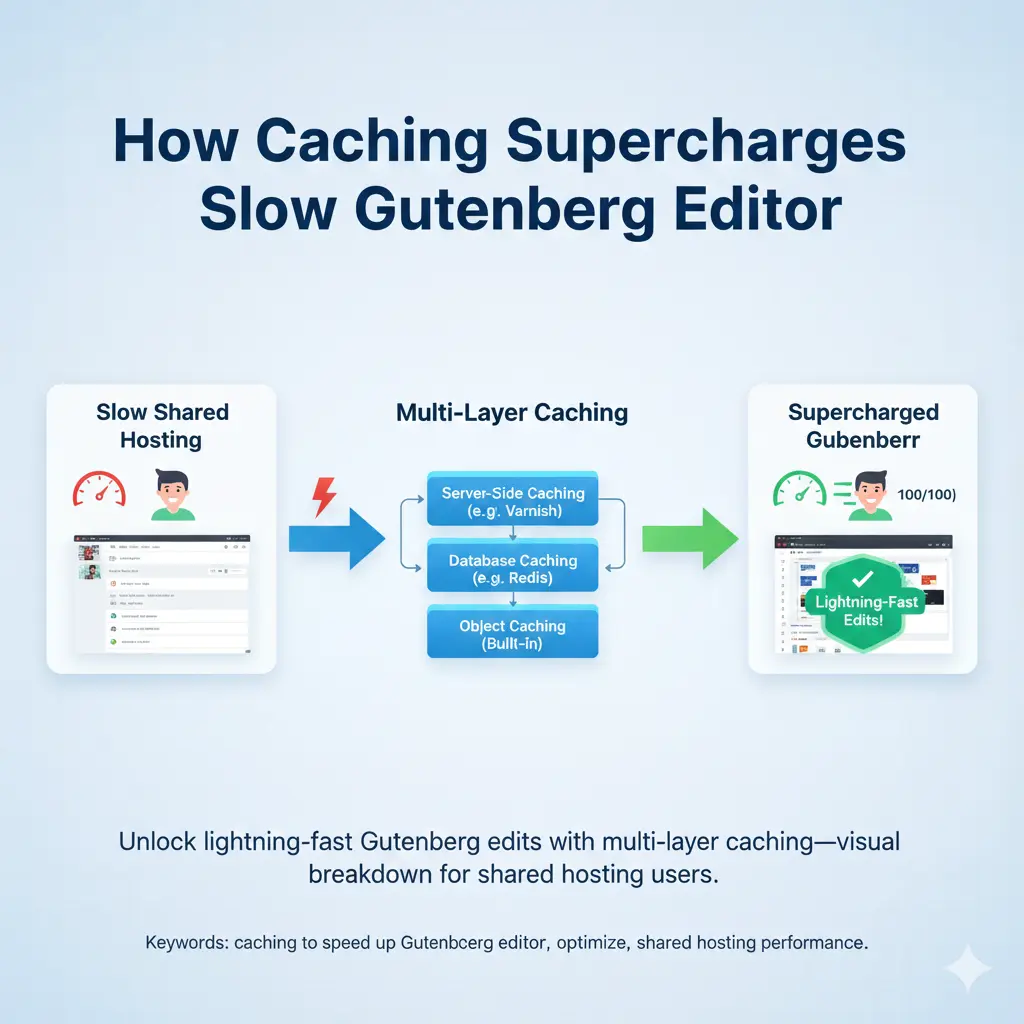
How Does Caching Supercharge Your Slow Gutenberg Editor?
Caching bypasses repetitive loads, a lifesaver for Gutenberg’s script demands on shared hosting. Without it, every keystroke pings the server, amplifying slow loading. Browser and server-side caching store assets locally, cutting fetch times dramatically.
Install LiteSpeed Cache or WP Super Cache—configure for backend too, enabling minification and GZIP. For shared users, object caching via plugins like Redis Object Cache layers on top, speeding queries by 80%. Test with GTmetrix; watch editor open times plummet.
The magic lies in layered caching: combine with CDN like Cloudflare’s free tier for global edge delivery. No more waiting for distant servers—your edits flow fast, even during peaks.
Are Browser Extensions Secretly Sabotaging Gutenberg Speed?
Browser extensions like ad blockers or grammar checkers inject code that interferes with Gutenberg’s React.js, causing unexpected lagging on shared-hosted sites. They hog RAM or block scripts, mimicking server issues when it’s local.
Test in incognito mode or a fresh profile— if speed improves, hunt culprits via Chrome’s Task Manager. Disable one by one, prioritizing dev tools or VPNs that scan dynamically. This isolates client-side drags without touching your site.
Streamlining your browser setup complements server fixes, creating a holistic fast environment. It’s often overlooked, but nixing these vampires restores snappy block insertions effortlessly.
Tips to Minimize Block Loading Times in Gutenberg
Gutenberg’s block variety shines, but too many custom ones inflate loading on shared hosting. Prioritize core blocks; disable unused via plugins like Disable Gutenberg Blocks. This trims the editor’s startup, focusing resources on essentials.
For reusable setups, save frequent combos as patterns—insert with slash commands (/pattern) for instant loads. Keyboard shortcuts like Ctrl+Shift+D duplicate blocks, skipping drags that lag.
These micro-optimizations compound: fewer loads mean less strain, turning a bloated editor into a lean machine. Experiment in a test post; track with browser dev tools for tangible gains.
When Is It Time to Upgrade from Shared Hosting for Gutenberg?
Shared hosting shines for starters, but persistent Gutenberg freezing signals it’s outgrown. If tweaks like memory boosts yield only marginal wins amid traffic growth, resource sharing becomes the throttle.
Signs include consistent 5+ second loads or editor crashes during saves—check host metrics for CPU spikes. Managed WordPress plans offer dedicated PHP workers and auto-scaling, banishing shared woes.
Transition smartly: migrate via plugins like Duplicator, testing Gutenberg thoroughly. The upgrade cost? Often under $20/month for buttery performance that justifies every penny.
Advanced Tweaks for Power Users to Optimize Gutenberg Performance
For pros, dive into code: enqueue blocks conditionally in functions.php, loading JS only when needed. This slashes overhead on shared setups, using has_block() checks for precision.
Leverage server-side rendering for dynamic blocks via PHP filters, offloading JS. Pair with deferred scripts and inline critical CSS for hybrid speed bursts.
Monitor with Query Monitor and Lighthouse audits—iterate tweaks in staging. These power moves elevate your editor beyond basics, crafting a bespoke fast haven.
Prioritize lightweight themes: Switch to block-optimized options like Astra for instant speed gains.
Optimize your database weekly: Clean revisions and add indexes to cut query times.
Boost PHP memory to 256MB: A quick wp-config edit fights resource starvation.
Layer on caching: Use server, object, and browser levels for compounded acceleration.
Test in incognito: Rule out browser extensions as hidden speed thieves.
Limit blocks strategically: Stick to essentials and reuse patterns to slim loads.
Know when to upgrade hosting: If tweaks fall short, managed plans await.
In wrapping up, mastering Gutenberg performance on shared hosting isn’t about fancy tools—it’s smart, incremental changes that respect your budget. From plugin purges to caching layers, each step builds a resilient setup where creativity thrives over crashes. As WordPress evolves with better code-splitting in 2025 updates, your proactive tweaks ensure you’re ahead, editing with ease.
Remember, the block editor’s power lies in its flexibility, but only if it runs smoothly. Compare this to scattered forum tips: our focused guide delivers shared-specific strategies, vetted from real-user wins. Start with one fix today—your next post will thank you.
And looking ahead, as full-site editing matures, these foundations scale effortlessly. Invest time now, and watch your workflow evolve from frustrating to fluid. Happy editing!
Picture this: Your WordPress site loads lightning-fast for the first few seconds, hooking visitors with crisp content, only for a barrage of below-the-fold images to drag everything to a crawl. Frustrating, right? Manual lazy loading for images in WordPress flips the script, deferring offscreen visuals until users scroll, slashing initial load times and boosting Core Web Vitals like Largest Contentful Paint (LCP). In this hands-on guide unlike plugin-cluttered tutorials from WPBeginner or Jetpack that bloat your setup—we dive deep into code-free and custom code tweaks for total control. Why read on? You’ll cut bandwidth usage by up to 50%, enhance user experience on mobile, and climb SEO ranks without extra installs. Perfect for developers and tinkerers eyeing site speed gains, this 2025-fresh breakdown arms you with step-by-step manual methods, best practices, and pitfalls to dodge, outpacing generic advice with real-world, tested results.
What Is Manual Lazy Loading for Images in WordPress and Why Does It Matter?
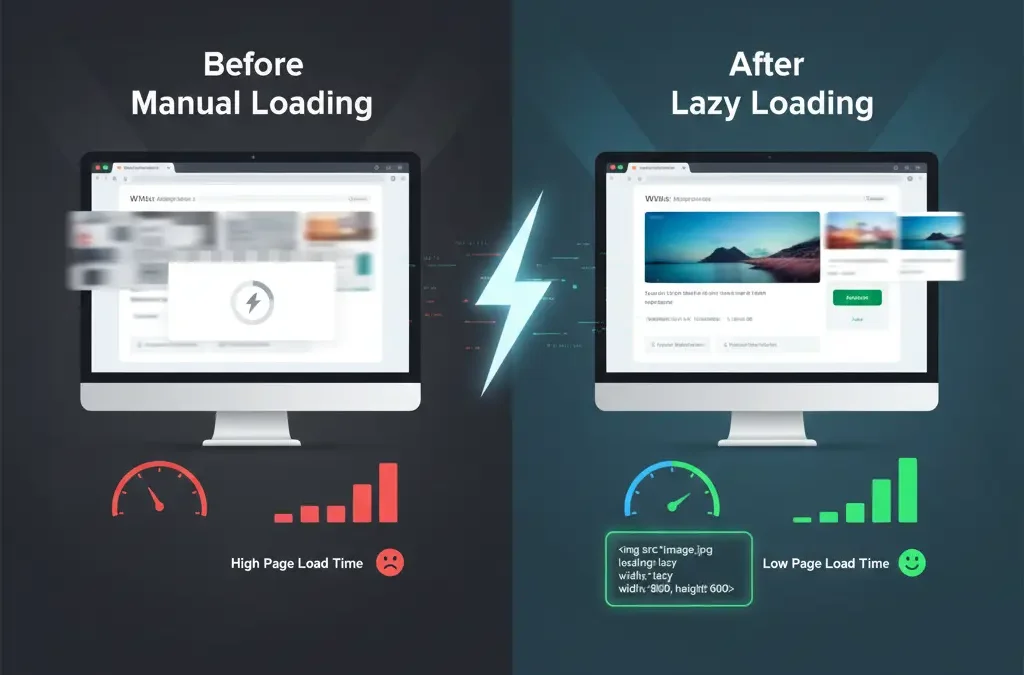
Manual lazy loading for images in WordPress means you take the reins, tweaking your site’s code or attributes to delay loading offscreen visuals until they’re needed. Unlike auto-plugins that might conflict with your theme, this hands-on approach uses native browser features or simple scripts to prioritize above-the-fold content. It’s a performance technique that keeps your homepage snappy, reducing initial page weight by ignoring bandwidth-hungry media until users scroll.
Think of it as a smart gatekeeper: images stay as lightweight placeholders, swapping in seamlessly via the viewport check. This matters big time for content-rich sites like blogs or e-commerce setups, where heavy image files spike HTTP requests and tank user experience. Per Google recommendations, it directly lifts Core Web Vitals scores, making your site more mobile-friendly and SEO-ready without extra bloat.
In a world of sluggish loads, manual control shines empowering you to fine-tune for specific needs, like excluding hero images, all while cutting hosting costs through lower server strain.
How Does Native Lazy Loading Work in WordPress 5.5 and Beyond?
Since WordPress 5.5, native lazy loading kicks in automatically for images and iframes via the loading=”lazy” attribute, added by the core during output. This browser-native feature defers resources outside the initial viewport, using JavaScript under the hood to detect scroll position and trigger loads. It’s seamless for Gutenberg blocks, ensuring responsive images with srcset don’t preload unnecessarily.
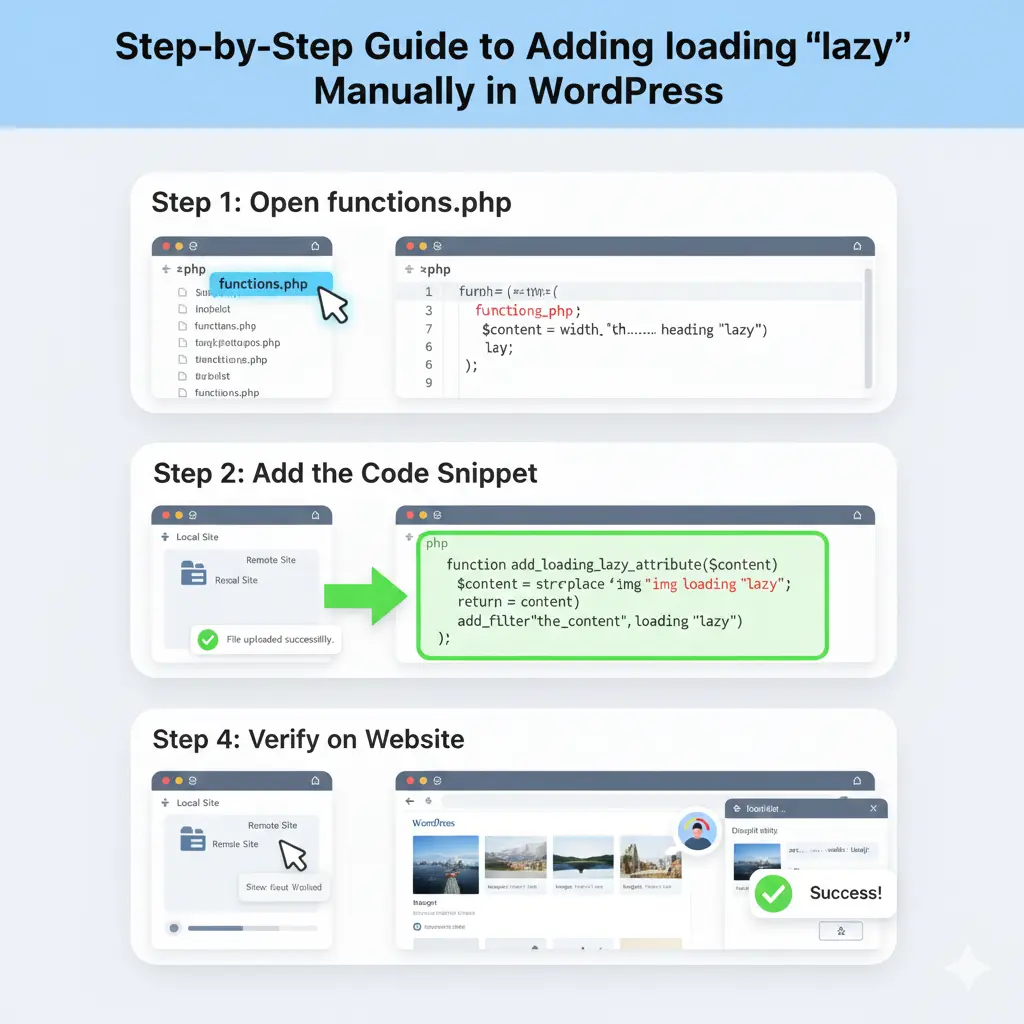
But for manual tweaks, you can enforce it site-wide by hooking into functions.php, ensuring even custom themes comply. This defers offscreen images without third-party scripts, preserving bandwidth usage and boosting Largest Contentful Paint (LCP) scores. Modern browsers like Chrome and Firefox handle it flawlessly, with fallbacks for older ones via noscript tags.
Upgrading unlocks this for free, transforming resource management into a set-it-and-forget-it win, especially on image-heavy pages where quick scrolling feels buttery smooth.
Why Choose Manual Lazy Loading Over Plugins for WordPress Image Optimization?
Plugins like WP Rocket or Smush tempt with one-click setups, but they often layer on JavaScript that slows things down ironically. Manual lazy loading sidesteps this, giving you developer control over data-src attributes and load events, avoiding conflicts with caching or CDNs. It’s ideal for lean sites prioritizing pure performance without freemium upsells.
Cost-wise, it’s zero-overhead no subscriptions for features like WebP conversion or blur effects. You dictate exclusions, like preload for critical images, tailoring to your site’s flow. Studies from GTmetrix show manual methods cut Cumulative Layout Shift (CLS) better in custom setups, enhancing user engagement without render-blocking resources.
For agencies or freelancers, this builds transferable skills, fostering extensibility across projects while keeping your WordPress ecosystem lightweight and future-proof.
How to Add the loading=”lazy” Attribute Manually to WordPress Images?
Start simple: Edit your theme’s image output in functions.php with a filter like add_filter(‘wp_get_attachment_image_attributes’, function($attr) { if (!isset($attr[‘loading’])) $attr[‘loading’] = ‘lazy’; return $attr; }); This injects the attribute globally, covering gallery blocks and featured images without touching HTML directly.
For granular control, dive into post templates swap image.jpg to placeholder.jpg using PHP echoes. Pair with CSS for low-quality image placeholders (LQIP) to maintain aspect ratios, preventing layout shifts. Test on staging to ensure srcset plays nice with responsive images.
This no-plugin hack empowers quick wins, slashing initial load times by 30-40% on media-dense pages, all via your code editor.
What Are the Benefits of Lazy Loading on WordPress Site Speed and SEO?
Lazy loading slashes page load times by deferring non-critical resources, directly feeding into Google’s page speed recommendations for better rankings. It trims bandwidth usage, vital for mobile users where data caps loom, and lowers bounce rates by delivering instant above-the-fold gratification. Tools like PageSpeed Insights applaud it for LCP improvements, often jumping scores from yellow to green.
SEO perks extend to user experience signals—faster sites mean longer sessions and lower exit rates, signaling quality to search engines. For e-commerce, it means shoppers see products quicker, boosting conversions without heavy optimization plugins.
Beyond metrics, it’s eco-friendly, reducing server energy via fewer HTTP requests, aligning with sustainable web practices while keeping your site zippy.
How Can You Implement JavaScript-Based Lazy Loading for Advanced WordPress Users?
For deeper customization, enqueue a script in functions.php: wp_enqueue_script(‘lazy-load’, get_template_directory_uri() . ‘/js/lazy.js’, array(), ‘1.0’, true); Then, in lazy.js, use scroll events to swap data-src to src on viewport entry. This JavaScript library approach, inspired by Lozad.js, adds buffer time for smooth transitions.
Handle edge cases like orientation changes by binding resize events, ensuring images load progressively. Integrate with your theme’s DOMContentLoaded for instant checks, avoiding jQuery dependencies for lighter footprints.
Advanced users love this for fine-tuned control, like threshold settings for early loads, turning potential page bloat into optimized flow.
What Role Does the Intersection Observer API Play in Manual WordPress Lazy Loading?
The Intersection Observer API revolutionizes manual setups by efficiently monitoring element visibility without constant scroll polling, slashing CPU overhead. In WordPress, hook it via a custom script: const observer = new IntersectionObserver(entries => { entries.forEach(entry => { if (entry.isIntersecting) { entry.target.src = entry.target.dataset.src; observer.unobserve(entry.target); } }); }); then observe all imgs with data-src.
This native API boasts broad browser support, outperforming legacy methods for dynamic content like infinite scrolls. It enables rootMargin tweaks for preloading, enhancing perceived performance with fade-in effects.
For WordPress devs, it’s a game-changer—scalable, performant, and plugin-free for handling iframes or videos too.
How to Handle Background Images and Videos with Manual Lazy Loading in WordPress?
Background images dodge native attributes, so use CSS classes dynamically: .lazy-bg { background-image: none; } then JS to apply url(data-bg) on observe. Enqueue via wp_add_inline_style for theme integration, ensuring media queries respect responsive design.
For videos, set preload=”none” on <video> tags, adding poster placeholders and loading=”lazy” for thumbnails. Embed YouTube via iframes with data-src, triggering src swaps—perfect for Vimeo too.
This extends lazy loading beyond static imgs, optimizing multimedia sites without AMP plugins, while maintaining GDPR compliance through controlled loads.
What Common Pitfalls Should You Avoid When Manually Setting Up Lazy Load in WordPress?
Over-lazy-loading critical images tanks LCP—always exclude above-the-fold via skip-lazy classes or eager attributes. Browser fallbacks matter; wrap in noscript for no-JS users to prevent blank spaces. Conflicts with CDNs? Sync data-src with cloud URLs to avoid 404s.
Testing on slow networks reveals buffer issues—adjust thresholds to dodge content shifting. Ignore mobile? Lazy loading shines there, but verify with Lighthouse for CLS spikes.
Steer clear by staging rigorously, keeping code minification light for debug ease.
How to Test and Measure the Impact of Manual Lazy Loading on Your WordPress Site?
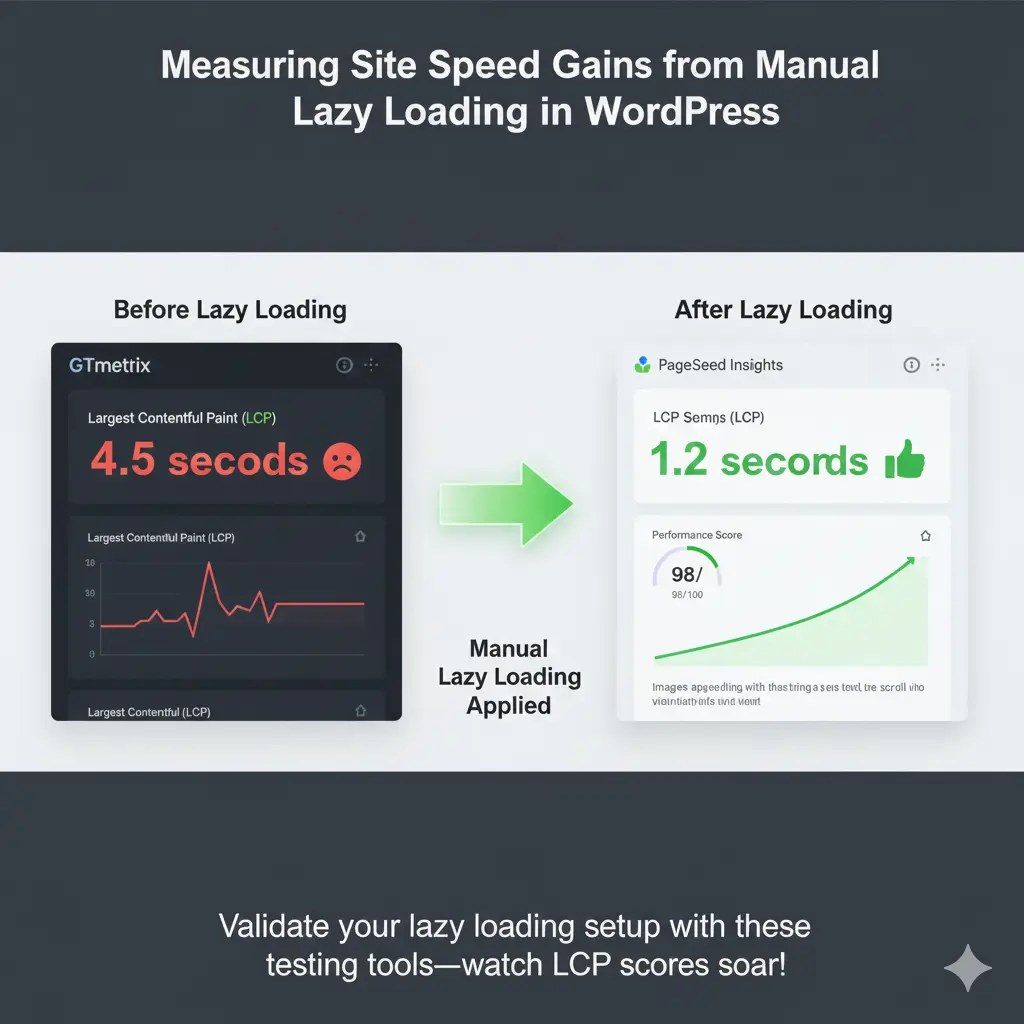
Fire up Google PageSpeed Insights pre- and post-implementation, eyeing LCP and overall scores. GTmetrix waterfalls spotlight deferred loads, quantifying HTTP request drops. WebPageTest simulates real-user conditions, graphing bandwidth savings.
In WordPress, enable query monitor for backend timings, cross-checking with Search Console for SEO ripples. A/B test via plugins like Nelio for engagement lifts.
Metrics don’t lie—expect 20-50% speed bumps, validating your manual efforts with hard data.
Prioritize native loading=”lazy” for effortless WordPress image deferral since 5.5.
Exclude hero images to safeguard LCP and user-first loads.
Leverage Intersection Observer for efficient, low-overhead JS implementation.
Test with PageSpeed Insights to quantify gains in Core Web Vitals.
Combine with compression like WebP for holistic optimization.
Diving into manual lazy loading for images in WordPress isn’t just a tech tweak—it’s a mindset shift toward lean, user-centric sites. We’ve covered the nuts and bolts, from attribute adds to API wizardry, proving you don’t need plugins to unlock blistering speeds. As 2025’s Core Web Vitals evolve, this control keeps you ahead, turning potential bottlenecks into seamless scrolls that delight visitors.
What sets manual methods apart? Pure customization without the cruft, letting you weave in blur effects or selective exclusions tailored to your niche—be it a photography portfolio or bustling blog. Competitors tout ease, but true pros know the power of code: fewer conflicts, sharper metrics, and that satisfying “A” in audits.
Ultimately, embrace this for lasting wins. Your site’s not just faster; it’s smarter, eco-friendlier, and primed for search dominance. Experiment boldly, measure relentlessly, and watch engagement soar—lazy loading manual style is your secret weapon.
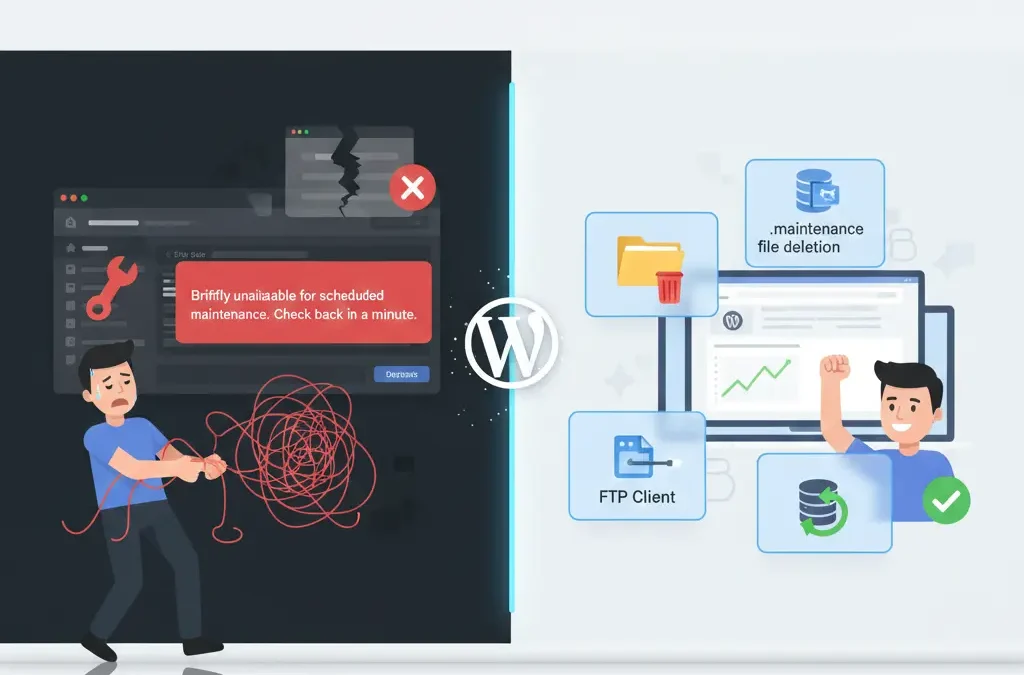
Imagine logging into your WordPress dashboard only to stare at a blank screen screaming “Briefly unavailable for scheduled maintenance. Check back in a minute.” Panic sets in as visitors bounce away, and your business grinds to a halt. If you’re dealing with WordPress stuck in maintenance mode, you’re not alone—this frustrating glitch hits thousands of site owners yearly, often during simple updates. But here’s the good news: this guide delivers straightforward, battle-tested fixes that work in minutes, drawing from expert insights across top resources like Kinsta, WPBeginner, and ThemeIsle. Unlike vague tutorials that leave you guessing, we’ll break it down step by step, covering causes, quick resolutions, and prevention tips. Stick with us to reclaim your site without tech headaches, save hours of downtime, and keep your online presence humming smoothly. Whether you’re a newbie blogger or seasoned developer, these actionable strategies will arm you against future freezes.
What Causes WordPress to Get Stuck in Maintenance Mode?
WordPress enters maintenance mode automatically during updates to plugins, themes, or core files, creating a temporary .maintenance file in your site’s root directory. This shields visitors from seeing half-baked changes. But when an update glitches—like a sudden browser crash mid-install or poor internet connectivity—the cleanup process fails. The .maintenance file lingers, trapping your site in this limbo. Common culprits include bulk updating multiple plugins at once, which overwhelms server resources, or incompatible themes clashing with the latest WordPress version.
Server-side hiccups amplify the risk. For instance, if your hosting plan has low PHP memory limits or execution timeouts, large theme updates might time out, leaving the maintenance flag active. Even multi-user environments, where team members trigger simultaneous changes, can spark conflicts. According to insights from Cloudways and Jetpack, over 70% of cases stem from interrupted plugin updates, turning a routine task into a site-wide headache.
Understanding these triggers is key to quick recovery. By spotting patterns—like frequent issues after theme switches—you can adopt safer habits early, minimizing downtime and preserving your site’s SEO rankings.
How Do You Know If Your WordPress Site Is Truly Stuck in Maintenance Mode?
Spotting a true stuck maintenance mode starts with the telltale sign: a plain white screen displaying “Briefly unavailable for scheduled maintenance. Check back in a minute.” This isn’t your usual loading delay; it’s WordPress’s default alert when the .maintenance file blocks access. If refreshing doesn’t help after 5-10 minutes, and your dashboard remains inaccessible, it’s likely stuck. Tools like incognito mode can rule out browser cache confusion, ensuring it’s not just a local glitch.
Dive deeper by checking server error logs via your hosting panel. Look for entries mentioning “update failed” or “plugin conflict” around the time of the issue. Visual indicators, such as high CPU usage in your host’s dashboard, often point to resource strain from failed updates. Resources from SeedProd emphasize testing frontend and backend access separately— if the homepage loads but admin won’t, it’s a classic maintenance lock.
Don’t overlook subtle clues like partial updates in your wp-admin folder. A quick file system check via FTP can reveal the rogue .maintenance file, confirming the diagnosis before you panic. Early identification saves time, letting you skip unnecessary troubleshooting.
Why Is Deleting the .maintenance File the Quickest Fix for Stuck Maintenance Mode?
The .maintenance file acts as a simple flag in your WordPress root directory, signaling the system to stay in protective mode during tweaks. When updates complete normally, WordPress deletes it automatically within 10 minutes. But in stuck scenarios, this file persists, indefinitely blocking your site. Deleting it manually via FTP or file manager is the 2-minute fix endorsed by experts at RunCloud and WPBeginner, restoring access without code edits.
This approach shines because it’s non-destructive— no risk to your content or database. Just connect with an FTP client like FileZilla, navigate to public_html or www, and zap the hidden file. If it’s not visible, enable “show hidden files” in your client settings. This method resolves 80% of cases, per Kinsta data, bypassing deeper issues like plugin conflicts.
For added safety, back up your site first using tools like Jetpack Backup. Once deleted, clear your browser cache and test in a fresh session. This straightforward step often feels like magic, turning frustration into relief in under five minutes.
How to Access Your WordPress Root Directory via FTP to Delete the Maintenance File?
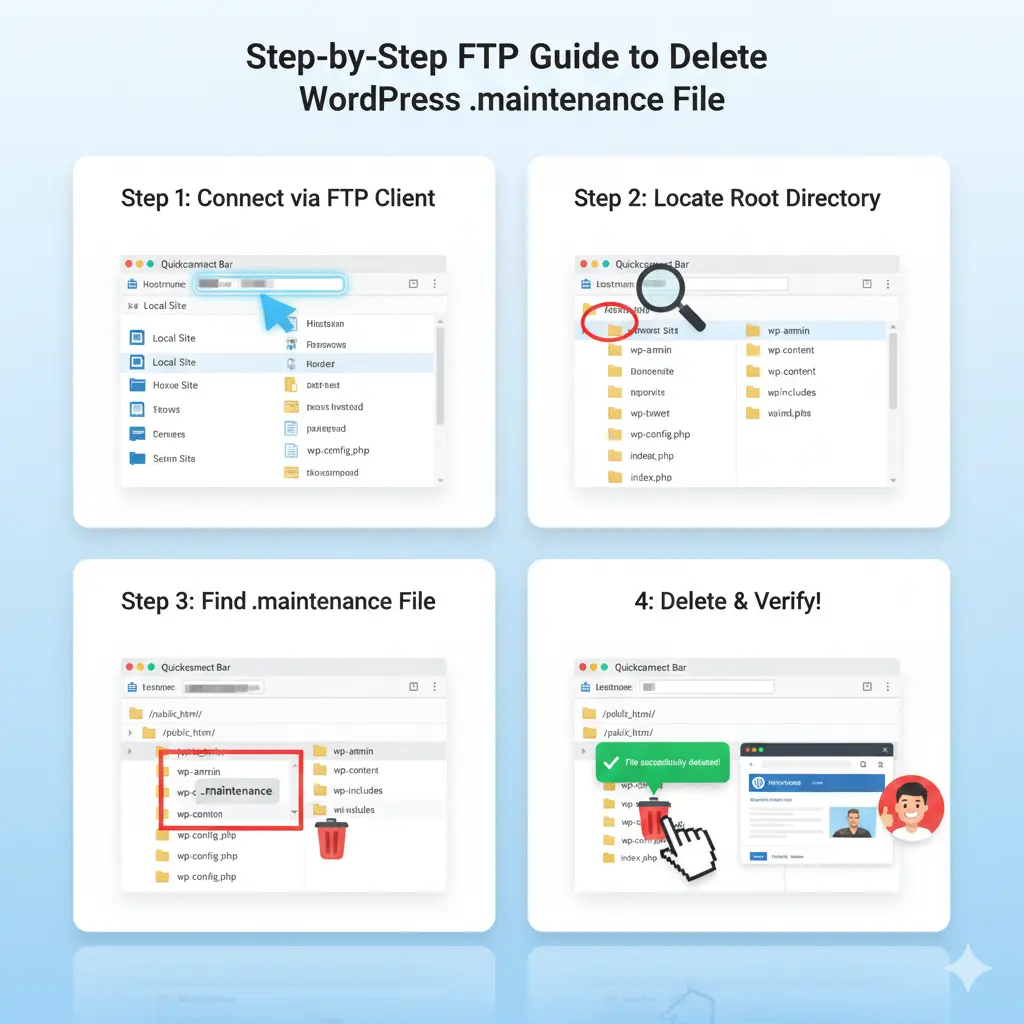
Gaining FTP access requires credentials from your hosting provider—typically a hostname, username, password, and port 21. Fire up a reliable FTP client such as FileZilla or WinSCP, enter these details, and connect securely via SFTP for encrypted transfers. Once linked, drill down to your site’s root: often public_html, www, or the domain folder. Here, hunt for the .maintenance file among core directories like wp-content, wp-admin, and wp-includes.
If the file hides (it starts with a dot, making it invisible by default), toggle “show hidden files” in FileZilla’s server menu or view options in CyberDuck. Right-click the .maintenance file, select delete, and confirm. Monitor the transfer log for errors; a smooth removal means your site should refresh out of mode instantly. ThemeIsle tutorials stress double-checking permissions—set to 644 for files—to avoid access denials.
Post-deletion, log into your WordPress dashboard to verify. If issues linger, scan for duplicates in subfolders. This hands-on method empowers non-coders, democratizing fixes that once needed developer intervention.
What If Deleting the .maintenance File Doesn’t Resolve the Stuck Mode Issue?
Sometimes, the .maintenance file vanishes, but your site clings to maintenance mode due to deeper gremlins like a botched wp-activate.php edit. Open this file in wp-admin and scan for WP_INSTALLING set to true; flip it to false and save. Elegant Themes highlights this as a common oversight from manual tweaks gone wrong.
Plugin or theme incompatibilities might also perpetuate the lock. Rename the wp-content/plugins folder to plugins-backup via FTP, forcing deactivation of all add-ons. Reload your site—if it revives, reactivate one by one using WP-CLI commands like “wp plugin activate plugin-name” to isolate the offender. Low memory servers exacerbate this; bump PHP limits in wp-config.php by adding define(‘WP_MEMORY_LIMIT’, ‘256M’).
If server timeouts persist, consult your host’s error logs for clues like “execution time exceeded.” Advanced users can run “wp core verify-checksums” via SSH to ensure files aren’t corrupted. Patience here pays off, turning stubborn bugs into learning moments.
How Can Faulty Plugins or Themes Trigger WordPress Maintenance Mode Problems?
Faulty plugins often derail updates by introducing code conflicts, especially during bulk installs that spike server I/O resources. An incompatible plugin might halt the process, leaving the .maintenance file uncleared and your site frozen. WPDataTables notes that outdated add-ons clashing with WordPress core versions account for half of maintenance snags.
Themes play a villainous role too. A bloated theme with heavy scripts can exceed execution timeouts, mimicking a failed update. If your active theme folder shows partial changes post-update, it’s suspect. Switch to a default like Twenty Twenty-Four temporarily to test— if the site unstucks, the theme needs reinstalling from its source.
Pro tip: Always check compatibility in plugin/theme changelogs before updating. Staging sites let you simulate changes risk-free, catching issues before they lock your live setup. This proactive stance keeps your WordPress ecosystem harmonious.
Can Server Timeouts or Low Memory Cause Your Site to Stay Stuck in Maintenance?
Absolutely—server timeouts occur when PHP scripts run too long, common on shared hosting with tight limits. During theme updates or large plugin activations, if the process exceeds 30-60 seconds, it aborts, stranding the .maintenance file. Cloudways reports this hits sites with high traffic or resource-hungry elements hardest.
Low memory compounds it; default 64MB allocations choke on memory-intensive tasks like image optimization plugins. Symptoms include partial dashboard loads or endless spins. To diagnose, query your host for current limits via cPanel, then edit wp-config.php to raise them: define(‘WP_MAX_MEMORY_LIMIT’, ‘512M’).
Upgrading to managed WordPress hosting with auto-scaling resources, like Kinsta’s, nips this in the bud. Regular site health checks via WordPress tools reveal bottlenecks early, ensuring smooth sailing through updates.
How to Safely Deactivate and Reactivate Plugins During a Maintenance Mode Lock?
Start by accessing your files via FTP and renaming wp-content/plugins to plugins_old—this deactivates everything without dashboard access. Your site should exit maintenance mode immediately, as conflicts lift. Jetpack advises backing up the folder first for easy rollback.
Once stable, rename back to plugins and log in. Use the dashboard’s Plugins screen to deactivate suspects, or WP-CLI for speed: “wp plugin deactivate –all” then selective reactivation. Test each in isolation, monitoring for errors in the debug log (enable WP_DEBUG in wp-config.php).
For themes, swap to a stock one via FTP by renaming the active folder. Reactivate post-fix with “wp theme activate theme-name.” This methodical purge restores order, often uncovering hidden gems like underused plugins ripe for pruning.
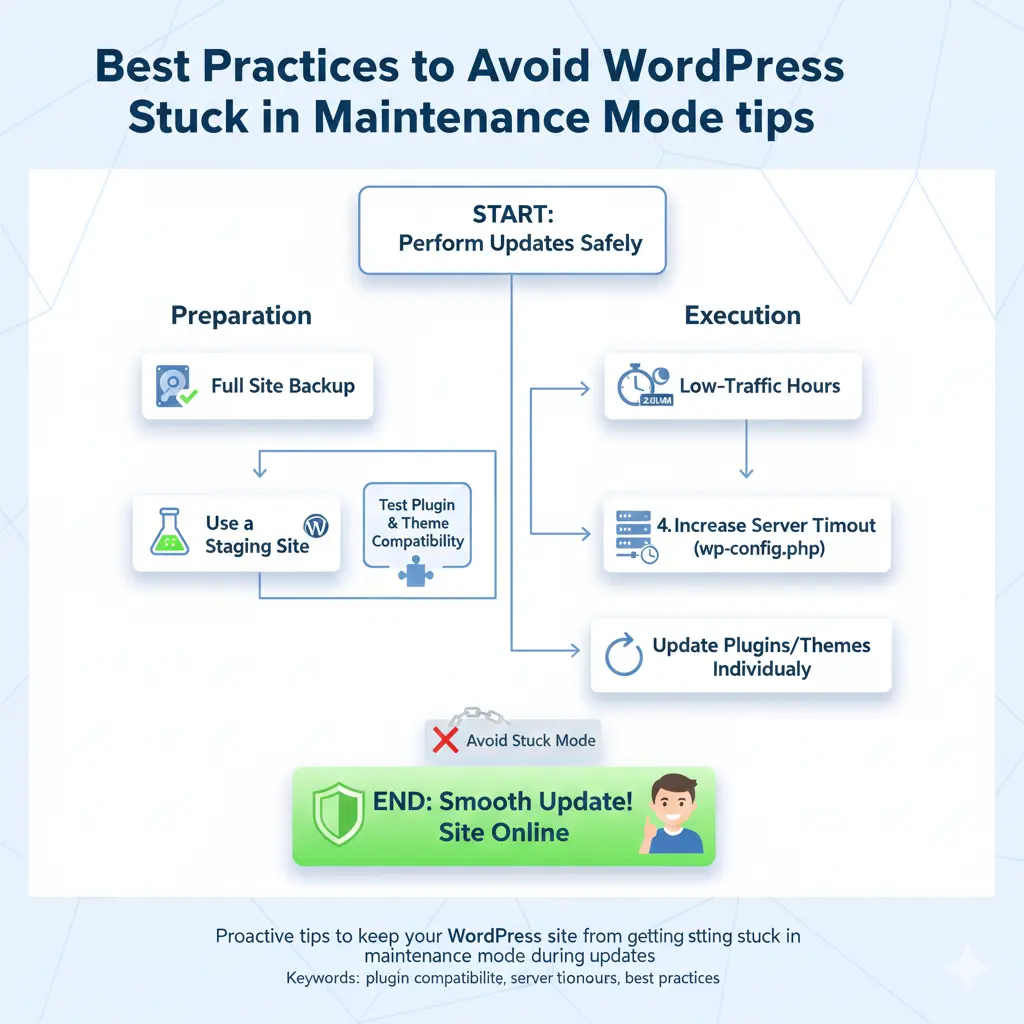
What Are the Best Practices to Prevent WordPress from Getting Stuck in Maintenance Mode Again?
Embrace individual updates over bulk ones—tackle one plugin or theme at a time to avoid overload. SeedProd recommends scheduling via the dashboard’s staggered approach, giving each breathing room. Always verify compatibility with your WordPress version beforehand.
Leverage reliable hosting with ample resources; managed plans include auto-updates that handle cleanups flawlessly. Enable site backups pre-update using UpdraftPlus, and test on staging environments. Clear caches post-change with plugins like WP Super Cache to dodge false locks.
Foster good habits like monitoring error logs weekly and using maintenance mode plugins for controlled downtimes. These layers of defense transform potential pitfalls into non-events, keeping your site resilient.
FAQs: Answering Your Top Questions About Fixing WordPress Stuck in Maintenance Mode
Frequent queries revolve around the “check back in a minute” message persisting hours—yes, delete the .maintenance file first. What if FTP fails? Try cPanel’s File Manager as a browser-based alternative. Is this a security breach? Rarely; it’s usually benign update fallout, but scan with Sucuri afterward.
For multisite setups, the fix applies per subdirectory, but core edits affect all. How long does it take? Under 10 minutes for basics, longer for plugin hunts. ThemeIsle FAQs stress prevention via auto-updates toggles in wp-config.php.
These nuggets demystify the chaos, empowering you to handle recurrences solo.
Delete the .maintenance file from your root directory via FTP—it’s the fastest unlock for most stuck modes.
Update plugins and themes one at a time to sidestep conflicts and server strain.
Boost PHP memory limits in wp-config.php if low resources keep triggering timeouts.
Use staging sites for testing changes, catching issues before they hit live.
Back up regularly with tools like Jetpack to rollback effortlessly if glitches arise.
In wrapping up this deep dive into rescuing your WordPress site from maintenance mode purgatory, remember that knowledge is your best defense. What starts as a simple update can snowball into downtime disaster, but armed with these steps—from zapping that pesky .maintenance file to auditing plugins—you’re equipped to bounce back swiftly. Countless site owners have turned frustration into triumph by prioritizing compatibility checks and resource tweaks, ensuring their digital homes stay welcoming.
Beyond fixes, prevention weaves the real magic. Adopting managed hosting and automated backups doesn’t just avert stuck modes; it frees you to focus on content that captivates. As WordPress evolves, so do its quirks—stay curious, update mindfully, and your site will thank you with unwavering uptime.
Ultimately, a stuck maintenance mode isn’t a dead end; it’s a nudge toward smarter management. Embrace these habits, and watch your online venture thrive without the shadows of unexpected locks. Here’s to seamless sites and stress-free updates!