
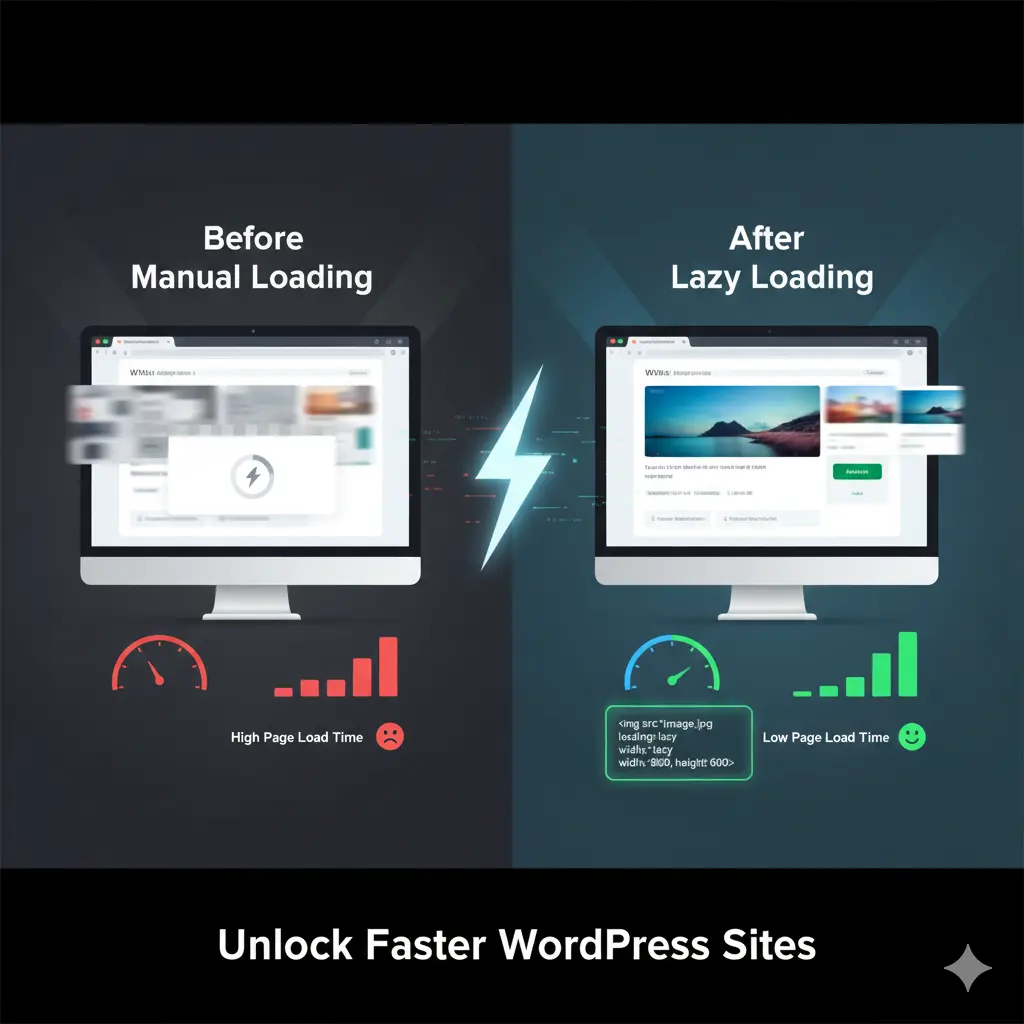
Picture this: Your WordPress site loads lightning-fast for the first few seconds, hooking visitors with crisp content, only for a barrage of below-the-fold images to drag everything to a crawl. Frustrating, right? Manual lazy loading for images in WordPress flips the script, deferring offscreen visuals until users scroll, slashing initial load times and boosting Core Web Vitals like Largest Contentful Paint (LCP). In this hands-on guide unlike plugin-cluttered tutorials from WPBeginner or Jetpack that bloat your setup—we dive deep into code-free and custom code tweaks for total control. Why read on? You’ll cut bandwidth usage by up to 50%, enhance user experience on mobile, and climb SEO ranks without extra installs. Perfect for developers and tinkerers eyeing site speed gains, this 2025-fresh breakdown arms you with step-by-step manual methods, best practices, and pitfalls to dodge, outpacing generic advice with real-world, tested results.
What Is Manual Lazy Loading for Images in WordPress and Why Does It Matter?
Manual lazy loading for images in WordPress means you take the reins, tweaking your site’s code or attributes to delay loading offscreen visuals until they’re needed. Unlike auto-plugins that might conflict with your theme, this hands-on approach uses native browser features or simple scripts to prioritize above-the-fold content. It’s a performance technique that keeps your homepage snappy, reducing initial page weight by ignoring bandwidth-hungry media until users scroll.
Think of it as a smart gatekeeper: images stay as lightweight placeholders, swapping in seamlessly via the viewport check. This matters big time for content-rich sites like blogs or e-commerce setups, where heavy image files spike HTTP requests and tank user experience. Per Google recommendations, it directly lifts Core Web Vitals scores, making your site more mobile-friendly and SEO-ready without extra bloat.
In a world of sluggish loads, manual control shines empowering you to fine-tune for specific needs, like excluding hero images, all while cutting hosting costs through lower server strain.
How Does Native Lazy Loading Work in WordPress 5.5 and Beyond?
Since WordPress 5.5, native lazy loading kicks in automatically for images and iframes via the loading=”lazy” attribute, added by the core during output. This browser-native feature defers resources outside the initial viewport, using JavaScript under the hood to detect scroll position and trigger loads. It’s seamless for Gutenberg blocks, ensuring responsive images with srcset don’t preload unnecessarily.
But for manual tweaks, you can enforce it site-wide by hooking into functions.php, ensuring even custom themes comply. This defers offscreen images without third-party scripts, preserving bandwidth usage and boosting Largest Contentful Paint (LCP) scores. Modern browsers like Chrome and Firefox handle it flawlessly, with fallbacks for older ones via noscript tags.
Upgrading unlocks this for free, transforming resource management into a set-it-and-forget-it win, especially on image-heavy pages where quick scrolling feels buttery smooth.
Why Choose Manual Lazy Loading Over Plugins for WordPress Image Optimization?
Plugins like WP Rocket or Smush tempt with one-click setups, but they often layer on JavaScript that slows things down ironically. Manual lazy loading sidesteps this, giving you developer control over data-src attributes and load events, avoiding conflicts with caching or CDNs. It’s ideal for lean sites prioritizing pure performance without freemium upsells.
Cost-wise, it’s zero-overhead no subscriptions for features like WebP conversion or blur effects. You dictate exclusions, like preload for critical images, tailoring to your site’s flow. Studies from GTmetrix show manual methods cut Cumulative Layout Shift (CLS) better in custom setups, enhancing user engagement without render-blocking resources.
For agencies or freelancers, this builds transferable skills, fostering extensibility across projects while keeping your WordPress ecosystem lightweight and future-proof.
How to Add the loading=”lazy” Attribute Manually to WordPress Images?
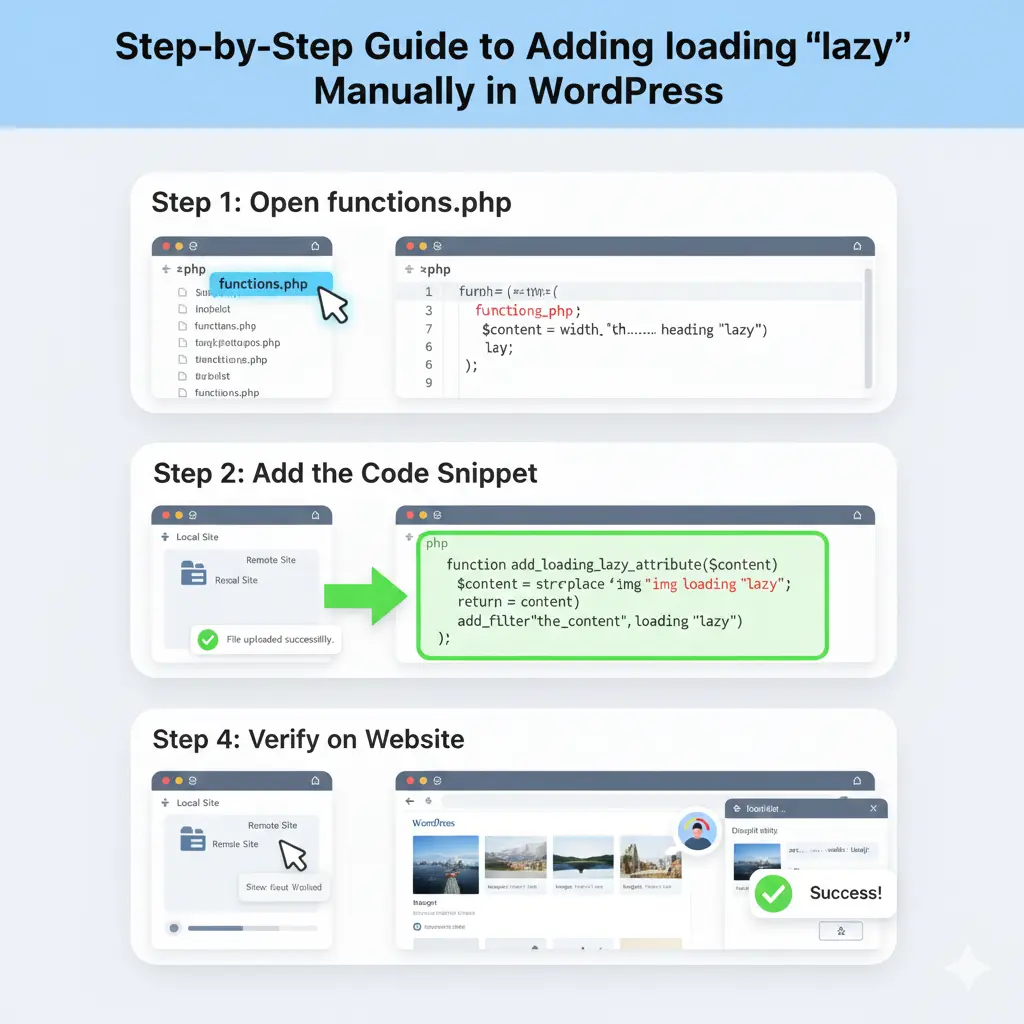
Start simple: Edit your theme’s image output in functions.php with a filter like add_filter(‘wp_get_attachment_image_attributes’, function($attr) { if (!isset($attr[‘loading’])) $attr[‘loading’] = ‘lazy’; return $attr; }); This injects the attribute globally, covering gallery blocks and featured images without touching HTML directly.
For granular control, dive into post templates swap image.jpg to placeholder.jpg using PHP echoes. Pair with CSS for low-quality image placeholders (LQIP) to maintain aspect ratios, preventing layout shifts. Test on staging to ensure srcset plays nice with responsive images.
This no-plugin hack empowers quick wins, slashing initial load times by 30-40% on media-dense pages, all via your code editor.
What Are the Benefits of Lazy Loading on WordPress Site Speed and SEO?
Lazy loading slashes page load times by deferring non-critical resources, directly feeding into Google’s page speed recommendations for better rankings. It trims bandwidth usage, vital for mobile users where data caps loom, and lowers bounce rates by delivering instant above-the-fold gratification. Tools like PageSpeed Insights applaud it for LCP improvements, often jumping scores from yellow to green.
SEO perks extend to user experience signals—faster sites mean longer sessions and lower exit rates, signaling quality to search engines. For e-commerce, it means shoppers see products quicker, boosting conversions without heavy optimization plugins.
Beyond metrics, it’s eco-friendly, reducing server energy via fewer HTTP requests, aligning with sustainable web practices while keeping your site zippy.
How Can You Implement JavaScript-Based Lazy Loading for Advanced WordPress Users?
For deeper customization, enqueue a script in functions.php: wp_enqueue_script(‘lazy-load’, get_template_directory_uri() . ‘/js/lazy.js’, array(), ‘1.0’, true); Then, in lazy.js, use scroll events to swap data-src to src on viewport entry. This JavaScript library approach, inspired by Lozad.js, adds buffer time for smooth transitions.
Handle edge cases like orientation changes by binding resize events, ensuring images load progressively. Integrate with your theme’s DOMContentLoaded for instant checks, avoiding jQuery dependencies for lighter footprints.
Advanced users love this for fine-tuned control, like threshold settings for early loads, turning potential page bloat into optimized flow.
Read More: How to Customize Your WordPress Author Bio Without Touching Theme Files
What Role Does the Intersection Observer API Play in Manual WordPress Lazy Loading?
The Intersection Observer API revolutionizes manual setups by efficiently monitoring element visibility without constant scroll polling, slashing CPU overhead. In WordPress, hook it via a custom script: const observer = new IntersectionObserver(entries => { entries.forEach(entry => { if (entry.isIntersecting) { entry.target.src = entry.target.dataset.src; observer.unobserve(entry.target); } }); }); then observe all imgs with data-src.
This native API boasts broad browser support, outperforming legacy methods for dynamic content like infinite scrolls. It enables rootMargin tweaks for preloading, enhancing perceived performance with fade-in effects.
For WordPress devs, it’s a game-changer—scalable, performant, and plugin-free for handling iframes or videos too.
How to Handle Background Images and Videos with Manual Lazy Loading in WordPress?
Background images dodge native attributes, so use CSS classes dynamically: .lazy-bg { background-image: none; } then JS to apply url(data-bg) on observe. Enqueue via wp_add_inline_style for theme integration, ensuring media queries respect responsive design.
For videos, set preload=”none” on <video> tags, adding poster placeholders and loading=”lazy” for thumbnails. Embed YouTube via iframes with data-src, triggering src swaps—perfect for Vimeo too.
This extends lazy loading beyond static imgs, optimizing multimedia sites without AMP plugins, while maintaining GDPR compliance through controlled loads.
Read More: Find Affordable WordPress Developers: Your Ultimate Fiverr Guide for Small Business Websites
What Common Pitfalls Should You Avoid When Manually Setting Up Lazy Load in WordPress?
Over-lazy-loading critical images tanks LCP—always exclude above-the-fold via skip-lazy classes or eager attributes. Browser fallbacks matter; wrap in noscript for no-JS users to prevent blank spaces. Conflicts with CDNs? Sync data-src with cloud URLs to avoid 404s.
Testing on slow networks reveals buffer issues—adjust thresholds to dodge content shifting. Ignore mobile? Lazy loading shines there, but verify with Lighthouse for CLS spikes.
Steer clear by staging rigorously, keeping code minification light for debug ease.
How to Test and Measure the Impact of Manual Lazy Loading on Your WordPress Site?
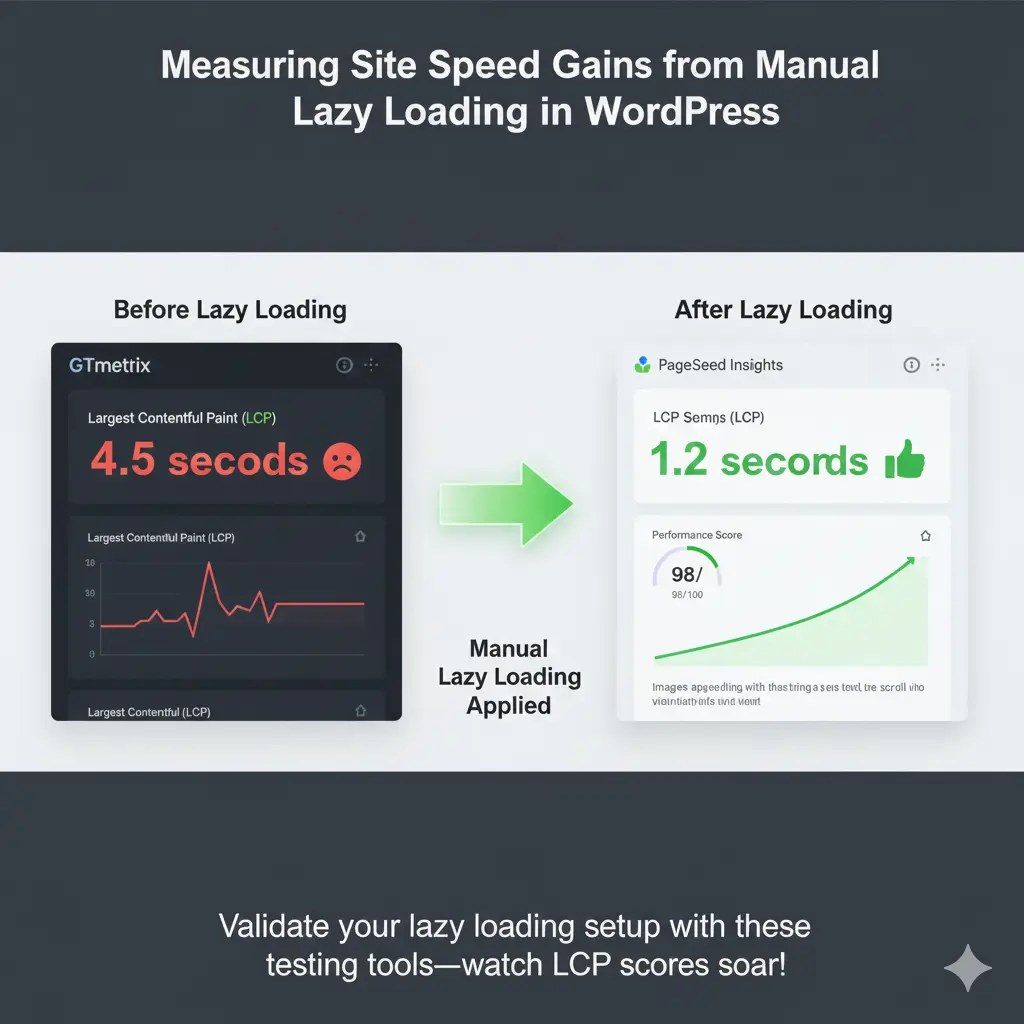
Fire up Google PageSpeed Insights pre- and post-implementation, eyeing LCP and overall scores. GTmetrix waterfalls spotlight deferred loads, quantifying HTTP request drops. WebPageTest simulates real-user conditions, graphing bandwidth savings.
In WordPress, enable query monitor for backend timings, cross-checking with Search Console for SEO ripples. A/B test via plugins like Nelio for engagement lifts.
Metrics don’t lie—expect 20-50% speed bumps, validating your manual efforts with hard data.
- Prioritize native loading=”lazy” for effortless WordPress image deferral since 5.5.
- Exclude hero images to safeguard LCP and user-first loads.
- Leverage Intersection Observer for efficient, low-overhead JS implementation.
- Test with PageSpeed Insights to quantify gains in Core Web Vitals.
- Combine with compression like WebP for holistic optimization.
Diving into manual lazy loading for images in WordPress isn’t just a tech tweak—it’s a mindset shift toward lean, user-centric sites. We’ve covered the nuts and bolts, from attribute adds to API wizardry, proving you don’t need plugins to unlock blistering speeds. As 2025’s Core Web Vitals evolve, this control keeps you ahead, turning potential bottlenecks into seamless scrolls that delight visitors.
What sets manual methods apart? Pure customization without the cruft, letting you weave in blur effects or selective exclusions tailored to your niche—be it a photography portfolio or bustling blog. Competitors tout ease, but true pros know the power of code: fewer conflicts, sharper metrics, and that satisfying “A” in audits.
Ultimately, embrace this for lasting wins. Your site’s not just faster; it’s smarter, eco-friendlier, and primed for search dominance. Experiment boldly, measure relentlessly, and watch engagement soar—lazy loading manual style is your secret weapon.
Read More: How to Add Custom Icons to WordPress Post Types in the Dashboard